
- 01What is SQL Server Configuration Manager?
- 02Open SQL Server Configuration Manager
- 03SQLServerManager MSC files by version
- 04Why SQL Server Configuration Manager is missing
- 05What to use SQL Server Configuration Manager for
- 06Use it instead of Windows Services for SQL service accounts
- 07Enable TCP/IP for SQL Server
- 08Ports, dynamic ports, and SQL Server Browser
- 09Client aliases
- 10Common SQL Server Configuration Manager problems
- 11Safe change checklist
- 12SQL Server Configuration Manager FAQ
sql server hub / configuration manager
SQL Server Configuration Manager
Use SQL Server Configuration Manager for SQL Server services, service accounts, startup parameters, network protocols, ports, and SQL Server Browser.
The common trap is simple: installing SSMS gives you Management Studio, not necessarily Configuration Manager. This page shows where the tool lives, which MSC file to run, and what to check before changing production settings.
What is SQL Server Configuration Manager?
SQL Server Configuration Manager is a Microsoft Management Console snap-in for SQL Server service and network settings. It is not SQL Server Management Studio. SSMS lets you connect to SQL Server, run queries, manage objects, check jobs, and do day-to-day database work. Configuration Manager handles the Windows-side SQL Server settings that often affect whether the instance starts and whether clients can connect.
The fastest way to open it is to run the matching SQLServerManagerXX.msc file. The number depends on the SQL Server version. SQL Server 2022 uses SQLServerManager16.msc. SQL Server 2019 uses SQLServerManager15.msc. Newer Windows versions may not show Configuration Manager as a normal Start menu app, so the MSC file is the cleaner route.
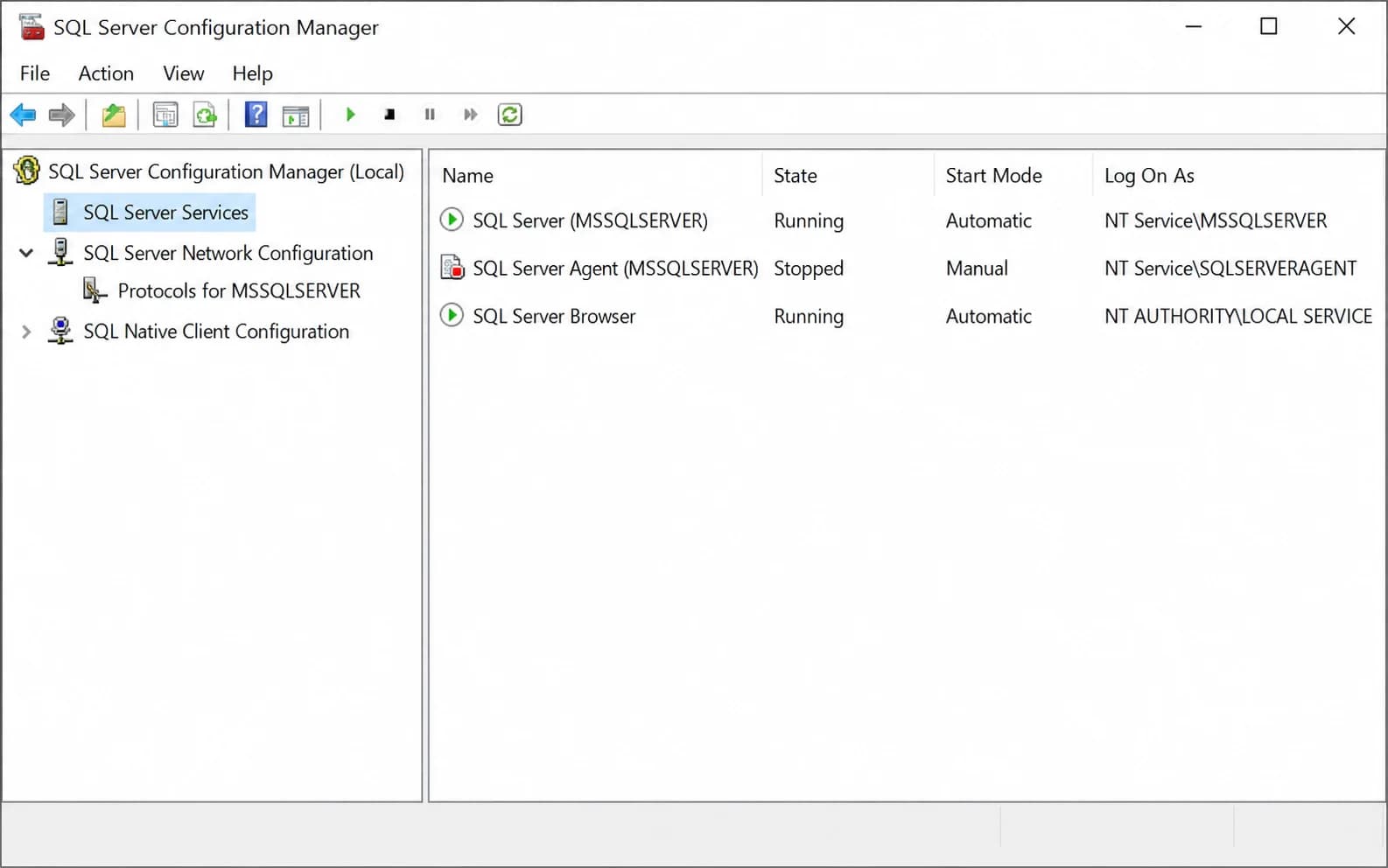
Open SQL Server Configuration Manager
Start with the SQL Server host, not a random admin workstation. If the Database Engine runs on a server and your laptop only has SSMS, Configuration Manager may not be present locally.
Use one of these paths: search the Start menu for the matching MSC file, open Run and type the MSC file name, browse to C:\Windows\SysWOW64, or open mmc.exe and add the SQL Server Configuration Manager snap-in.
Pinning the MSC file can save time on servers you manage often. Still, check the file name before assuming it matches the instance. A server can have older and newer SQL Server components installed side by side.
SQLServerManager MSC files by version
The MSC number follows the SQL Server major version. It does not follow the SSMS major version and it does not tell you which cumulative update is installed.
| SQL Server version | Major version | MSC file | Normal path |
|---|---|---|---|
| SQL Server 2025 | 17.x | SQLServerManager17.msc | C:\Windows\SysWOW64\SQLServerManager17.msc |
| SQL Server 2022 | 16.x | SQLServerManager16.msc | C:\Windows\SysWOW64\SQLServerManager16.msc |
| SQL Server 2019 | 15.x | SQLServerManager15.msc | C:\Windows\SysWOW64\SQLServerManager15.msc |
| SQL Server 2017 | 14.x | SQLServerManager14.msc | C:\Windows\SysWOW64\SQLServerManager14.msc |
| SQL Server 2016 | 13.x | SQLServerManager13.msc | C:\Windows\SysWOW64\SQLServerManager13.msc |
| SQL Server 2014 | 12.x | SQLServerManager12.msc | C:\Windows\SysWOW64\SQLServerManager12.msc |
| SQL Server 2012 | 11.x | SQLServerManager11.msc | C:\Windows\SysWOW64\SQLServerManager11.msc |
Why SQL Server Configuration Manager is missing
Most missing-tool cases come from one of two mistakes: SSMS was installed without SQL Server components, or the search is happening on the wrong machine. Configuration Manager is tied to the SQL Server installation. It is not a separate SSMS feature.
This is also why copying an MSC file from another server is a bad troubleshooting shortcut. The file is only the console entry point. The useful work depends on the SQL Server installation, WMI registration, local permissions, and the services present on that machine.
If the server really does not have the required SQL Server components, get the installer or media from Microsoft's SQL Server downloads page. Use that to install or repair SQL Server on the right machine. Do not treat it as a separate Configuration Manager download.
| Cause | What to check |
|---|---|
| Only SSMS is installed | SSMS is the query and administration tool. Configuration Manager is installed with SQL Server components, not by the SSMS installer alone. |
| Wrong computer | You may be checking a workstation while the Database Engine runs on a server. Open it on the SQL Server host or use remote management where that is configured. |
| Wrong version number | The number in SQLServerManagerXX.msc follows the SQL Server major version. It does not follow the SSMS version. |
| Incomplete install | Some lightweight or failed installs leave the expected snap-in missing. Check installed SQL Server components before copying files around. |
| WMI problem | Configuration Manager uses WMI for several settings. Broken WMI registration or permissions can leave services empty or unreachable. |
| Server Core or locked-down server | The tool may need to be opened remotely from an admin workstation with the right SQL Server management components and permissions. |
What to use SQL Server Configuration Manager for
Use Configuration Manager when the change is about SQL Server as a Windows service or about how SQL Server listens for connections. It is the right tool for service accounts, service startup behavior, startup parameters, SQL Server Browser, and server network protocols.
It is not where you create tables, tune indexes, check query plans, or manage database objects. Use SSMS for that. The split matters because people often install one tool and expect it to include the other.
| Area | Use Configuration Manager for |
|---|---|
| SQL Server services | Start, stop, restart, pause, resume, and review service properties for Database Engine, Agent, Browser, and related SQL components. |
| Startup behavior | Set startup type and configure Database Engine startup parameters when a supported troubleshooting or recovery step requires it. |
| Service accounts | Change SQL Server and SQL Server Agent accounts through the SQL-aware tool instead of plain Windows Services. |
| Server protocols | Enable or disable TCP/IP, Named Pipes, and Shared Memory for a specific SQL Server instance. |
| Ports and IP settings | Review dynamic ports, static ports, IPAll, enabled IP addresses, and listen behavior before changing application connection paths. |
| Client protocols and aliases | Review client protocol order and aliases on versions where Configuration Manager still supports that work. |
Use it instead of Windows Services for SQL service accounts
For SQL Server and SQL Server Agent service accounts, use SQL Server Configuration Manager. It handles SQL-specific settings that plain Windows Services does not always handle. That includes permissions, registry access, and related Windows local security store updates that the Database Engine needs after the account changes.
Changing the account in Windows Services can leave the Database Engine unable to read required SQL Server settings. The ugly version of this problem is a service that starts only after someone adds the service account to local Administrators. That is not a good fix. It usually means the account change was done without the SQL-specific work around it.
In real environments, also check file access, backup locations, SQL Agent jobs, proxies, linked services, SPNs, Kerberos use, group policy, and restart timing before changing an account. Service account work is security work and availability work at the same time.
Enable TCP/IP for SQL Server
To enable TCP/IP, open SQL Server Configuration Manager, expand SQL Server Network Configuration, select Protocols for the target instance, right-click TCP/IP, and choose Enable. Then restart the SQL Server service for that instance. For a named instance, also restart SQL Server Browser.
Do not stop at the Enable button. Check the IP Addresses tab, especially IPAll, TCP Dynamic Ports, and TCP Port. If the instance is named, confirm how clients find it. If the server firewall blocks the active port, enabling TCP/IP will not be enough.
If a connection problem started after a move, patch, restore, or server rename, compare the instance name, listener name, DNS record, and port before changing more settings. The failed connection string often points at an old name or a named instance that no longer resolves the way the application expects.
For production, record the old values first. A protocol change can affect application servers, reports, linked servers, ETL jobs, monitoring probes, backup tools, and vendor integrations.
Ports, dynamic ports, and SQL Server Browser
SQL Server connectivity is not just "TCP/IP enabled". The instance needs to listen on a port, the firewall must allow that port, and clients must know where to connect.
Dynamic ports can work, but they are awkward for locked-down servers because the active port can change after restart. A static port is easier to document and easier to allow through a firewall. Named instances often use SQL Server Browser so clients can discover the current port from the instance name.
| Setting | Practical meaning |
|---|---|
| Default instance | Normally connects as server name only and usually listens on TCP 1433 when a static default port is configured. |
| Named instance | Connects as server\instance. It may use a dynamic port unless a static port is configured. |
| TCP Dynamic Ports | A value here means SQL Server can choose a port. That can be fine internally, but it complicates firewall and application rules. |
| TCP Port | A fixed value here gives applications and firewalls a stable target. Confirm the chosen port is not already used. |
| SQL Server Browser | Helps clients discover named instance ports. It is not a replacement for correct firewall rules or a working SQL Server service. |
Client aliases
Client aliases let a computer connect to SQL Server through a local alias instead of the real server and instance name. They can be useful during migrations, application moves, or older vendor setups where connection strings are hard to change.
Treat aliases carefully. They can hide where an application really connects, and they are easy to forget during server moves. Check both 32-bit and 64-bit client configuration if an older application behaves differently from a modern tool.
Microsoft notes that SQL Server 2022 and later do not support creating aliases in SQL Server Configuration Manager. Use SQL Server Client Network Utility for that work on current versions.
Common SQL Server Configuration Manager problems
The tool is small, but the settings behind it are not harmless. Most problems come from version confusion, WMI trouble, changing the wrong instance, or forgetting that protocol changes need a service restart.
SQLServerManagerXX.msc is not found
Check whether SQL Server is installed on that machine, then check the correct version number under C:\Windows\SysWOW64. Installing SSMS alone is not enough.
SQL Server Services is empty
This is usually a WMI, permission, remote-management, or broken install issue. Confirm you are elevated, on the right host, and using a matching SQL Server management component.
TCP/IP is enabled but connections still fail
Restart the SQL Server service, confirm the active port, check Windows Firewall, check named instance routing, and verify the application is connecting to the right instance name.
The service will not start after an account change
Review file permissions, registry access, SPNs, password state, group policy, backup paths, and any dependent jobs. Avoid fixing this by making the service account a local administrator.
The certificate tab seems to be missing
Open SQL Server Network Configuration, right-click Protocols for the instance, then check Properties. Do not assume the tool version is wrong before checking the correct node.
The wrong instance was changed
Default and named instances have separate protocol nodes. Confirm the instance name before enabling protocols, changing ports, or restarting services.
Safe change checklist
If you are only looking, look. If you are changing service accounts, protocols, ports, or startup parameters, slow down and capture the current state first. Configuration Manager changes can be simple, but they sit close to service availability.
- 1
Confirm the SQL Server host, instance name, and SQL Server version.
- 2
Record the current service account and SQL Server Agent account.
- 3
Record current TCP/IP state, dynamic port value, static port value, IPAll settings, and enabled IP addresses.
- 4
Check whether this is production, a reporting server, a DR replica, or a test instance.
- 5
Confirm who depends on the connection path before changing ports, protocols, or SQL Server Browser behavior.
- 6
Plan the restart window. Enabling TCP/IP and many port changes do not matter until the Database Engine restarts.
- 7
Keep a rollback note with the original setting values and the service restart result.
SQL Server Configuration Manager FAQ
Is SQL Server Configuration Manager part of SSMS?
+
No. SSMS is SQL Server Management Studio. Configuration Manager is a SQL Server component and MMC snap-in. Installing SSMS alone does not install the Database Engine or guarantee Configuration Manager is present.
Can I download SQL Server Configuration Manager separately?
+
Normally, no. It is installed automatically with SQL Server. If the tool is missing because SQL Server components are not installed on that machine, use Microsoft's SQL Server downloads page to get the current SQL Server installer or media, then install the required SQL Server components on the correct host.
Where is SQL Server Configuration Manager on Windows 11?
+
Use Start search or Run with the matching SQLServerManagerXX.msc file. The files are normally under C:\Windows\SysWOW64, such as SQLServerManager16.msc for SQL Server 2022.
Which SQLServerManager file should I use?
+
Use the file that matches the SQL Server major version you manage. SQL Server 2025 uses SQLServerManager17.msc, SQL Server 2022 uses SQLServerManager16.msc, and SQL Server 2019 uses SQLServerManager15.msc.
Do I need to restart SQL Server after enabling TCP/IP?
+
Yes. Enabling TCP/IP or changing the SQL Server port requires a Database Engine service restart before the new listener setting is active.
Should I use Windows Services instead?
+
Use Windows Services only for simple service status checks when needed. Use SQL Server Configuration Manager for SQL Server service accounts, startup parameters, and SQL Server-specific service settings.
Why is SQL Server Browser separate?
+
SQL Server Browser helps clients locate named instances and their ports. It is a separate service because instance discovery is different from the Database Engine service itself.
Next step
If service accounts, protocols, ports, Browser behavior, hardening, and health checks are starting to overlap, use the SQL Server health check guide or request a review.
Next useful reads: SSMS downloads for Management Studio, SQL Server hardening for service-account and exposure checks, and SQL Server patching for planned change work.