
SSMS offline installation requirements and component selection
SSMS 22 uses the Visual Studio Installer; earlier standalone releases use a different installation process. The SSMS versions and downloads reference links to the available installers. Record the bootstrapper version and whether its download URL identifies a fixed release or follows the latest release.
The layout and destination installation must use the same version, language and component selection. Record these settings and the installation location with the package so that the offline workstation requests only files included in the layout.
The examples create an English layout containing Integration Services and Reporting Services management components. Microsoft lists the available workload and component IDs. These components provide management tools; they do not install SSIS or SSRS server services.
The destination must meet the SSMS system requirements. Disk-space planning includes the layout, installed files and temporary setup files. Pending restarts and concurrent installer operations can also affect setup.
Create an SSMS 22 offline installation layout
Download the Microsoft bootstrapper and check its signature and version. Run the following command from an elevated Command Prompt in its directory. Microsoft specifies an installation path shorter than 80 characters for local layouts. This operation downloads the selected packages; installation on the destination is a separate step.
vs_SSMS.exe --layout "C:\Install\SSMS22" --lang en-US --add Microsoft.SSMS.Component.IS --add Microsoft.SSMS.Component.RS --includeRecommendedThe destination installation uses the same component IDs and --includeRecommended selection as layout creation. Additional features, such as Analysis Services management, must be included in the downloaded layout before transfer.
After layout creation completes, check the return code and logs. Transfer the bootstrapper, manifests, package subdirectories and certificate directory together. An existing layout directory can contain an incomplete download.
The --all option creates a complete layout including all languages. A component-specific layout requires less transfer space when the destination requirements are known. See Microsoft's offline-layout procedure and SSMS command examples.
Verify and transfer the complete SSMS layout
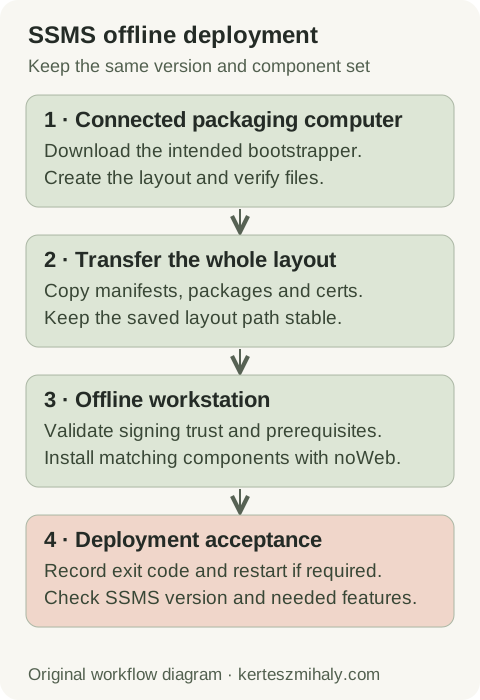
- Create and verify the package on the connected computer.
- Transfer every layout file and verify the destination copy.
- Check signing trust and prerequisites before installing the saved component selection.
- Check the exit code, required restart, installed release and management features.
Run layout verification on the connected computer before transfer. Missing or damaged packages can then be downloaded again. These commands verify and repair the layout files, rather than an installed SSMS instance.
vs_SSMS.exe --layout "C:\Install\SSMS22" --verify

REM If verification reports missing or corrupt files:
vs_SSMS.exe --layout "C:\Install\SSMS22" --fix
--verify reports missing or damaged files. --fix downloads replacement files and therefore requires internet access. Microsoft describes both options in the command-line reference.
Copy the complete verified directory to a stable local path on the test workstation, using the organization's transfer process. Verify the destination copy to detect missing files or transfer corruption.
The installer records the layout location for maintenance. Retaining that location simplifies updates and component changes. The deployment record should identify the maintained package location and its administrator.
Check SSMS installer signing certificates
SSMS setup validates package signatures. A disconnected workstation with missing signing certificates can fail during bootstrapper validation, sometimes before the installer opens. Installer signing trust is separate from SQL Server TLS validation.
Microsoft's offline certificate instructions identify the certificates supplied with the layout and the Microsoft Windows Code Signing PCA 2024 certificate required for relevant signature failures. Install the specified certificates in the appropriate local-machine stores, subject to the organization's certificate policy.
Signature validation should remain enabled. Trust certificates must come from the specified Microsoft sources. On managed workstations, deployment through the Windows administration process provides consistent local-machine trust; a certificate imported into one user profile may be unavailable to the setup account.
The offline instructions also specify Visual C++ v14 x86 and x64 redistributables. Record the workstation image and prerequisite versions used for testing. Differences in prerequisites or certificate stores can explain why the same layout installs on one workstation and fails on another.
Run SSMS silent installation and capture the exit code
Run setup with elevation on the destination. A visible or passive test installation allows inspection of component selection and prerequisite errors before silent deployment to additional workstations.
"C:\Install\SSMS22\vs_SSMS.exe" --noWeb --addProductLang en-US --add Microsoft.SSMS.Component.IS --add Microsoft.SSMS.Component.RS --includeRecommended --quiet --wait --norestart
echo %ERRORLEVEL%
This example uses Command Prompt; PowerShell uses different syntax to invoke a quoted executable path. The component IDs match the layout command. --lang downloads layout language resources, whereas --addProductLang selects the installed language. Changes to the selection require corresponding changes to the layout.
--quiet suppresses interaction, --wait waits for setup completion, and --norestart suppresses an automatic restart. Capture the exit code immediately after setup. Deployment tools should distinguish successful installation requiring a restart from failure.
| Exit code | Interpretation | Next check |
|---|---|---|
| 0 | Setup succeeded | Launch and verify SSMS |
| 3010 | Setup succeeded; restart required | Schedule restart, then validate |
| 740 | Elevation required | Correct execution context |
| 1618 | Another installation is active | Resolve installer overlap |
| 5005 | Command-line parse failure | Check arguments and quoting |
| 8005 | Source payload verification failure | Inspect package and logs |
Microsoft publishes the complete installer return-code list. Exit code 0 indicates successful setup. Connection tests and required management features are checked after installation.
How --noWeb affects SSMS offline setup
--noWeb prevents setup from downloading product packages. A requested component missing from the layout causes failure. It does not universally prevent an internet-connected Visual Studio Installer from checking Microsoft-hosted update channels.
Package download behavior and update-channel access are separate settings. A disconnected deployment test requires a disconnected workstation and supported update-source configuration. An online installation using --noWeb checks package selection but does not establish offline operation.
--noUpdateInstaller prevents an installer update. A quiet operation can fail if the installed installer version requires an update. Check this behavior during the test deployment, using the bootstrapper distributed with the layout.
Troubleshoot SSMS installation logs and package errors
For each failed installation, record the exit code, command, account, layout version and time. Setup logs are written to the setup account's temporary directory. Microsoft lists the ssms_bootstrapper, ssms_client and ssms_setup prefixes; Visual Studio setup diagnostics may also contain dd_ logs. Signature errors identify the affected package and certificate.
Get-ChildItem -LiteralPath $env:TEMP -File |
    Where-Object Name -match '^(ssms_(bootstrapper|client|setup)|dd_).*\.log$' |
    Sort-Object LastWriteTime -Descending |
    Select-Object -First 5 Name, LastWriteTime, FullName
The temporary folder depends on the account running setup. A deployment service account may not use your interactive user's folder. For a complete collection, Microsoft's installation troubleshooting procedure uses the Visual Studio log collector and explains how to collect another account's logs.
- Missing component: compare the install selection with the saved layout command, then recreate or extend the layout on the connected machine.
- Invalid certificate: inspect signing trust and follow the certificate procedure; rebuilding identical files will not refresh the workstation's trust store.
- Immediate silent exit: inspect bootstrapper logs, elevation, prerequisites and installer overlap.
- Update download attempt: check whether the request is for a missing product package or an installer/channel update.
Collect the logs before modifying or uninstalling an existing SSMS release. Reproduce the failure on an isolated, supported workstation with a verified layout, then change one setting at a time. This preserves the information needed for escalation.
Validate SSMS and maintain the offline layout
After any required restart, launch SSMS and check Help → About. Connect to a test instance, run a read-only query and open the required management features. Record the installed release and components, then repeat deployment through the account and tool used for the wider rollout.
Offline updates require a layout containing the installed component set and the procedure in Microsoft's update instructions. Retain the previous package and a workstation recovery procedure; installing a newer layout does not provide an automatic downgrade.
Connection failures after SSMS starts are investigated separately from setup. SSMS uses SqlClient, so an ODBC installation does not change its provider. Microsoft documents the SSMS connection and encryption settings. Related references cover network and instance discovery, certificate validation and SQL Server errors. Engine upgrades are covered in upgrade planning; remote SQL Server upgrade support is available for coordinated changes.
SSMS offline installation questions
Is the SSMS bootstrapper a complete offline installer?
For SSMS 22, vs_SSMS.exe is the bootstrapper. It downloads the product packages when creating a layout on a connected computer. The executable alone does not contain the packages needed for offline installation.
Can I use Download all, then install on another computer?
Microsoft documents this option for download and installation on the same computer. A transferable package for disconnected workstations uses a command-line local layout. See the two Microsoft installation workflows.
Why does an offline SSMS installer close without a message?
The bootstrapper log may identify a signature-validation error such as InvalidCertificate. Check the specified signing certificates and Visual C++ prerequisites on the destination. Layout verification checks package integrity; signing trust depends on the workstation's certificate stores.