
Microsoft ODBC Driver for SQL Server downloads and versions
The release tables list Microsoft ODBC Driver installers by version and architecture. Driver installation updates the client layer, separately from database-engine servicing.
Last checked 11 October 2026 · Microsoft downloads
| Driver family | Version | Released | Windows installers | Release notes |
|---|---|---|---|---|
| 18.x Latest GA | 18.7.1.1 | September 7, 2026 | Notes for 18.7.1.1 | |
| 17.x Newest listed in this family | 17.11.1.1 | April 30, 2026 | Notes for 17.11.1.1 |
Older versions are listed for application compatibility and version lookup. Listing a release does not establish its current support status. Verify the downloaded package version and Microsoft signature before installation.
Previous ODBC driver versions and downloads 73 releases
73 of 73 release records. Separate searches with a semicolon.
| Version | Platform | Released | Downloads | Release notes |
|---|---|---|---|---|
| 18.7.1 | Linux / macOS | September 2026 | Notes for 18.7.1 | |
| 18.6.2 | Linux / macOS | March 2026 | Notes for 18.6.2 | |
| 18.6.1 | Linux / macOS | December 2025 | Notes for 18.6.1 | |
| 18.5.1 | Linux / macOS | March 2025 | Notes for 18.5.1 | |
| 18.4.1 | Linux / macOS | July 2024 | Notes for 18.4.1 | |
| 18.3.3 | Linux / macOS | April 2024 | Notes for 18.3.3 | |
| 18.3.2 | Linux / macOS | October 2023 | Notes for 18.3.2 | |
| 18.3.1 | Linux / macOS | July 2023 | Notes for 18.3.1 | |
| 18.2.2 | Linux / macOS | June 2023 | Microsoft release notes | Notes for 18.2.2 |
| 18.2 | Linux / macOS | January 2023 | Notes for 18.2 | |
| 18.1.2 | Linux / macOS | November 2022 | Notes for 18.1.2 | |
| 18.1 | Linux / macOS | August 2022 | Notes for 18.1 | |
| 18.0 | Linux / macOS | February 2022 | Notes for 18.0 | |
| 17.11.1 | Linux / macOS | April 2026 | Notes for 17.11.1 | |
| 17.10.6 | Linux / macOS | April 2024 | Microsoft release notes | Notes for 17.10.6 |
| 17.10.5 | Linux / macOS | October 2023 | Microsoft release notes | Notes for 17.10.5 |
| 17.10.4 | Linux / macOS | June 2022 | Microsoft release notes | Notes for 17.10.4 |
| 17.10.2 | Linux / macOS | November 2022 | Microsoft release notes | Notes for 17.10.2 |
| 17.10 | Linux / macOS | June 2022 | Microsoft release notes | Notes for 17.10 |
| 17.9 | Linux / macOS | February 2022 | Notes for 17.9 | |
| 17.8.1.2 | Linux / macOS | October 2021 | Microsoft release notes | Notes for 17.8.1.2 |
| 17.8 | Linux / macOS | July 2021 | Notes for 17.8 | |
| 17.7.2 | Linux / macOS | March 2021 | Notes for 17.7.2 | |
| 17.7 | Linux / macOS | January 2021 | Notes for 17.7 | |
| 17.6 | Linux / macOS | July 2020 | Notes for 17.6 | |
| 17.5.2.2 | Linux / macOS | April 2020 (Alpine Linux only) | Notes for 17.5.2.2 | |
| 17.5.2 | Linux / macOS | March 2020 | Notes for 17.5.2 | |
| 17.5 | Linux / macOS | January 2020 | Notes for 17.5 | |
| 17.4.2 | Linux / macOS | October 2019 | Microsoft release notes | Notes for 17.4.2 |
| 17.4 | Linux / macOS | August 2019 | Microsoft release notes | Notes for 17.4 |
| 17.3 | Linux / macOS | February 2019 | Microsoft release notes | Notes for 17.3 |
| 17.2 | Linux / macOS | July 2018 | Microsoft release notes | Notes for 17.2 |
| 17.1 | Linux / macOS | March 2018 | Microsoft release notes | Notes for 17.1 |
| 13.1 | Linux / macOS | May 2017 | Microsoft release notes | Notes for 13.1 |
| 13.0 | Linux / macOS | Not listed | Microsoft release notes | Notes for 13.0 |
| 11 | Linux / macOS | Not listed | Microsoft release notes | Notes for 11 |
| 18.7.1.1 | Windows | September 7, 2026 | Notes for 18.7.1.1 | |
| 18.6.2.1 | Windows | March 31, 2026 | Notes for 18.6.2.1 | |
| 18.6.1.1 | Windows | December 17, 2025 | Notes for 18.6.1.1 | |
| 18.5.2.1 | Windows | September 26, 2025 | Notes for 18.5.2.1 | |
| 18.5.1.1 | Windows | March 17, 2025 | Notes for 18.5.1.1 | |
| 18.4.1.1 | Windows | July 31, 2024 | Notes for 18.4.1.1 | |
| 18.3.3.1 | Windows | April 9, 2024 | Notes for 18.3.3.1 | |
| 18.3.2.1 | Windows | October 10, 2023 | Notes for 18.3.2.1 | |
| 18.3.1.1 | Windows | July 31, 2023 | Notes for 18.3.1.1 | |
| 18.2.2.1 | Windows | June 15, 2023 | Notes for 18.2.2.1 | |
| 18.2.1.1 | Windows | January 31, 2023 | Notes for 18.2.1.1 | |
| 18.1.2.1 | Windows | November 3, 2022 | Notes for 18.1.2.1 | |
| 18.1.1.1 | Windows | August 8, 2022 | Notes for 18.1.1.1 | |
| 18.0.1.1 | Windows | February 15, 2022 | Notes for 18.0.1.1 | |
| 17.11.1.1 | Windows | April 30, 2026 | Notes for 17.11.1.1 | |
| 17.10.6.1 | Windows | April 9, 2024 | Notes for 17.10.6.1 | |
| 17.10.5.1 | Windows | October 10, 2023 | Notes for 17.10.5.1 | |
| 17.10.4.1 | Windows | June 15, 2023 | Notes for 17.10.4.1 | |
| 17.10.3.1 | Windows | January 26, 2023 | Notes for 17.10.3.1 | |
| 17.10.2.1 | Windows | November 28, 2022 | Notes for 17.10.2.1 | |
| 17.10.1.1 | Windows | June 30, 2022 | Notes for 17.10.1.1 | |
| 17.9.1.1 | Windows | February 17, 2022 | Notes for 17.9.1.1 | |
| 17.8.1.1 | Windows | July 30, 2021 | Notes for 17.8.1.1 | |
| 17.7.2.1 | Windows | March 10, 2021 | Notes for 17.7.2.1 | |
| 17.7.1.1 | Windows | January 29, 2021 | Notes for 17.7.1.1 | |
| 17.6.1.1 | Windows | July 31, 2020 | Notes for 17.6.1.1 | |
| 17.5.2.1 | Windows | March 6, 2020 | Notes for 17.5.2.1 | |
| 17.5.1.1 | Windows | January 31, 2020 | Notes for 17.5.1.1 | |
| 17.4.2.1 | Windows | October 2019 | Notes for 17.4.2.1 | |
| 17.4.1.1 | Windows | July 2019 | Notes for 17.4.1.1 | |
| 17.3.1.1 | Windows | February 2019 | Notes for 17.3.1.1 | |
| 17.2.0.1 | Windows | July 2018 | Notes for 17.2.0.1 | |
| 17.1.0.1 | Windows | March 2018 | Notes for 17.1.0.1 | |
| 17.0.1.1 | Windows | February 2018 | Notes for 17.0.1.1 | |
| 13.1 | Windows | Not listed | Notes for 13.1 | |
| 13 | Windows | Not listed | Notes for 13 | |
| 11 | Windows | Not listed | Notes for 11 |
ODBC packages for Linux and macOS
Linux/macOS release numbers and dates follow their own Microsoft notes. The archive includes published Alpine driver packages and PGP signatures; distribution and macOS support depend on the release. Use the installation instructions to select the correct repository and architecture.
Linux installation · macOS installation
Microsoft Linux package repositories
- Debian · Debian 13 .deb packages: v17
- Debian · Debian 13 .deb packages: v18
- Debian · Debian 12 .deb packages: v17
- Debian · Debian 12 .deb packages: v18
- Debian · Debian 11 .deb packages: v17
- Debian · Debian 11 .deb packages: v18
- Debian · Debian 10 .deb packages: v17
- Debian · Debian 10 .deb packages: v18
- Debian · Debian 9 .deb packages: v17
- Debian · Debian 9 .deb packages: v18
- Debian · Debian 8 .deb packages: v13
- Debian · Debian 8 .deb packages: v17
- Azure Linux · Azure Linux 3.0 .rpm packages
- Red Hat · Red Hat 10 .rpm packages
- Red Hat · Red Hat 9 .rpm packages
- Red Hat · Red Hat 8 .rpm packages
- Red Hat · Red Hat 7 .rpm packages
- Red Hat · Red Hat 6 .rpm packages
- SUSE · SUSE 16 .rpm packages
- SUSE · SUSE 15 .rpm packages
- SUSE · SUSE 12 .rpm packages
- SUSE · SUSE 11 .rpm packages
- Ubuntu · Ubuntu 26.04 .deb packages: v18
- Ubuntu · Ubuntu 25.10 .deb packages: v17
- Ubuntu · Ubuntu 25.10 .deb packages: v18
- Ubuntu · Ubuntu 24.04 .deb packages: v17
- Ubuntu · Ubuntu 24.04 .deb packages: v18
- Ubuntu · Ubuntu 22.04 .deb packages: v17
- Ubuntu · Ubuntu 22.04 .deb packages: v18
- Ubuntu · Ubuntu 20.04 .deb packages: v17
- Ubuntu · Ubuntu 20.04 .deb packages: v18
- Ubuntu · Ubuntu 18.04 .deb packages: v17
- Ubuntu · Ubuntu 18.04 .deb packages: v18
- Ubuntu · Ubuntu 16.04 .deb packages: v13
- Ubuntu · Ubuntu 16.04 .deb packages: v17
- Ubuntu · Ubuntu 14.04 .deb packages: v13
- Ubuntu · Ubuntu 14.04 .deb packages: v17
Release history from Windows release notes · Microsoft downloads · Linux/macOS release notes. Refreshed through the scheduled SQL reference sync.
Driver 18 is the current family for new development, subject to application-vendor requirements. Driver 17 and 18 can coexist for migration testing. A connection explicitly requesting Driver 17 continues using that family after Driver 18 is installed. Servicing releases within a major family replace the installed release. See Microsoft's download and installation details.
Which ODBC driver works with SQL Server 2019, 2022 or 2025?
Driver and engine versions use separate numbering. Microsoft lists Driver 18.7 compatibility with SQL Server 2017, 2019, 2022 and 2025, Azure SQL Database and Managed Instance. Compatibility and client OS requirements are checked for the exact release. Driver compatibility does not extend engine support lifecycles. See the Windows compatibility and installation requirements.
Microsoft ODBC Driver vs SQL Server Native Client
The older SQL Server and SQL Server Native Client 11.0 entries are different drivers. Microsoft recommends the current ODBC driver for new applications. Native Client is no longer shipped with SQL Server 2022 or later or SSMS 19 or later. Existing applications may retain dependencies requiring migration tests before removal. See Microsoft's Native Client guidance.
Choose the correct 32-bit or 64-bit ODBC driver
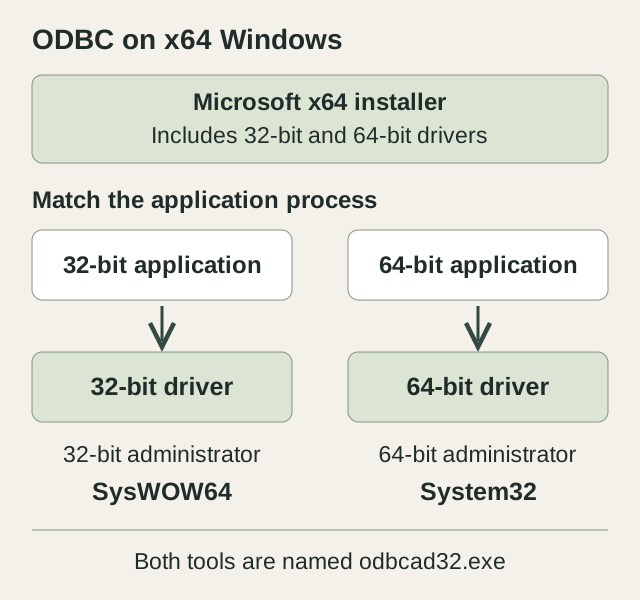
Installer architecture follows the operating system; driver architecture follows the application process. A 32-bit application on 64-bit Windows requires the 32-bit driver and matching DSN configuration.
Microsoft's x64 and ARM64 installers contain both 64-bit and 32-bit Windows drivers. The x86 installer is for a 32-bit host. System DSN registrations are architecture-specific. See Microsoft's installer architecture information.
# 64-bit ODBC administrator
C:\Windows\System32\odbcad32.exe

# 32-bit ODBC administrator
C:\Windows\SysWOW64\odbcad32.exe
On 64-bit Windows, System32 contains the 64-bit ODBC administrator and SysWOW64 the 32-bit administrator. The Drivers tab lists registrations for that architecture. The application may use a User DSN, System DSN or DSN-less connection.
A User DSN belongs to a Windows user profile; a service or scheduled task running as another account may not have that DSN. User DSNs appear in both administrator tools, but they still need a driver matching the application's architecture. System DSNs have separate 32-bit and 64-bit registrations. Reproduce the failure under the application's execution account and record its process architecture, requested driver, DSN type and server address. Microsoft's DSN and driver checks.
Check the installer before transferring it
For an offline application host, obtain the installer on a connected machine through the deployment process. Record the version and Microsoft source, and inspect the digital signature before transfer.
Get-AuthenticodeSignature -LiteralPath 'C:\Install\msodbcsql.msi' |
    Select-Object Status, StatusMessage, SignerCertificate
Substitute the downloaded file path and inspect its signature result. Prerequisites depend on release: Microsoft states that 18.6 and earlier require the matching Visual C++ Redistributable, while 18.7 does not require it to be preinstalled. Test the same package files intended for deployment.
Install Microsoft ODBC Driver for SQL Server on Windows
The Windows MSI requires local administrator rights on the application host. Package architecture and prerequisites depend on the release. DSN creation and connection settings are configured separately.
- Download the required Driver 18 or 17 MSI from the Microsoft links above. Check the file's signature and the application vendor's supported driver family.
- Run the MSI, review its license terms and complete setup. The runtime components are needed by applications; SDK headers are for development.
- Open the ODBC administrator matching the application's architecture. Confirm that the requested driver appears on the Drivers tab.
- Configure the application's DSN or connection string with explicit encryption settings, then test using its execution account.
Microsoft documents MSI options and dependency registration in the Windows installation reference. Retain failed-setup logs and identify application dependencies before uninstalling another driver family.
Create and test a Windows ODBC DSN
A DSN stores named connection settings. Create one only if the application uses it; a DSN-less connection string can request the driver directly.
- Open the matching 32-bit or 64-bit ODBC administrator. Choose User DSN for that user or System DSN for a machine-level configuration. Creating a System DSN requires administrator rights.
- Select Add, choose ODBC Driver 18 for SQL Server (or the required family), then select Finish.
- Enter a descriptive DSN name and the SQL Server address. Use a DNS name covered by the server certificate; confirm the TCP port with the server administrator.
- Select the approved authentication method and database. Keep encryption enabled and server-certificate validation enabled for the intended production configuration.
- Finish the wizard and run Test Data Source, then test the application under its execution account.
A missing DSN in Excel or an import tool may reflect account or architecture differences. A 32-bit Office process requires a 32-bit driver on x64 Windows. See Microsoft's driver and DSN checks.
Check the installed ODBC driver version and application runtime
The read-only PowerShell command lists registered SQL Server driver families and architectures. It performs no database connection test.
Get-OdbcDriver |
    Where-Object Name -like '*SQL Server*' |
    Select-Object Name, Platform
The matching ODBC administrator's Drivers tab displays the driver name and file Version. File versions may differ from the release number on the download page; use the family and release notes to identify the build. @@VERSION reports the server version instead. See Microsoft's installed-driver check.
Next read the application's effective connection configuration. Look for Driver={ODBC Driver 18 for SQL Server}, a DSN that resolves to that driver, or a framework setting that builds the connection string. A machine can have several drivers installed while the application continues loading the older one.
Deployed environment variables, service settings or secret references may override local configuration files. Record the effective driver and encryption options without secrets. Multi-host applications require checks on each participating host.
Install the SQL Server ODBC driver on Linux and macOS
Use Microsoft's distribution-specific Linux instructions. The Driver 18 package is msodbcsql18. Select the instructions for the host distribution, release and architecture; repository configuration and dependencies differ between distributions.
Linux installation packages
Debian and Ubuntu installations use Microsoft's repository for the supported distribution release, followed by package-index update and msodbcsql18 installation. Microsoft's example is ACCEPT_EULA=Y apt-get install -y msodbcsql18, requiring installation privileges and license acceptance. unixodbc-dev supplies development headers; mssql-tools18 supplies optional CLI utilities. Alpine and RPM-based distributions use different packages and repository instructions.
# Debian / Ubuntu
dpkg-query -W msodbcsql18 msodbcsql17

# RPM-based distributions
rpm -q msodbcsql18 msodbcsql17

# unixODBC registration, where available
odbcinst -q -d
An absent package listing can reflect a different environment or a driver supplied inside the container. Containerized application checks run inside the application image; host package changes do not update that image.
Microsoft's macOS installation uses Homebrew and unixODBC. brew --prefix and application architecture identify the relevant package and configuration locations. Intel and Apple Silicon prefixes may differ, including Intel applications running under Rosetta. See the macOS installation and troubleshooting guide.
macOS installation with Homebrew
The commands use an existing Homebrew installation. Homebrew 6 and later also requires trust for the Microsoft tap; earlier releases can omit that step. The tap and license require review before installation. A Rosetta shell installs the Intel package, so the shell and application architecture must correspond.
brew tap microsoft/mssql-release https://github.com/Microsoft/homebrew-mssql-release
# Homebrew 6 or later
brew trust microsoft/mssql-release
brew update
HOMEBREW_ACCEPT_EULA=Y brew install msodbcsql18brew list --versions msodbcsql18 msodbcsql17
brew --prefix
odbcinst -q -dA unixODBC library-load error requires checks of driver registration, library path and process architecture. The driver must load before network connectivity is tested. Retain the exact driver-manager message separately from any server response.
ODBC Driver 17 vs 18 encryption and certificate changes
Driver 17 defaults to Encrypt=no and Driver 18 to Encrypt=yes. Selecting Driver 18 can therefore introduce certificate validation on a previously working connection. Certificate validation and login credentials are different diagnostic stages. See Microsoft's major-version differences.
| Setting | 17 | 18 |
|---|---|---|
| Default Encrypt | No | Yes |
| New application choice | Vendor requirement or compatibility constraint | Current driver family |
| Side-by-side use | Explicit driver name decides which family an ODBC connection requests | |
Certificate validation requires a trusted issuing chain and a name matching the connection endpoint. Check trust on the application host under the relevant account. IP addresses and aliases must also be covered by certificate names. The certificate-chain guide describes client and server checks.
Driver={ODBC Driver 18 for SQL Server};
Server=tcp:sql01.example.com,1433;
Database=ApplicationDb;
Trusted_Connection=yes;
Encrypt=yes;
TrustServerCertificate=no;
Substitute the hostname, port and database. This example assumes Windows integrated authentication is available to the process; other platforms or Azure authentication methods require their own configuration. Explicit encryption settings retain the intended behavior across changes in defaults.
In ordinary modes, TrustServerCertificate=yes bypasses validation when encryption is required. It does not itself enable encryption. Encrypt=no may leave data unencrypted if the server does not require encryption. Strict encryption requires TDS 8.0 support and ignores TrustServerCertificate. See Microsoft's keyword and encryption tables.
Test an ODBC driver upgrade before production rollout
- Save the existing package build, driver name, sanitized connection settings and application version.
- Install the intended driver on a test host with matching architecture and execution account.
- Change one connection to the new driver family and keep encryption and certificate validation explicit.
- Test startup, pooled connections, an ordinary read, a representative write, transaction rollback and scheduled execution.
- Test the configured authentication path under the application's identity.
- Compare application errors and timing before expanding to other hosts. Keep the previous connection configuration available for a controlled rollback.
Upgrade testing includes parameter handling, data conversion and authentication dependencies, in addition to connection establishment. Use representative application operations and the vendor's supported driver family.
The SSMS download reference and SSMS alternatives cover management clients. Client-driver and database-engine changes require separate validation.
If the application requests MSOLEDBSQL19 or MSOLEDBSQL, use the OLE DB provider download and migration checks instead of changing an ODBC DSN.
Troubleshoot ODBC connection and certificate errors
First identify whether the failure occurs while loading the driver, validating TLS, reaching the server or authenticating. An installed driver and a successful connection are different checks.
| Failure | First checks | Next step |
|---|---|---|
| Driver or DSN not found | Exact driver name, registration, process architecture and execution account | Check the matching administrator and the deployed DSN or connection string. |
| Cannot open driver library | unixODBC registration, library path and architecture inside the application environment | Repair package or registration problems before changing firewall rules. |
| Certificate chain or name error | Client trust store, server certificate and connection DNS name | Check certificate trust and name validation. |
| Timeout or server not found | Address, instance discovery, TCP port and network reachability | Follow the connection-error checks. |
| Login failed / error 18456 | SQL Server error log, login state and actual application identity | Diagnose error 18456 before changing permissions. |
Capture the initial failure, including SQLSTATE and native error number. Compare working and failing hosts using the same application build, endpoint and account. Isolated setting changes make differences in certificate, firewall and authentication behavior easier to identify.
The SQL Server error reference covers server messages. The upgrade planning guide describes dependencies and rollback for wider updates. SQL Server upgrade support is available for the server change plan, with application-vendor responsibilities agreed separately.