

Excel can pull SQL Server data into a workbook for analysis, or it can serve as an editing interface for a table. Power Query is the common route for loading and refreshing a report. A write-back add-in turns spreadsheet edits into database operations. That introduces decisions about keys, edit permissions and what should happen when another user changes the same row.
SQL Spreads, Workbook Connect, Devart and CData offer workflows for editing data retrieved from SQL Server. QueryStorm is more useful for a developer building a workbook workflow in code, while Acterys approaches the problem through planning models. The best fit depends on what the user should be able to change, whose credentials are used, and how the team can verify what reached the database.
Excel add-ins for SQL Server at a glance
Identify whether the workbook reads SQL Server, updates rows directly, or sends changes through a service. Verify Windows, Mac or web features in the host the team will use.
| Tool | Good fit | Write path to test | Host or pricing |
|---|---|---|---|
| Microsoft Power Query in Excel | Import, transform and refresh from a SQL Server connector | Refresh from source. Use a separately authorized process for database edits. | Included with applicable Excel versions and plans; verify source refresh on each host |
| SQL Spreads | Controlled workbook templates with SQL Server data updates | Mapped table edits, tracked changes and behavior on concurrent saves | Windows desktop Excel; check designer and editor licensing |
| Devart Excel Add-in for SQL Server | Import, update rows and save approved table changes | Check editing mode, generated keys, permissions and row errors | Windows Excel; commercial standalone or bundle |
| CData Excel Add-In for SQL Server | Use a configured SQL Server add-in connection for refresh and edits | Check API or provider settings and supported row changes | Supported desktop Excel; commercial |
| Workbook Connect | Share a controlled workbook workflow where supported | Test writeback, target connection and collaborator permissions | Check supported Excel hosts and Free or Pro limits |
| QueryStorm | Developer-owned SQL or workbook application | Review the actual command or typed workflow that writes to SQL Server | Windows Excel. Check developer and runtime terms. |
| Acterys Excel Add-in | Editable planning and forecasting models | Verify model-level permissions and actual persisted target values | Commercial. Requires the planned Acterys setup. |
| Invantive Control for Excel | SQL Server-backed model or facts workflow | Verify configured facts and what saves to SQL Server | Windows Excel. Confirm managed setup and entitlements. |
Microsoft Power Query in Excel
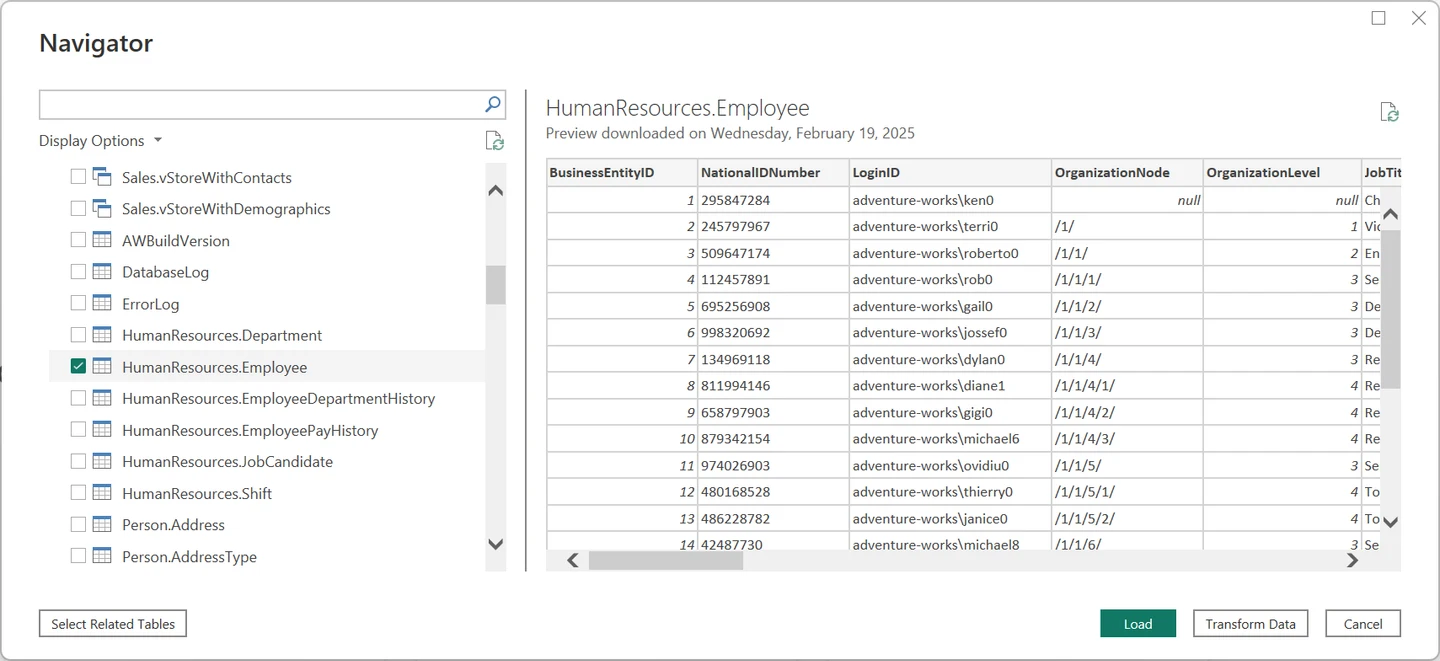
Power Query in Excel can connect to SQL Server, apply named transformation steps and reload the result. This lets an analyst build a repeatable reporting dataset without copying values manually each week. SQL Server authentication and the availability of each import or refresh option depend on the Excel host.
It fits recurring analysis and reporting when the workbook consumes database data. The connector reads and refreshes data for the workbook. A team that needs controlled data entry will need a write-back workflow with a defined key, permissions and validation.
Use the native SQL Server connector and test the selected authentication type in Excel. Shape the data in a query, refresh it, then confirm the row imported from the approved view or table. Check how source credentials are supplied on a second workstation.
Treat the refreshed range as a dataset for analysis and reporting. If a separate writeback process exists, make that path explicit in the workbook. Verify whether edits to local cells survive a refresh and distinguish them from data recorded in SQL Server.
- Compatibility
- Supported Excel version and SQL Server connector. Import and refresh features vary by Excel platform.
- License and trial
- Included with applicable Excel versions and Microsoft 365 plans.
SQL Spreads
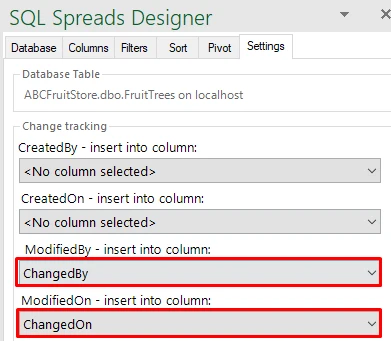
SQL Spreads lets a Designer configure an Excel document for SQL Server and lets a Data Editor work on the allowed rows and columns. The add-in can save changes back to the database. That is useful for repeatable business maintenance tasks such as editing reference values through a workbook.
It fits a workflow where setup should be controlled and day-to-day editing should feel familiar. Design and editor capabilities are licensed differently. Existing database permissions and constraints still matter, and a workbook can become stale when the underlying SQL table changes after it was configured.
Create a workbook template with the selected table, key, editable fields and permitted users. Test the differences between designer and editor access. Confirm which client requirements and seats apply to every person who will open and save it.
Use two workbooks with the same original row and save conflicting edits. Inspect what changes are flagged, written or refreshed. Verify application behavior and SQL Server state separately because a conflict message alone is incomplete evidence.
- Compatibility
- Supported Windows desktop Excel and SQL Server or Azure SQL connection.
- License and trial
- Commercial. Designer and Data Editor capabilities depend on the plan.
Devart Excel Add-in for SQL Server
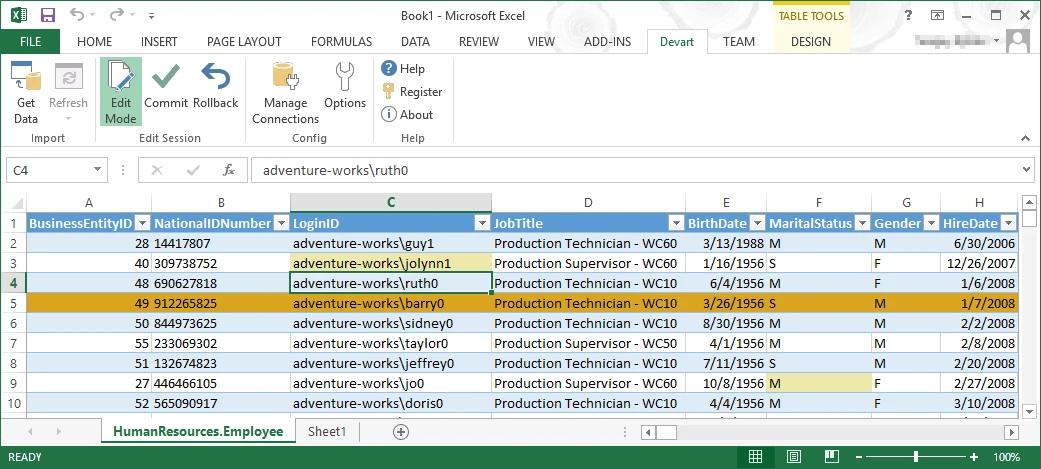
Devart Excel Add-in for SQL Server imports database data into Excel and can submit changes made in the workbook. It is useful for teams that want a familiar interface for a selected SQL Server table or view and prefer to commit a set of proposed changes after reviewing them.
It fits controlled edits and periodic refreshes to small operational datasets. Update support depends on the underlying object and the connected user’s rights. The relevant comparison is how the workbook identifies changed rows and prevents unintended edits to data users should only be able to read.
Configure read and editing modes on a safe SQL Server target. Import a table with a generated identity and a constraint. Verify whether saving shows the assigned key and any server-side error in the expected Excel view.
Repeat on a second workstation with a restricted account. Check connection storage and license scope before distributing the workbook. Record how the add-in handles a second save based on an outdated value.
- Compatibility
- Supported Windows desktop Excel and the Devart Excel Add-in for SQL Server.
- License and trial
- Commercial standalone or bundled license.
CData Excel Add-In for Microsoft SQL Server
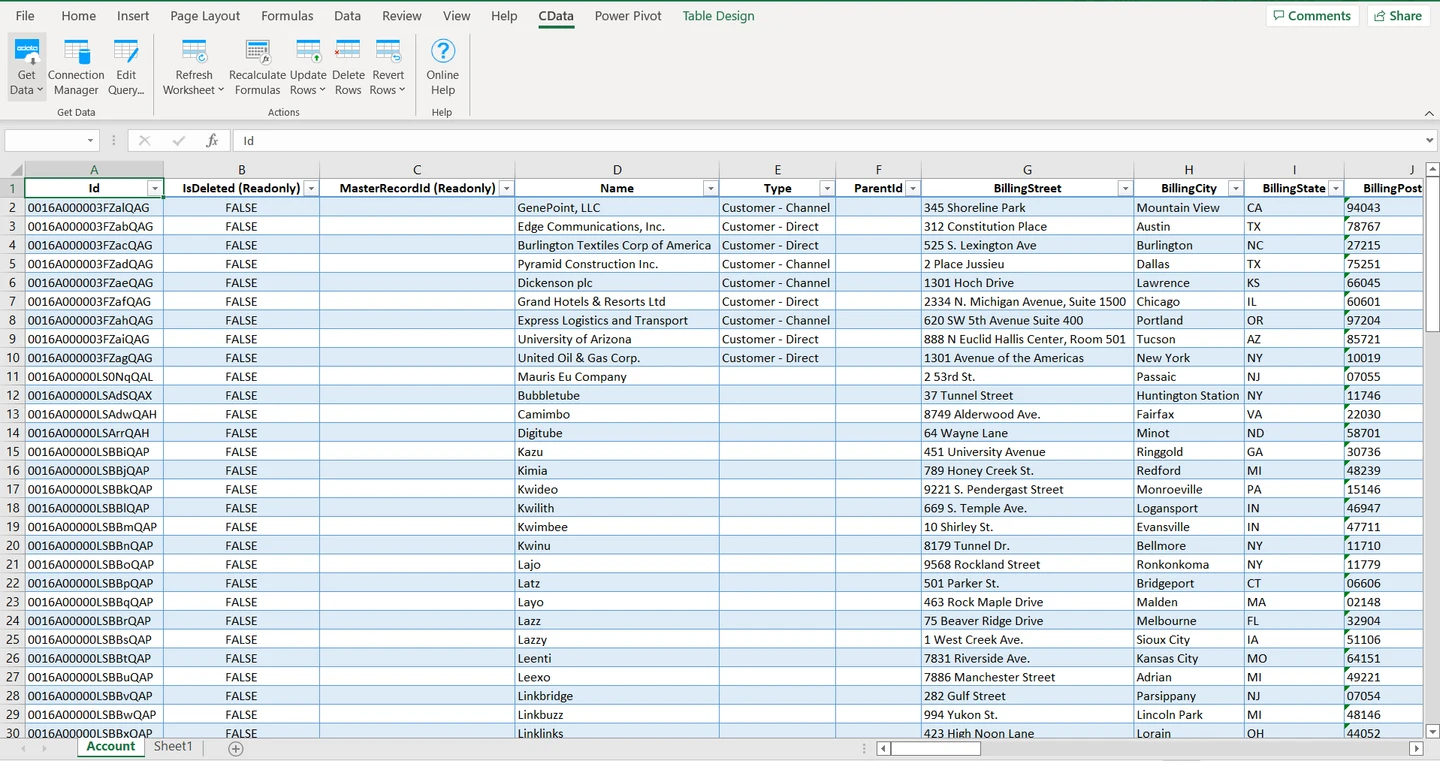
CData Excel Add-In for Microsoft SQL Server queries data through the Excel ribbon and can submit changed, inserted or deleted rows where supported. It marks edits locally before its update operation. This is useful when an analyst needs to work in Excel while a selected table remains in SQL Server.
The explicit update step is a useful boundary between a spreadsheet edit and a server change. Individual fields or query results can be read-only, and server permissions still apply. A team needs to understand how keys and filters affect the rows returned and changed.
Use the documented driver configuration for your SQL Server host. Check how the add-in stores the connection and whether the authentication, certificate and permissions meet the workflow. Test refresh against an identity with access only to the intended dataset.
Trial the chosen row-edit feature with a valid insert and an intentionally invalid value. Verify the SQL Server result and what Excel reports. If several users edit the data, capture the documented or observed conflict behavior in that exact configuration.
- Compatibility
- Supported desktop Excel with CData’s SQL Server add-in and a valid database connection.
- License and trial
- Commercial license. Consult the configured edition and connectivity terms.
Workbook Connect
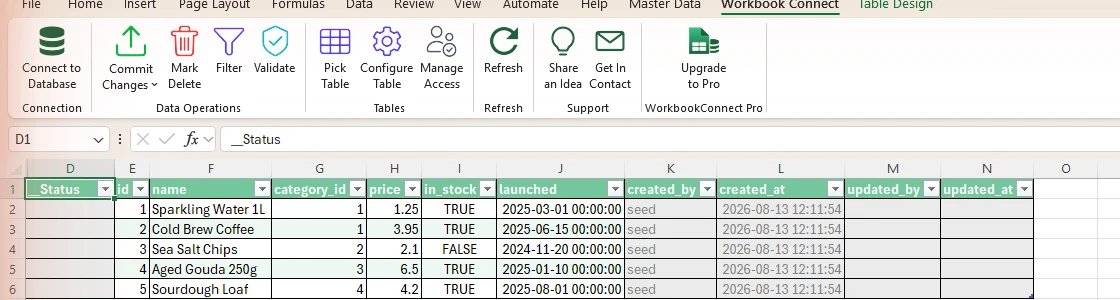
Workbook Connect loads a SQL Server table into Excel and lets a user validate and commit edits through the add-in. A Configurator can define the visible or editable fields and the row key. That is useful when a small team wants operational data entry without building a separate web interface.
Its useful distinction is an explicit commit and setup workflow for shared table editing. The result depends on the configured key and permissions on the database account. The edition also determines which collaboration or configuration controls can be used across the team.
Read the user guide for connection setup and the supported collaboration path. Have an owner and a second editor open the same workbook against a restricted test table. Verify the authentication information each user needs separately.
Check the actual data published after refresh or writeback. Compare the Free and Pro capabilities the workflow requires, including controls for sharing and edits. Record which Excel hosts reproduce the same behavior.
- Compatibility
- Supported Excel host and a SQL Server or Azure SQL connection.
- License and trial
- Free and Pro plans. Team controls vary with the plan.
QueryStorm
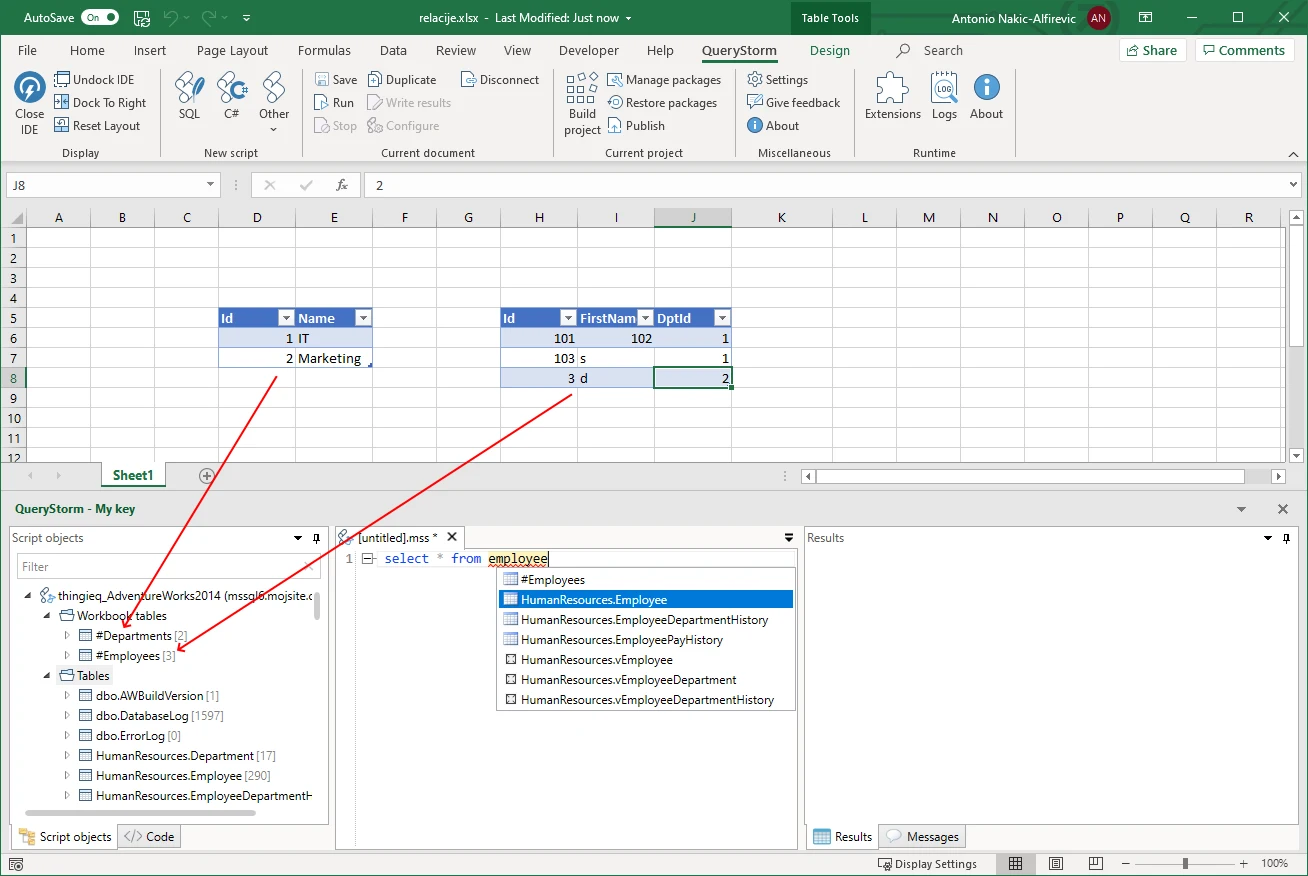
QueryStorm can query workbook tables and external databases through SQL. It also provides a development workflow for workbook solutions. That is useful when a developer needs to automate how values move between Excel and SQL Server, including steps that a simpler import dialog cannot express.
It fits a team willing to maintain workbook code and its SQL operations. QueryStorm gives the developer building blocks, while per-field rules, parameter handling and safe repeat execution depend on the workbook solution. Publishing a solution can also introduce separate runtime and licensing choices.
Choose the supported development and workbook runtime. Keep the SQL Server connection and reviewed statement under the appropriate role. Build a small workbook function that reads the row and displays the loaded version or another concurrency token.
If your workbook code performs updates, parameterize the write and choose a server-side conflict strategy explicitly. Check the generated key, constraint result and errors the user sees. Keep the code and input rules with the workbook.
- Compatibility
- Supported Windows desktop Excel and a supported external database connection.
- License and trial
- Free and paid licensing options for eligible uses. Developer and runtime needs vary.
Acterys Excel Add-in
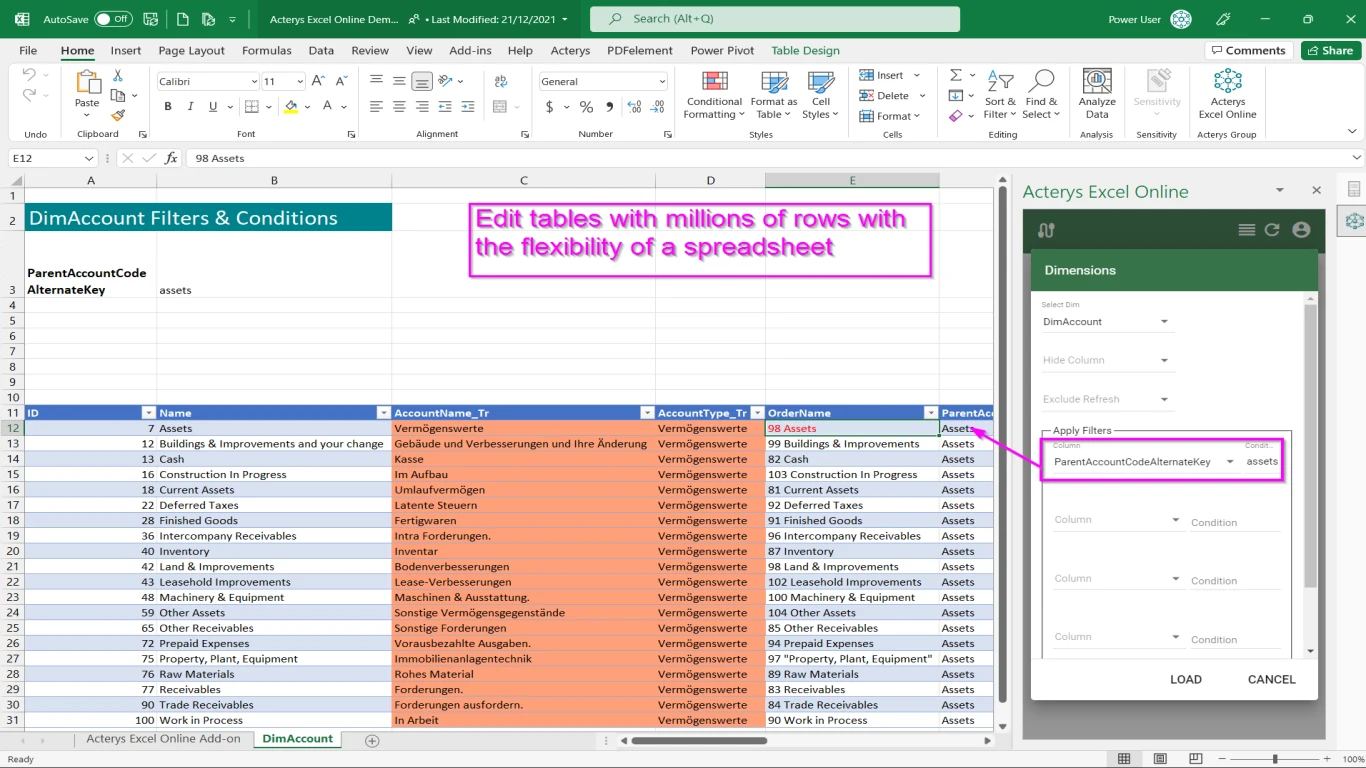
The Acterys Excel Add-in is designed for planning and financial models. It gives users workbook-based interaction and write-back within the Acterys platform. That is useful when finance users need to enter assumptions and work with shared planning data without leaving Excel.
It fits a managed planning workflow where the model controls dimensions and permitted changes. Direct maintenance of a SQL Server table addresses a different need. The data integration and write-back destination depend on the Acterys deployment, so the model and storage path are part of the purchase.
Start with the published planning model and supported Excel setup. Confirm where edited values are persisted and who can publish forecast or budget changes. Verify which model and rights a second user receives.
Use an isolated planning slice and compare two editors' changes to the same value. Confirm the product's actual workflow for validation, approval and persisted values. Ask which model and license components apply to the intended users.
- Compatibility
- Supported Excel host with the applicable Acterys planning model and service.
- License and trial
- Commercial Acterys product and associated licensing.
Invantive Control for Excel
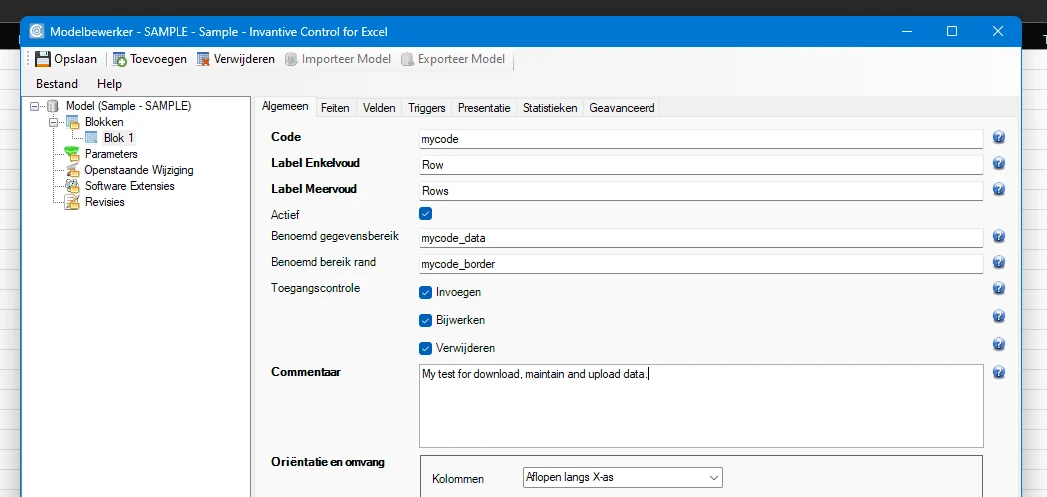
Invantive Control synchronizes worksheets with a configured facts database. The publisher documents a SQL Server setup for maintaining data through Excel. It is useful when a team is prepared to define a model and decide which workbook blocks and database data participate in synchronization.
The configured synchronization is what makes it different from opening a table in a generic Excel add-in. The workbook and facts-database setup need an owner, and connections, credentials and update direction are part of that design. It fits recurring models where that setup can be maintained.
Identify the SQL Server facts and workbook model referenced by the configured workflow. Start with a restricted row set and access suitable for a pilot. Confirm how the workbook maps input fields to stored facts.
Compare a valid change, an unauthorized field and a stale record. Use the documented setup for each identity and then check which SQL Server rows changed. Keep the workbook and database audit evidence together.
- Compatibility
- Supported Windows Excel with Invantive Control and an appropriately configured SQL Server facts database.
- License and trial
- Commercial Invantive licensing. Connectivity and model entitlements depend on the deployment.
Excel and SQL Server tools by workflow
| What you need | Tools to shortlist | What to verify |
|---|---|---|
| Refresh data for a report | Open the workbook under a second user and verify data source reachability, credentials and refresh behavior. | |
| Edit an approved set of SQL Server rows | Restrict the write target and stage one stale edit, one invalid row and one attempted delete. | |
| Run a custom SQL process from a workbook | Review where worksheet values are uploaded and test the script using the intended database identity. | |
| Enter budgets and forecasts into a managed model | Verify which model receives the update, which user can save it and how reviewers see the change. |
Choose refresh or controlled writeback
Workbook distribution changes the security problem. The workbook can specify a connection and a row scope, while SQL Server or the service still controls who can read and edit the rows.
Open a report and refresh results
Use the Power Query SQL Server connector
Check platform refresh, authorized credentials and the published data scope.
Update selected SQL Server rows
Trial a writeback add-in and SQL permissions
Verify allowed fields, generated keys and SQL Server constraint or conflict results.
Share an editable planning model
Trial the model and its approval path
Check where data is stored, who can save and how concurrent edits are handled.
- Microsoft Power Query SQL Server connector
- SQL Spreads client requirements
- SQL Spreads change tracking
- Devart Excel Add-in for SQL Server
- CData Excel Add-In configuration for SQL Server
- Workbook Connect guide
- QueryStorm database query setup
- Acterys Excel planning workflow
- Invantive's SQL Server writeback setup
Test two Excel editors, a new key and a rejected input
Open the first row from two workbook sessions. Save one edit, then try saving a different value from the stale copy. The sample shows one way to enforce optimistic concurrency using SQL Server rowversion. Compare the add-in's actual behavior with your policy.
Save a new valid row and note the assigned SQL Server key. Then try a negative quantity and inspect the workbook and SQL Server. Record which identity saved the change and whether the workbook reloaded the current row after the conflict.
| Action | Expected from the SQL model | Check in Excel |
|---|---|---|
| Two workbooks refresh | Both read the same starting row and token | Correct original values, scope and identity |
| First workbook saves 14 | Update affects one row | Save confirmation and refreshed version |
| Second workbook saves stale 18 | Update affects zero rows; quantity stays 14 | Conflict visible, reload available and no silent overwrite |
| Workbook inserts quantity 9 | Generated key returned for the new row | User can refresh or identify the inserted row |
| Workbook inserts negative quantity | SQL Server constraint rejects it | Readable error and no invalid row |
How to compare these tools
Refresh the same workbook and test a permitted edit, a rejected value and a conflicting change where supported. Check what reaches SQL Server and which account is used. Sources checked .
Test refresh, concurrent edits and rejected writes
Use an empty ExcelWritebackTrial database. Run the SQL as a control for one possible conflict policy. For a real add-in comparison, start from a fresh lab copy and open the row using two workbook sessions under the intended permissions.
Model an Excel writeback conflict and SQL Server validation
T-SQL · 35 lines
- Create or load the fixture and open the same row from two workbooks. Save quantity 14 in the first, then try quantity 18 in the stale second workbook. Compare with the model's first and second save counts.
- Try adding a valid row and one with a negative quantity. Inspect the generated key, error shown to the user and stored SQL Server rows after refresh.
- Try the same actions under a read-only user. Track which operation requires another role, supported host or licensed editor seat and how collaborators get access without shared secrets.
Conclusion
Choose the Excel workflow by what the user has to do in SQL Server. Refresh-only reports can use a read-only connection. For a shared editing workbook, verify who writes, how conflicts are handled, and how to recover a failed batch before rolling it out.
Frequently asked questions
Can Excel refresh SQL Server data without a paid add-in?
Yes. Power Query in supported Excel versions can connect to SQL Server and refresh imported data. Verify the supported authentication method, Excel client and network path for the user who opens the workbook.
Can Power Query write edited Excel cells back to SQL Server?
The SQL Server connector in Power Query is an import and refresh workflow. Use a configured writeback tool or a reviewed process to post approved worksheet changes to SQL Server.
Which Excel add-ins can write data back to SQL Server?
SQL Spreads, Devart Excel Add-in, CData Excel Add-In, Workbook Connect and Invantive describe SQL Server row editing. Acterys writes to a configured planning model. QueryStorm can run an explicit SQL script against a supported database.
What happens if two users change the same SQL Server row in Excel?
The answer depends on the product, settings and plan. SQL Spreads documents a Premium conflict check. Workbook Connect documents rejecting simultaneous SQL Server edits. Test with two independent sessions and inspect the resulting data.
Can these tools run in Excel for Mac or Excel for the Web?
Power Query support depends on the connector and client version. Acterys lists a separate Excel Online add-in for its planning workflow. The Windows desktop add-ins in this guide have their own runtime requirements.
Why should an Excel writeback trial include two copies of the workbook?
Two editors can read the same original row before either saves. A conflicting edit exposes whether the workflow warns, rejects, merges or overwrites. Verify the resulting SQL Server value and the refresh path.