

MDF repair tools are for cases where a damaged database file still contains data you need. Their useful output is usually a new database, a set of SQL scripts or exported rows. A supported backup gives the DBA a way to recover the database to a known point. File salvage becomes important when the backup is missing, also damaged, or too old to include part of the required data.
Stellar, SysTools and Kernel publish support for newer SQL Server data-file formats. Tools with NDF support matter when secondary files hold part of the data. DiskInternals also has a workflow to recover files from storage before analyzing them. The previews help identify what was readable. The real comparison is what reaches a separate target, including the rows, keys, constraints and object definitions the application needs.
SQL Server MDF repair tools at a glance
The file and version notes reflect publisher documentation. Verify the exact source and target builds, companion files and recovery mode against a representative sample before purchasing an export license.
| Tool | Documented file path | Publisher version evidence | Preview and export check |
|---|---|---|---|
| Stellar Repair for MS SQL | MDF and NDF repair | Lists SQL Server 2025 | Preview required tables and test database or script export in the applicable edition |
| SysTools SQL Recovery | Damaged SQL Server database files | Lists SQL Server 2025 | Demo lists up to 25 rows per table; check required object types and licensed export |
| Kernel for SQL Database Recovery | Scan source database files and select objects for export | Lists SQL Server 2025 with compatible target objects | Verify object preview and export to the chosen SQL Server target |
| EaseUS MS SQL Recovery | Publisher documents scanning and repairing MDF | Confirm exact source and destination with the vendor | Inspect scanned objects, then verify the licensed result on a separate database |
| Recovery Toolbox for SQL Server | MDF preview and selected recovery modes | Check documented release pair before use | Compare the viewer with licensed SQL script or database recovery output |
| DataNumen SQL Recovery | MDF and associated NDF inputs | Product's supported-version table lists SQL Server 2005–2022 | Check whether the needed objects appear in recovered output and check file versions separately |
| DiskInternals MSSQL Recovery | SQL database file recovery and a separate storage-file workflow | Confirm the exact database file version for the incident | Use the scan and preview to select recoverable data, then verify licensed export |
| SysInfo MS SQL Database Recovery | Scan and preview of supported SQL database files | Verify current supported versions for the chosen build | Check available object types, output format and license before relying on it |
Stellar Repair for MS SQL
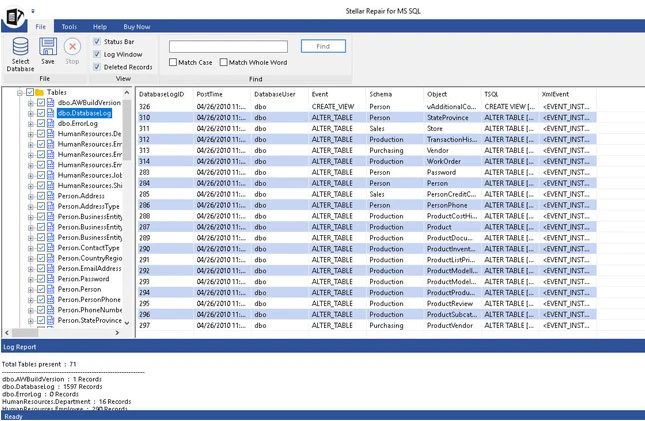
Stellar Repair for MS SQL scans a damaged data file and presents recoverable rows and objects in a preview. It supports associated NDF files and can save results to a new destination, including a database or supported export files. That makes it useful when an operator needs to isolate a few important tables before planning a larger recovery.
Its strongest case is a newer SQL Server data file or a database with secondary files available. The preview is a way to assess coverage, and the saved result is what can be reconciled. The vendor also offers a separate backup workflow, so the type of source and edition affect what can be opened and exported.
The publisher lists MDF and NDF scanning and several export paths. Supply copied files from the same database event. Look for a table known to live on a secondary file as well as one on the primary file, then compare both against a known schema and row sample.
Decide whether you need an isolated SQL database or an intermediate export. A preview of a procedure name or an index label is only an initial check. Verify that the selected license produces the required output and that SQL Server can load its definition with the right dependencies.
- Compatibility
- Stellar lists MDF and NDF input and SQL Server versions through 2025.
- License and trial
- Commercial editions. Trial shows a preview, and saving requires an applicable paid license.
SysTools SQL Recovery
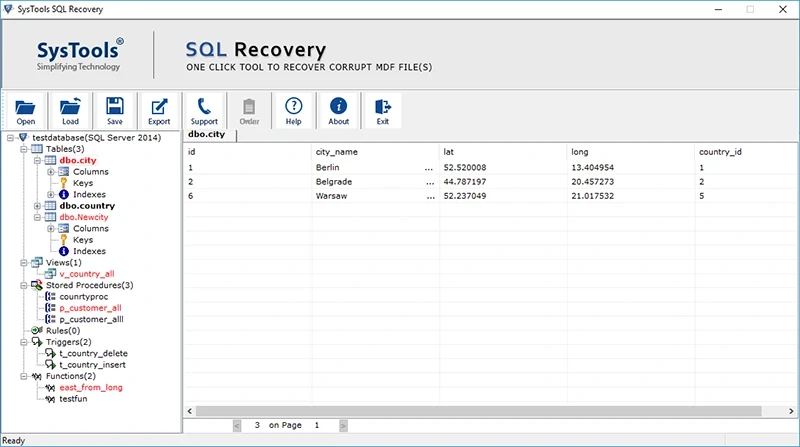
SysTools SQL Recovery scans SQL Server MDF and NDF files and lets an operator export selected objects. The product documents saving to SQL Server and to formats such as scripts and CSV. A selective export is useful when a DBA needs one table or routine urgently and can review it on another instance.
It fits a case where the files are available and the team wants to see which objects succeeded or failed during export. The handling of deleted data is a distinct choice. Export counts and the resulting constraints matter because a preview of a recovered table can tell a different story from the data that actually loads.
SysTools gives a documented demo limit for rows per table. Use a table large enough to exercise that limit and explicitly record how much data the preview or demo result represents. A sample export can help verify a type conversion without establishing full row coverage.
Validate the database export if the incident requires procedures, indexes or other objects. Compare an exported table's primary key, foreign key and counts with the original inventory. Use a separate target and keep a record of the selected scan and recovery mode.
- Compatibility
- Windows utility for MDF and NDF files. The vendor lists applicable SQL Server versions through 2025.
- License and trial
- Commercial. The documented demo limits export to 25 rows per table and five other objects.
Kernel for SQL Database Recovery
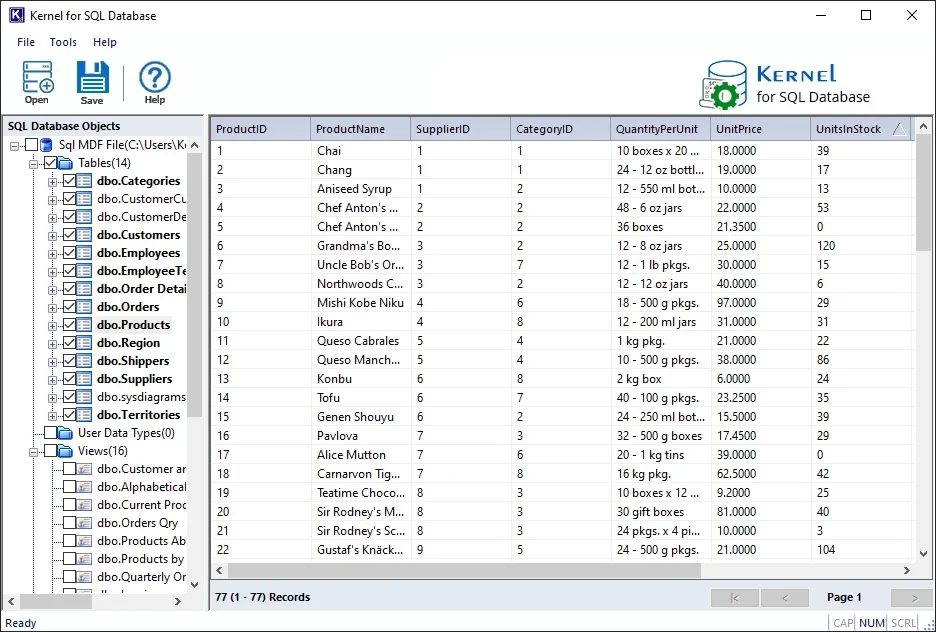
Kernel for SQL Database Recovery provides standard and advanced scanning for damaged data files. The preview can be inspected without a live SQL Server connection. This is valuable in an initial assessment where the recovery workstation can read a file copy but has limited access to a database server.
The product suits a workflow that separates inspection from export. Output can go to SQL Server or a script, subject to destination support. A script makes the recovered definitions and rows easier to inspect before they are loaded. Some source formats can be read even when the chosen destination has a different support range.
Extend the preview beyond one visible table. Pick a table with multiple column types and a routine that references it, then inspect whether the chosen export can include both. Kernel documents compatibility conditions on export to a newer SQL Server release.
Create an empty target matching the intended compatibility and collation choices. Import the recovered sample and validate both schema and expected results. If a definition fails to load, preserve the original export and document the adjustment needed to rebuild it.
- Compatibility
- Windows recovery utility. Kernel lists supported inputs through SQL Server 2025 and a separate destination range.
- License and trial
- Commercial. Free evaluation scans and previews the discovered objects.
EaseUS MS SQL Recovery
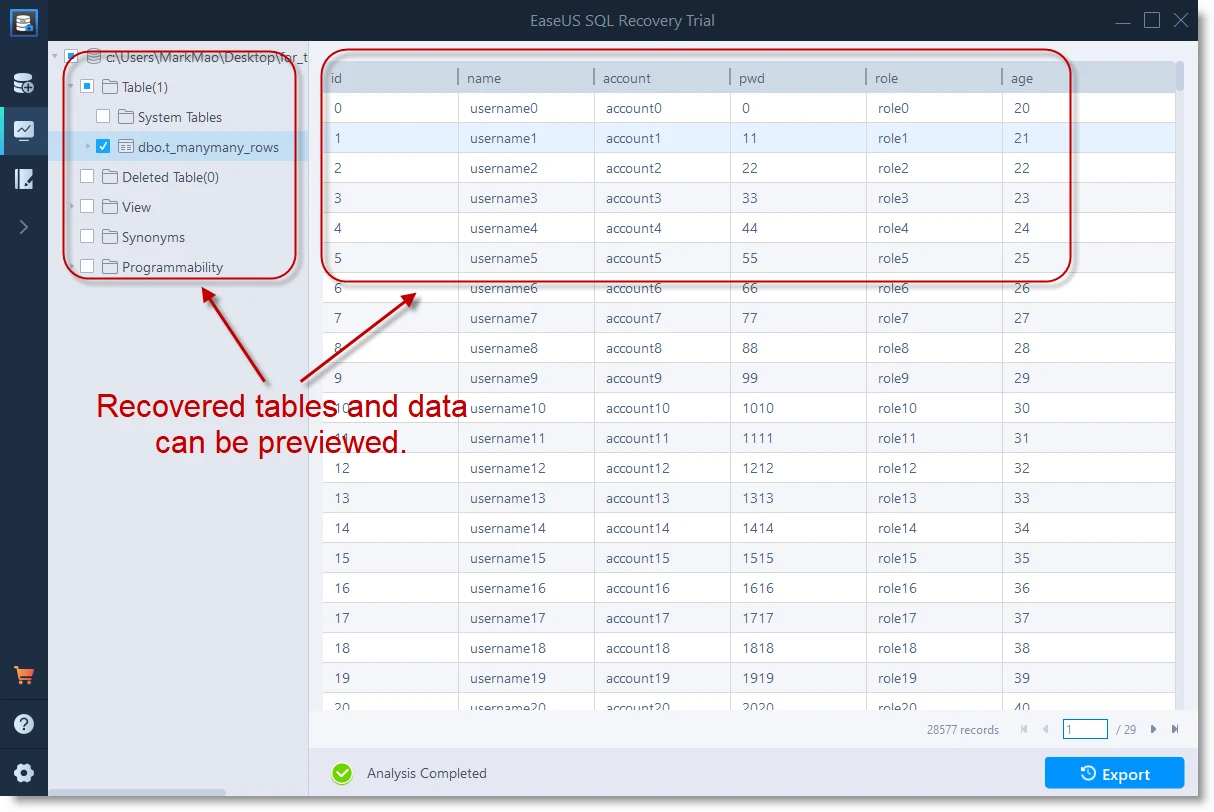
EaseUS MS SQL Recovery can analyze a copied MDF and associated NDF where supported, preview tables and rows, and export the result to a new database or SQL scripts. That gives the recovery team a way to see whether records from an older instance can be salvaged before deciding how much to reconstruct.
It is a candidate when the source fits the vendor’s published engine matrix and the team needs a straightforward scan and export. The stated version limit matters more than a long list of recovery features. The result is only useful if it loads on the intended destination and contains the application data that was missing.
EaseUS describes an MDF scanning workflow. Where a missing or damaged secondary file contains important data, first confirm the exact product workflow for that file with the publisher. Include a known secondary-file table in the lab if that is part of the incident.
Use the preliminary scan to check the presence of key tables and data, then separately verify the licensed output. Re-run a representative aggregate and a schema inventory against the isolated target because the application may depend on objects beyond the visible rows.
- Compatibility
- EaseUS publishes an MDF and NDF repair workflow for listed SQL Server versions through 2019.
- License and trial
- Commercial. Preview and export capabilities depend on the evaluation and license.
Recovery Toolbox for SQL Server
Recovery Toolbox for SQL Server scans an MDF and shows recoverable data and objects. It can create a new database or produce SQL scripts, including split scripts for larger results. That can help a DBA review parts of the output and load them into an isolated instance as separate steps.
The product is useful when an inspectable script matters more than recreating the original file layout. Recovery can surface duplicate key values, which the vendor discusses in its FAQ. An imported table still needs a comparison of its keys and constraints before its rows can be used by the application.
The viewer helps when the immediate question is whether a copied MDF contains the required data. Check if the tool gives you enough information to recognize rows and schema before deciding to export. Confirm the SQL Server release pair for files created on the original server.
Run any supported database or script output on an isolated SQL Server. Inspect generated scripts before executing them, especially permissions and programmable objects. Check the loaded table cardinality and relationship metadata before treating the recovered data as usable.
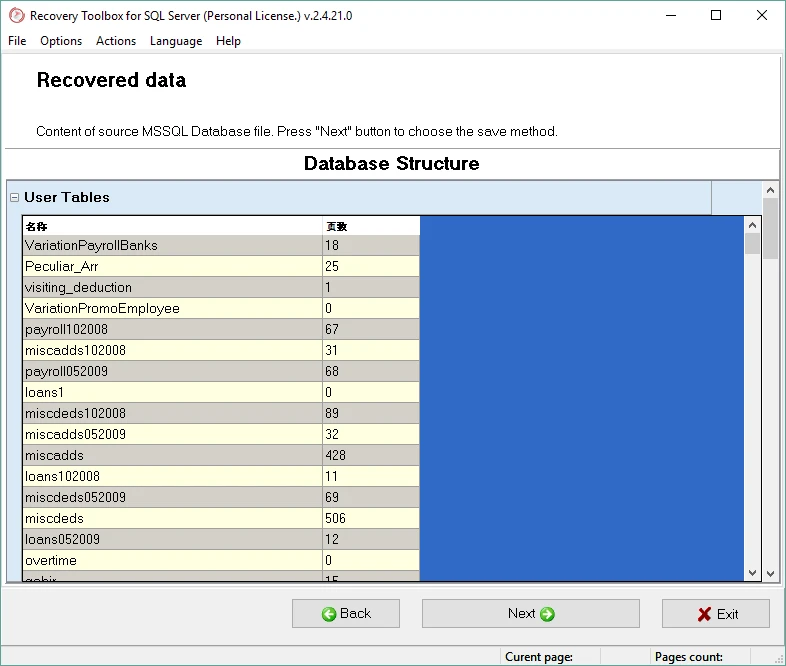
- Compatibility
- MDF-focused Windows workflow. The published list includes selected SQL Server releases through 2022.
- License and trial
- Commercial. Demo previews recovered data, and a registered copy is required for export.
DataNumen SQL Recovery
DataNumen SQL Recovery reads an MDF and available associated NDF files. That is useful when the data at risk is spread among several filegroups. The documented workflow saves recovered objects through a SQL Server connection to a separate database so the operator can inspect what was recovered.
It fits teams that have the companion files and need to salvage their contents. The product’s FAQ says the result is not directly saved as the same multi-file arrangement. Reconstructing the filegroup layout and validating the recovered data are distinct jobs, especially if the resulting database has to become a production candidate.
DataNumen documents supplying the MDF and adding associated NDF files. Its published version table ends at SQL Server 2022. Check newer files with the publisher and use a fixture that actually places known data in a secondary file when comparing this workflow.
Choose a destination and check what is exported when a companion file is unavailable. Record which source files were present and how missing objects appeared in the preview. Reconcile exported rows against the latest valid backup, if available, to locate duplicates and gaps.
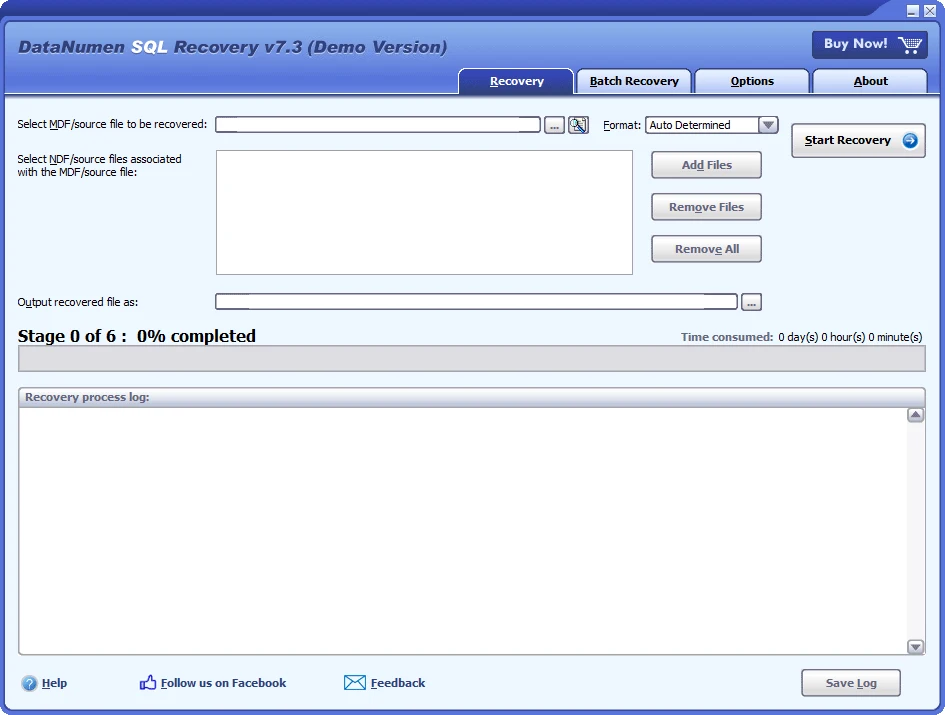
- Compatibility
- Supports MDF and companion NDF input. The published feature list includes SQL Server versions through 2022.
- License and trial
- Commercial. Available evaluation output and saving depend on license terms.
DiskInternals MSSQL Recovery
DiskInternals MSSQL Recovery offers a workflow for an existing damaged database file and another for finding database files on supported disks or images. This distinction is useful when an MDF was deleted or the catalog on the disk is damaged and a clean file copy is not yet available.
Its strongest case involves storage recovery before SQL Server object recovery. Finding a file on an image is one milestone. The next is whether the tool can interpret the file and export objects that load on a separate SQL Server. That distinction matters when the storage recovered only part of the original data.
Start by distinguishing storage-level file recovery from the SQL Server object scan. If the original file is missing from the filesystem, recover a working copy on separate storage first. Record its source and leave the damaged disk or file available for additional recovery work.
Run the SQL Server preview on that working copy and inspect the relevant keys and values before licensing an export. Use a separate SQL Server target and compare the resulting object definitions and data against a known-good version of the schema.
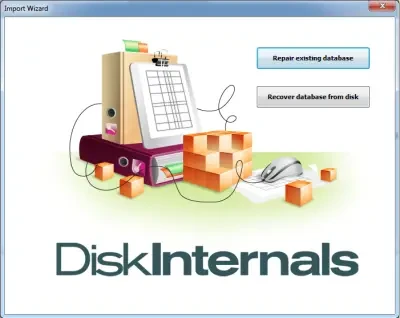
- Compatibility
- Windows utility. Current publisher specifications list SQL Server versions through 2019 and supported disk file systems.
- License and trial
- Commercial. Trial supports scanning and preview, with export in the paid version.
SysInfo MS SQL Database Recovery
SysInfo MS SQL Database Recovery scans damaged SQL Server data files and previews the objects it can identify. Its documented output includes scripts and a new SQL Server database. A schema-only export can be useful when the immediate need is to rebuild definitions before reconciling the available rows.
It suits an older supported data file where the team prefers to stage individual parts of the salvage. Scanning modes offer different paths through the same problem, while successful import determines what reaches the target. The object and version requirements matter when the recovered tables depend on code or constraints outside the selected export.
Compare the documented scan options with the failure you are investigating. Keep the scans on copies, and use a consistent set of damaged files when testing alternative modes. Note which apparently recovered objects move from the tree preview to an actual export.
Check the licensed export format for the missing application data. If the result is a set of rows, rebuild and verify the necessary constraints and routines from trusted source code or backups. If the result is database objects, confirm they compile and return expected values.
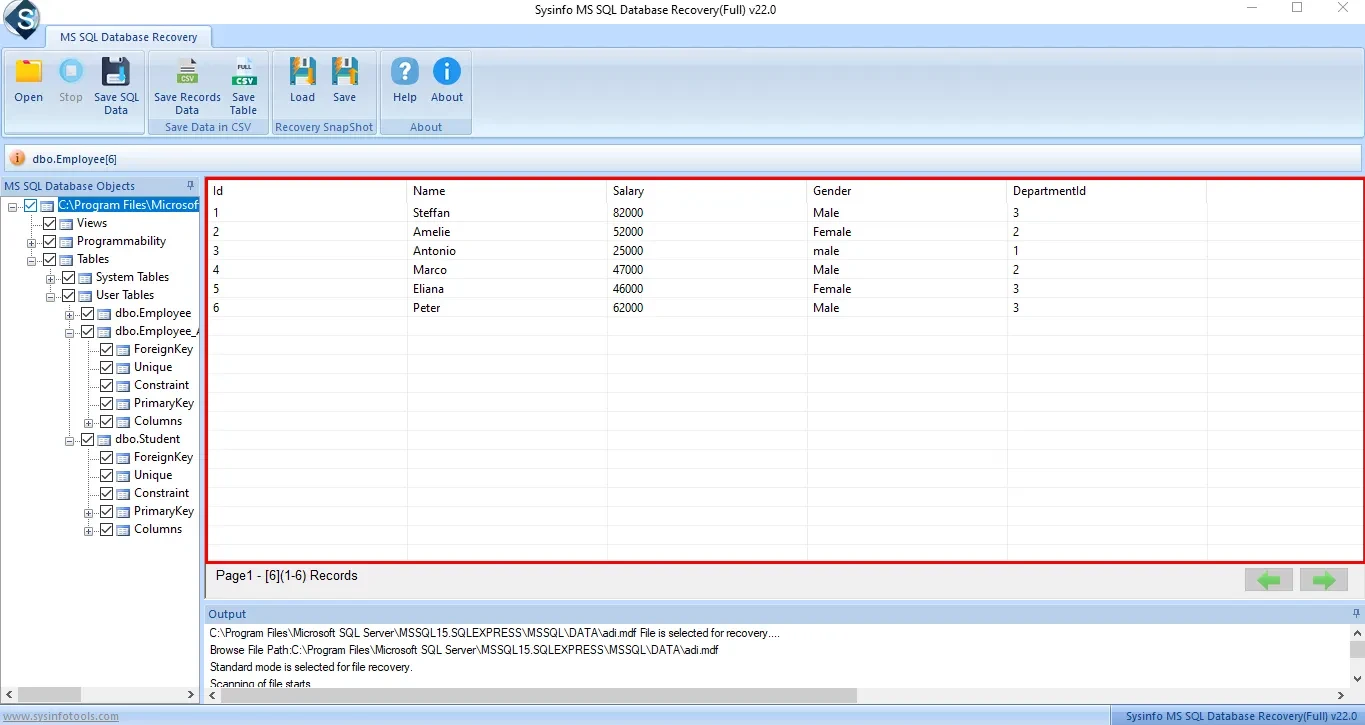
- Compatibility
- Windows utility. The publisher’s edition comparison lists selected SQL Server versions through 2019.
- License and trial
- Commercial editions. The free version previews recovery, and full saving needs an applicable license.
SQL Server MDF repair tools by recovery case
| What you need | Tools to shortlist | What to verify |
|---|---|---|
| Evaluate SQL Server 2025 files | Scan an offline copy from the same engine version and verify one representative table after export. | |
| Salvage tables or objects to a new database or scripts | Read back the output and compare keys, row values and definitions with a known reference. | |
| Work with an MDF and companion NDF files | Include a table stored on the secondary filegroup and check its rows separately. | |
| Recover files from a disk or image | Use a preserved copy of the storage and verify that the resulting database objects open on an isolated target. |
Choose a native restore or object salvage
Use the viable backup chain to recover the required database state on a separate target. Native checks can help isolate damage and guide supported restore choices. File salvage looks for usable objects or rows in surviving files and needs independent validation before the result is used.
A good backup chain covers the required recovery point
Rehearse a native restore
Restore separately, check the resulting database and verify the required application rows.
Damage is limited and usable backups exist
Assess supported native recovery options
Use DBCC CHECKDB evidence and evaluate page or file restore where eligible.
Required rows exist only in damaged database files
Evaluate object salvage on a copy
Preserve the files and document missing companion files, encryption and the export result.
- Microsoft DBCC CHECKDB and supported repair options
- Microsoft restore a SQL Server database to a new location
- Microsoft SQL Server page restore
- Stellar MDF and NDF repair and supported versions
- SysTools SQL Recovery versions and trial limits
- Kernel SQL Database Recovery supported targets
- EaseUS MS SQL Recovery file scope
- Recovery Toolbox for SQL Server
- DataNumen SQL Recovery file and version scope
- DiskInternals MSSQL Recovery workflows
- SysInfo SQL Recovery inputs and export
Check the exported rows and database objects
Compare an export with the expected state from a synthetic lab or the best available trusted backup and schema source. A preview makes it possible to identify a field. The exported data and dependent objects determine whether a downstream application can use it.
Where encryption is involved, ask for support for the specific source format and key material before relying on file salvage. For a native TDE restore on a different instance, Microsoft documents requiring the source certificate or asymmetric key. Retain the original and export separately.
| Check | Expected on an intact copy | Action if the export differs |
|---|---|---|
| Row counts and amount | 3 invoices, total 60.25 | Compare by primary key to locate loss or duplication |
| Foreign key | One enabled Invoice-to-Account foreign key and zero orphan rows | Compare its definition before recreating it from a trusted source |
| Secondary index | IX_RepairTrialInvoice_Account exists | Rebuild the index if the selected export omitted it |
| Module and result | One invoice-total view returning 3 and 60.25 | Inspect the definition and run the application-facing query |
| Structural checks | DBCC CHECKDB on isolated target completes cleanly | Keep the result separate from source reconstruction and investigate errors |
How to compare these tools
Compare the preview to the actual export. Check row counts, keys and other object definitions before trusting the recovered data. Use copies of the damaged files for every trial. Sources checked .
Recover a known table and verify the exported database
Seed an empty disposable database named MdfTrialSeed with these objects. Capture its expected output before evaluating copies of synthetic files. Run the validation section against an isolated database named MdfTrialRecovered. Recovering a clean lab fixture verifies the object and row comparison process.
Seed and validate a SQL Server database salvage example
T-SQL · 47 lines
- Set @CreateFixture to 1 only in the fresh MdfTrialSeed database. Save the result, then use SQL Server backups or cleanly captured copies for the recovery exercise. Include a known table in a secondary file if that is a criterion.
- Preview the copied files using the selected tool and export into an isolated MdfTrialRecovered database. Use the documented path and keep the files that supplied the data for comparison.
- Run the validation with @CreateFixture set to 0. Compare counts, total, trusted key, the index and the view result with the baseline. Run DBCC CHECKDB on the isolated result and reconcile any missing or altered objects.
Conclusion
Judge the restored backup and the salvage export against the same expected data. A recovery tool earns its place when you can show which rows survived, which tables or objects need repair, and what the application can safely use on healthy storage.
Frequently asked questions
Should I use an MDF repair tool or restore a SQL Server backup?
Restore from the last known good backup first and validate the result. If relevant rows are missing and you have a usable copy of the data files, try a salvage export on an isolated target and reconcile it with the restored data.
Can MDF recovery work without an LDF file?
Some tools can extract readable rows and objects from a copy of the data files without the transaction log. Verify the recovered state against another source, since a file scan cannot establish that all recovered rows reflect committed transactions.
Should I include the SQL Server NDF files in recovery?
Yes, when the database has secondary data files and the tool supports them. A table or index can live in a secondary filegroup. Include known rows from those files when checking the export.
Can a repair tool recover an encrypted SQL Server MDF?
It depends on the encryption type, source and tool. For a TDE-protected database moved to another SQL Server, Microsoft's process requires the protecting certificate and private key or the corresponding asymmetric key setup. Verify those dependencies before relying on salvage.
How do I verify a recovered SQL Server database?
Run DBCC CHECKDB and validate constraints, then compare expected keys, row counts and representative values with a trusted source. Verify permissions and dependent objects separately before putting the data back into service.
Does a clean DBCC CHECKDB prove all exported rows were recovered?
DBCC CHECKDB checks the integrity of the database you give it. Compare the result with a trustworthy source inventory and application totals to determine what the export recovered.