
Check the PBIRS build, Power BI Desktop edition and PBIX history
Record the PBIRS release and build, Desktop edition and full version, and the edition that last saved the PBIX. These details distinguish authoring compatibility from publication access or deployment failures.
The regular Power BI Desktop and Power BI Desktop for Report Server are separate releases. Microsoft allows them side by side. Check the title bar and record the full version from Help → About. Microsoft's Desktop RS identification guide explains the edition markers.
| Check | Regular Desktop | Desktop for Report Server |
|---|---|---|
| Intended destination | Power BI service | Power BI Report Server |
| Title bar | No release month/year | Release month and year, such as January 2026 |
| Authoring updates | Usually monthly | Aligned with PBIRS releases, usually three times a year |
| Server publication | Separate authoring release for the Power BI service | File → Save as → Power BI Report Server |
Read the server version from its About information and compare it with the PBIRS server/Desktop release matrix and downloads. Match the Report Server release association, not the server's numeric build string to the Desktop build string.
The most recently installed edition controls the PBIX file association. To select Desktop RS reliably, launch its shortcut and open a report copy through File → Open. Retain the original file before saving in another release.
Record the destination URL as well as release. Development and production servers may run different builds, independently of the report filename.
Diagnose a PBIX upload failure in Power BI Report Server
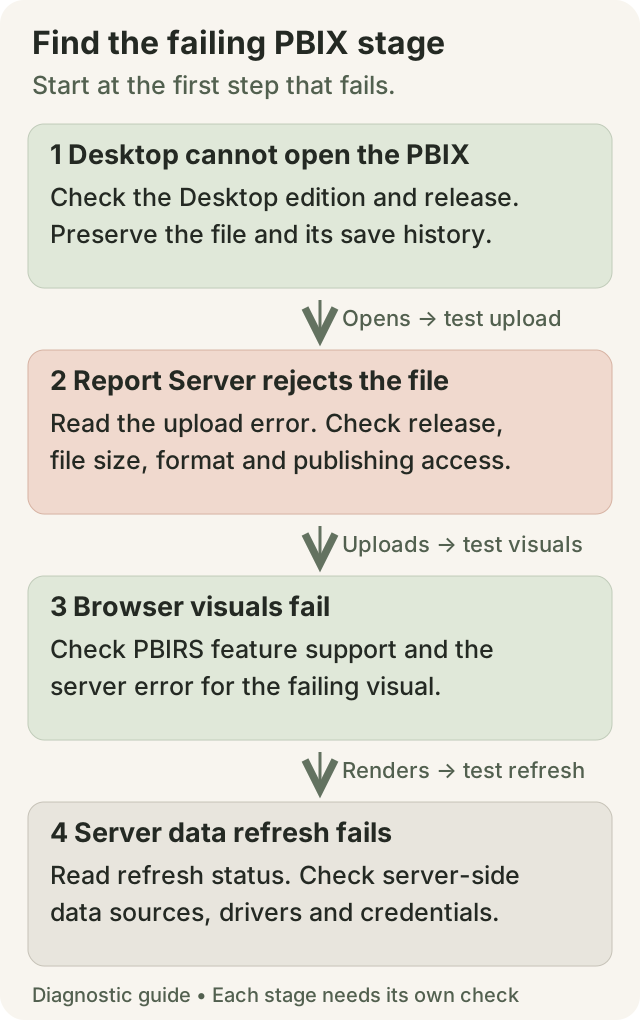
Upload rejection can involve version, format or size. Rendering and refresh happen after upload and have different requirements. Record the stage and returned error for each failure.
| Failure | First check | Diagnostic scope |
|---|---|---|
| File rejected during upload | Desktop edition/release, file history, reported size or format error | File format and target acceptance, before data-source execution |
| Save to Report Server fails but portal upload works | Publishing authentication and Desktop integration | Direct publishing uses a different authentication path from portal upload |
| Upload succeeds; browser visual fails | Feature support, visual and server-side error | Rendering tests exercise features beyond upload acceptance |
| Report opens; refresh fails | Server data-source support, drivers and credentials | Refresh runs using server-side connections and credentials |
| Desktop itself fails on the workstation | Desktop requirements and local installation | Workstation requirements are checked separately from server upgrades |
Record the exact server error and timestamp. Microsoft's changelog lists upload error-code changes and telemetry for oversized files and newer Desktop formats. The applicable release notes help distinguish these cases.
Compare the failing file with a small known-compatible report saved by the intended Desktop RS release. Use a permitted test folder. If the known-compatible file also fails, investigate target access and server health. If it succeeds, narrow the failing report by its file history, size, features and model connections.
Download the matching Power BI Desktop for Report Server
The authoring release must correspond to the installed PBIRS release. Regular Desktop and a newer Desktop RS are separate compatibility cases. Authors targeting an older server require access to its matching authoring environment.
- Open the target report-server web portal. Select the Download arrow → Power BI Desktop.
- On Microsoft Download Center, verify the named Report Server release, select your language and download its Desktop installer.
- Install it on the author's Windows workstation, then launch that edition explicitly.
- Check its title-bar release and Help → About version before opening a copy of the PBIX.
A current download may belong to a later release than an older target. The server/Desktop matrix identifies the association. Verify the named release and actual file metadata on the download page.
From September 2025 onward, Desktop RS is 64-bit only. Microsoft's installation walkthrough still lists older MSI names, while newer downloads use an EXE. Follow the exact release's file list and requirements. The September 2025 changelog records the architecture change.
Coordinate the server upgrade with deployment of its matching Desktop RS. Files resaved by a newer authoring release can be incompatible with a production server that has not yet been upgraded.
Microsoft's authoring-tool planning guidance describes version control for Report Server authors. Multi-environment projects should record the target release and use explicit shortcuts or managed authoring environments.
Named releases and servicing dates
For a documented example, Microsoft lists Desktop RS 2.150.5353.0 as January 2026, although its servicing update was released on 11 June 2026. The January server entry includes build 15.0.1120.122, released on 5 March. These different numbers and dates belong to the same named release family. See the January 2026 changelog and matching Desktop download details.
The example illustrates release matching rather than current release selection. Newer Desktop RS releases are not automatically compatible with older servers. Opening an existing PBIX checks local parsing; publication and rendering require separate tests.
Historical installer availability is separate from support status. Microsoft's PBIRS policy gives releases a 12-month lifespan and security-only servicing after the next release becomes available.
Recover a PBIX saved in the wrong or newer Desktop version
Retain the rejected file and recover the last compatible copy from source control, the published server or author backups. This preserves later report changes for comparison while recovering the compatible version.
Opening a newer PBIX in an older Desktop is not a reliable format downgrade. Model behavior, visuals and publication still require validation. Removing a visual or renaming the file may leave newer model or file-format changes intact.
Recovery can use a compatible report copy with required changes reapplied in matching Desktop RS, or a planned PBIRS and Desktop upgrade. Report urgency, target constraints and the changes in the newer file determine which approach is practical.
For report recovery, compare the requested changes with the target's feature support. For server upgrade, the PBIRS backup, rehearsal and rollback guide describes preparation and validation.
For example, a report for an older server may have been edited in monthly Desktop to use a service-only feature. Recovering the compatible baseline identifies the required change. A PBIRS upgrade does not add capabilities limited to the Power BI service.
Check Power BI Report Server feature compatibility
PBIRS and the Power BI service have different capabilities. Check Microsoft's Report Server/service comparison for the feature the report uses. Service-only features, preview behavior and unsupported script or visual types are separate from a file-version mismatch.
For example, the comparison identifies R and Python scripts/visuals as unsupported for PBIRS. The PBIRS report quickstart also notes that some visuals, including the paginated report visual, require the Power BI service. A general Desktop can let an author build a report that the on-premises hosting environment cannot render as intended.
Model compatibility includes connections and composite models as well as visuals. Microsoft's comparison lists composite models and connections to Power BI shared semantic models as unsupported in Report Server. These are hosting restrictions, independent of Desktop installation.
Browser validation covers representative filters, interactions, parameters and required exports. Upload acceptance alone does not execute all report features.
Data-source support differs for viewing, DirectQuery, live connections and scheduled refresh. Server-side execution requires the corresponding supported mode and configuration. See Microsoft's data-source matrix.
Record requirements unsupported by the target. Resolution may require a supported report design or a different hosting product; driver installation does not change Report Server feature availability.
Fix Desktop publishing authentication and server refresh
Desktop publishing uses its supported authentication path to reach Report Server. Microsoft documents integrated authentication for this workflow; basic authentication is not supported for direct Desktop publishing. For a custom security extension, save the PBIX locally and use the portal upload route documented by Microsoft.
Microsoft's creation and save procedure describes Save as → Power BI Report Server. When portal upload succeeds but direct saving fails, compare authentication and endpoint access.
Direct saving to a Report Server in a different domain from the author's Windows credentials is unsupported. Microsoft documents local saving followed by portal upload for this case. The alternate authentication path retains the file's compatibility requirements. See the cross-domain publishing limitation.
After upload, configure data-source credentials and scheduled refresh where required. Server execution uses its own drivers, network access and credentials, independently of the author's local refresh.
In the portal, open the report's Manage area. Check Data sources for credentials, then Scheduled refresh for the plan's status and error. A newly created plan has not yet run. Refresh the browser page to see the latest status; Microsoft documents that it does not update automatically. See PBIRS scheduled-refresh configuration. For SQL Server TLS failures, run the certificate trust checks on the report-server host.
Investigate workstation crashes separately from publication failures. Microsoft requires AVX support starting with the May 2025 Desktop for Report Server release. Confirm that the CPU supports AVX and that BIOS or virtualization settings expose it to the workstation. See the current requirements.
Validate PBIX publishing before changing production reports
- Confirm the target PBIRS release and approved Desktop RS installer.
- Launch that Desktop explicitly and preserve the current compatible PBIX.
- Check new features and data sources against PBIRS support.
- Save and upload a test copy using the actual author account.
- Validate browser behavior, expected results and required exports.
- Run an approved refresh test and inspect its result.
- Record which server and Desktop releases passed before replacing the production report.
Keep compatible report assets available through the server upgrade window. If the server rolls back, reports resaved only in the new authoring release may also need their previous copies. Report rollback and server rollback are related but distinct recovery tasks.
An upload escalation includes the server release, Desktop edition and build, sanitized error, upload method, size and result from a small compatible file. Record any save in another edition. These details distinguish format, account-access and server-limit issues.
The PBIRS reference lists build and Desktop associations. The SSRS migration guide covers a hosting-platform change. Remote SQL Server upgrade support is available for related database changes, with report-authoring and PBIRS responsibilities agreed separately.
Power BI Desktop and Report Server compatibility questions
Can Desktop RS create one PBIX for Report Server and the Power BI service?
Yes. Microsoft's authoring-tool guidance describes files published to both destinations. Validate each deployment using the Report Server-compatible baseline. Service-only edits in regular Desktop require separate copies if they would change that baseline.
Can SSRS 2022 host a PBIX created with Desktop for Report Server?
No. Standalone SSRS 2022 does not gain interactive PBIX hosting by installing Desktop RS on a workstation. Power BI Report Server adds Power BI reports to the Reporting Services capabilities; see Microsoft's product comparison. Use the SSRS to PBIRS migration guide if the destination is currently SSRS.