
Check the supported SSRS to Power BI Report Server migration path
Power BI Report Server is self-hosted. Migration to a Power BI service workspace is a separate cloud procedure. An SSRS-to-PBIRS migration uses a PBIRS installation configured against a catalog copy; Microsoft does not provide an in-place upgrade.
Microsoft supports migration from native-mode SQL Server 2008 Reporting Services and later. SSRS 2022 and later require PBIRS May 2025 or later. The source release, target build and prerequisites determine the applicable procedure. See Microsoft's PBIRS migration instructions.
| Destination | Migration task |
|---|---|
| PBIRS from native-mode SSRS | Clone the catalog databases, restore the matching encryption key and configure the PBIRS instance. |
| PBIRS from SharePoint-integrated SSRS | Report-content migration and assessment of SharePoint assets; the native-mode catalog procedure does not apply. |
| Power BI service workspace | Plan RDL migration to the cloud with its own feature, authentication and capacity requirements. Microsoft cloud migration guidance. |
SharePoint-integrated reporting requires content migration and a separate assessment of SharePoint assets; the native-mode database procedure does not apply. Moving an existing PBIRS installation follows the catalog-migration workflow, but Microsoft requires its destination PBIRS instance to be on another host. Native-mode SSRS and PBIRS can coexist on one host during an SSRS migration.
Use the SSRS version reference to identify the source and the PBIRS builds and download reference for the target. If the source is already PBIRS and only its version is changing, use the PBIRS upgrade guide.
The destination requires appropriate licensing and must meet the current PBIRS, catalog SQL Server and operating-system requirements. Rehearsal confirms installation behavior, while licensing eligibility is checked against Microsoft's installation guidance.
Inventory SSRS reports, data sources, subscriptions and dependencies
The catalog contains reports, data sources and related application data. Host configuration, extensions and external dependencies also require an inventory because they are not all transferred by a database restore.
| Area | Capture | Test on the target |
|---|---|---|
| Catalog | Actual database names, folders, reports, shared data sources and permissions | Content counts and representative access |
| Credentials | Encryption-key backup and data-source authentication methods | Stored-credential reports and remote data access |
| Scheduling | Subscriptions, refresh timing and delivery destinations | One controlled run without duplicate delivery |
| Host configuration | Service identity, URLs, certificates, email and custom settings | Target bindings and real user authentication |
| Extensions | Custom security, delivery, rendering and data-processing assemblies | Vendor compatibility and actual dependent reports |
| Consumers | Bookmarks, application integrations, exports and automated callers | URLs and requests used outside the portal |
For each critical report, record representative parameters, expected results, export formats and a responsible validator. Validation includes report results, access, rendering and scheduled delivery.
Retain the source configuration files and customizations for comparison with the new installation. Target files should follow the installed release's format. Extension compatibility is described in Microsoft's native-mode migration guidance.
Back up the SSRS encryption key and restore the report catalog
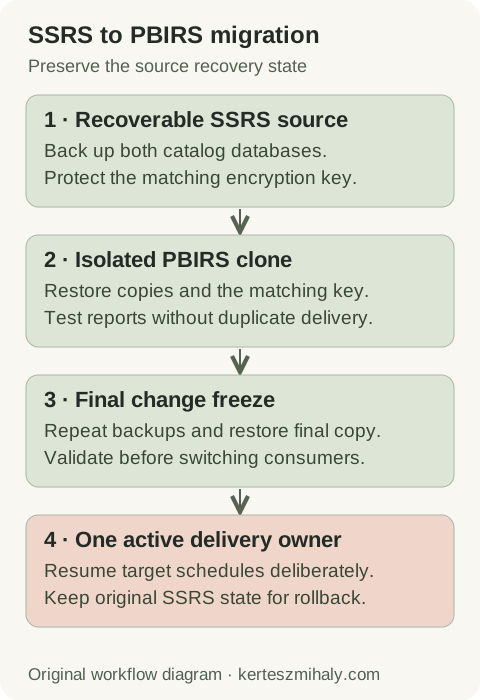
Back up the SSRS encryption key through Report Server Configuration Manager and retain its password in secure storage. Then take supported SQL Server backups of the actual catalog and associated temporary database. Keep the key file separate from the database backup set and check that the migration operator can retrieve both.
The key must correspond to the catalog being moved. It allows the new installation to decrypt stored sensitive data. Restoring a catalog without its usable key can leave report definitions visible while stored-credential reports and subscriptions fail. Follow the reporting encryption-key backup and restore procedure.
Restore the database pair to an isolated target SQL Server instance, retaining the configured names required by the procedure. The restore destinations must be distinct from the production source databases.
Keep the production SSRS catalog available for rollback and configure PBIRS against the restored copy. Connecting a newer report server can upgrade the catalog format, making it incompatible with older instances. See Microsoft's catalog compatibility rules.
The backup timestamp determines which reports, permissions and subscriptions are present in the rehearsal copy. Changes made later require a final source backup and target restore after the change freeze. Independent catalogs do not synchronize.
Configure PBIRS with the migrated ReportServer database
- Install the chosen PBIRS release on the prepared target host.
- Open Report Server Configuration Manager and confirm that you selected the PBIRS instance.
- Configure the intended service identity, then select the existing cloned report-server database through the supported database-connection workflow.
- Restore the matching source encryption key using its protected backup.
- Configure target URLs, HTTPS and the required authentication and delivery settings.
- Check the service and catalog connection before starting report validation.
PBIRS uses the instance name PBIRS. The installation instructions describe setup and configuration. When SSRS and PBIRS share a Windows host, check URL reservations, ports, resources and the selected service instance.
Setup permissions and runtime database access are separate requirements. Configuration Manager establishes the supported catalog connection and permissions for the runtime account; routine runtime access does not require sysadmin membership. See Microsoft's database-connection guidance.
Authentication is tested at three points: user access to the portal, the report-server connection to its catalog, and report connections to data sources. Remote data-source access may require delegation independently of catalog authentication.
Changes to service accounts, URL aliases or authentication schemes may require Windows and identity-administrator involvement. Encryption-key restoration enables decryption of stored data; it does not configure integrated authentication or delegation. Custom authentication extensions require a separate compatibility check.
Diagnosing empty catalogs and credential failures
An empty target portal can indicate connection to a newly created catalog rather than the restored catalog. Compare the configured SQL Server instance and database name with the restore record before re-uploading content.
When reports are visible but stored-credential operations fail, check encryption-key restoration and data-source authentication. Missing folders for particular users usually require inspection of catalog role assignments and recognized Windows identities. These checks preserve the intended permissions rather than expanding portal access.
Test migrated reports without duplicate subscription deliveries
The source and restored catalog may contain identical subscription definitions. During rehearsal, isolate outbound delivery to prevent duplicate email or writes to production file shares.
Test folder and report access using ordinary reader and author accounts. Open representative paginated reports with parameters, drillthrough and required exports. Check shared data sources, saved credentials and any reports using remote integrated authentication. Compare results to the source baseline.
Use test destinations for rehearsal subscriptions. Validate email and file-share delivery under the target's configured identities. SQL Server Agent must be running on the catalog host, with reporting schedules and their jobs executing as expected. See Microsoft's reporting schedule requirements.
For a failed report, collect its path, test account, timestamp and first error from the report-server logs. A TLS failure on the data-source connection is covered by the certificate-chain troubleshooting guide; authentication failures require the corresponding data-source account checks.
New PBIX reports require testing with the Power BI Desktop for Report Server release matching the target. RDL reports retain their paginated format during catalog migration. The PBIX authoring and publishing process is tested separately.
Cut over from SSRS to PBIRS and prepare rollback
Agree a cutoff for report publication, permission edits and subscription changes. After that cutoff, take the final source backups and repeat the catalog migration using the rehearsed procedure. Confirm which target database copy is active and repeat the key and configuration checks.
The cutover window includes final database restores and critical report tests, as well as endpoint changes. Record reporting deadlines, validator availability and the person responsible for accepting the target or invoking rollback.
- Keep the original SSRS recovery state available and prevent duplicate scheduled delivery.
- Validate the PBIRS target privately before redirecting the production URL or other clients.
- Switch approved consumers and test the public name, TLS certificate and real authentication path.
- Resume target schedules and monitor execution and delivery.
- Keep source schedules stopped while the target is active.
Endpoint validation includes saved application URLs, proxy rules, TLS certificates and Windows authentication, in addition to DNS. Test access from the networks and accounts used by readers and automated clients.
Rollback stops target delivery and restores the source service and routing. The original SSRS instance requires its compatible source catalog. Any reports or permissions created on PBIRS after cutover must be reconciled separately because the catalogs are independent.
Source retirement follows acceptance by report owners and validation through the relevant delivery cycle. Retain database backups, encryption-key material and configuration records under the recovery policy. The SQL Server migration guide covers the database move. Remote SQL Server upgrade support is available, with reporting-specific scope agreed separately.
SSRS to PBIRS migration questions
Is Power BI Report Server replacing SSRS?
Microsoft consolidates on-premises reporting under PBIRS starting with SQL Server 2025, with no new SSRS versions. Existing SSRS releases retain their respective support lifecycles. Transition to PBIRS uses a catalog migration and matching encryption key rather than an in-place SSRS upgrade. See Microsoft's migration guidance.
Does moving an RDL report convert it to PBIX?
No. Paginated RDL reports remain paginated reports. PBIX authoring is a separate workflow using the compatible Power BI Desktop for Report Server release.
What happens if the report server encryption key is missing?
Report definitions may remain visible, but the target cannot decrypt stored credentials and other encrypted data without the matching key. Recovery requires the corresponding usable key backup. Deleting encrypted content removes that data and is a separate recovery decision. See Microsoft's key recovery guidance.