
Power BI Report Server upgrade checklist
The checklist covers preparation, installation, validation and recovery. The PBIRS installer updates the report server separately from the SQL Server engine hosting its catalog.
- Record the current and target builds, check requirements, and download the server installer and matching Desktop RS.
- Back up both catalog databases, the encryption key and configuration; retain the previous installer and original report files.
- Rehearse on an isolated copy, including recovery and subscription delivery controls.
- Run the upgrade during the maintenance window, with publication restricted and final backups ready.
- Check the installed build, reports, stored credentials and schedules using normal reader and author accounts.
- Accept the release or restore the previous installation and catalog before the agreed recovery cutoff.
Check the Power BI Report Server upgrade target and prerequisites
This procedure is for an existing Power BI Report Server installation. Moving from standalone SQL Server Reporting Services to PBIRS needs the SSRS-to-PBIRS migration procedure. Upgrading the SQL Server engine that hosts the catalog is another change with its own compatibility and recovery checks.
Record the installed PBIRS product version and build, the catalog SQL Server version, Windows version, service account, report-server URLs and every server in a scale-out deployment. Include the current Power BI Desktop for Report Server release used by authors. Keep the starting state beside the intended target.
The PBIRS build and Desktop reference lists target releases. Microsoft's changelog identifies relevant fixes and changes. Use the recorded product build rather than the installer filename to identify a release.
Check the target's hardware and software requirements and installation eligibility. Confirm required operating-system, runtime and catalog-engine support. Review Desktop RS requirements separately: an authoring workstation and a report-server host have different roles.
- Run setup with an account in the reporting host's local Administrators group. Arrange database access for Configuration Manager and separate backup/restore access for the catalog administrator.
- Current GA requirements specify .NET Framework 4.8 or later. Supported Windows and catalog SQL Server versions depend on the selected target release.
- From May 2025, Desktop RS requires AVX instructions. Check CPU support and VM/BIOS exposure. From September 2025, Desktop RS is 64-bit only. See Microsoft's architecture change.
Download PowerBIReportServer.exe from Microsoft using the PBIRS download links. Retain both the target server installer and matching Desktop RS package before the window. Microsoft's download procedure identifies the server executable. Confirm that the existing production license covers the intended installation.
Service-account changes, certificate renewal and catalog moves require their own configuration and validation steps. Recording them separately helps distinguish upgrade issues from other changes and defines the state needed for rollback.
Back up the PBIRS databases, encryption key and configuration
Microsoft's upgrade instructions require database, encryption-key and configuration backups. Together these provide the reporting state needed for recovery.
| Item | What to retain | Check before the window |
|---|---|---|
| Catalog databases | ReportServer and its associated ReportServerTempDB, using the actual configured names | Restore access, files, backup times and required backup chain |
| Encryption key | Password-protected key backup | Correct instance, secure file and accessible password |
| Configuration | Current config files, URL/authentication settings and custom extension files | Readable copies and a list of deliberate customizations |
| Previous installation | Previous installer/build and host recovery procedure | Files available before production changes |
| Report baseline | Representative PBIX/RDL files, refresh schedules and expected outputs | Named validators and reproducible test inputs |
Export the Report Server encryption key
- Open Report Server Configuration Manager and connect to the intended PBIRS instance.
- On Encryption Keys, select Backup, choose a secure file location and enter a strong password. The backup uses a
.snkextension. - Copy the protected file outside the reporting host and retain its password in approved secure storage.
- In the isolated rehearsal, use Encryption Keys → Restore with the matching file and password. Validate a report using stored credentials.
Recovery requires the encryption key matching the restored catalog and its password. Microsoft describes the controls in the key backup and restore procedure.
The key protects stored credentials and other sensitive catalog content. Post-upgrade decryption failures require checks of the catalog, key and service-account configuration. Deleting encrypted content removes the affected data and is a separate recovery action.
Back up the configured catalog databases through the SQL Server backup process and test their restoration. ReportServerTempDB belongs to the reporting installation and is distinct from the engine's system tempdb. The backup guide covers backup-chain and restore checks.
Retain configuration files and custom extensions for comparison with the target release. Required custom settings are merged into the upgraded files, whose format and defaults may have changed.
Retain the configuration files and custom extensions
Microsoft lists config.json, RSHostingService.exe.config, Rsreportserver.config, Rssrvpolicy.config, Reportingservicesservice.exe.config, the report-server ASP.NET Web.config files and ASP.NET Machine.config. Locate them under the actual installation and runtime paths. Include custom extension assemblies and their settings; keep secrets in protected backup storage.
Test a Power BI Report Server upgrade on an isolated copy
Rehearsal uses a nonproduction report server connected to restored catalogs and the matching key. Isolate subscription email, delivery shares, refresh schedules and data access to prevent duplicate production activity.
Verify that the rehearsal host references the restored database instance and names. Connecting it to a production catalog can change that catalog. The setup record should also identify test delivery destinations.
Recover and validate the starting installation in the isolated environment, then perform the planned upgrade. Measure backup preparation, setup, configuration checks, report validation and rollback separately. Use the combined timing, including contingency, to size the maintenance window.
Rehearsal includes custom security, data-processing, delivery and rendering extensions. Record assemblies, configuration entries and vendor requirements, then test reports and deliveries that use each extension.
Record rehearsal failures and their resolution, including recovery of the previous installation and decryption of stored catalog content. Reporting-host snapshots and remotely hosted catalog databases require coordinated recovery.
Install the target Power BI Report Server release
- Confirm the maintenance window, validators, backup locations and rollback decision time.
- Pause report publication and relevant scheduled activity using the agreed operational procedure. Take the final recoverable backup set after the agreed cutoff.
- Verify the downloaded target installer and run
PowerBIReportServer.exeon the intended server using the setup administrator account. - Select Upgrade Power BI Report Server, review the license terms, and select Upgrade. Complete any requested restart before validation.
- After setup succeeds, select Configure Report Server. Inspect service account, catalog connection, URLs and encryption-key state.
- Check service startup and logs before inviting authors or users to validate reports.
Use Microsoft's version-specific setup instructions with the recorded maintenance procedure. Retain setup errors and timestamps before retrying, so permission, catalog-connection and dependency failures can be distinguished.
The catalog format must be compatible with the report-server version. Newer formats cannot be downgraded for an older instance; supported recovery uses a compatible catalog backup. See report-server database compatibility.
A scale-out upgrade includes all reporting nodes, the shared catalog and load-balancer behavior. Confirm the supported sequence for the release pair; mixed builds are not automatically a supported rolling update. PBIX also requires the documented client affinity. See Microsoft's scale-out guidance.
Validate reports, data sources, subscriptions and Desktop compatibility
Check the portal's About dialog against the target build, then validate representative reports, stored credentials, rendering and scheduled processing.
| Test | Check | Validation coverage |
|---|---|---|
| Portal and permissions | Real reader and author accounts, folders and report access | Reader and author permissions, in addition to administrator access |
| PBIX viewing | Important visuals, filters, parameters and model connections | Representative critical reports and model connections |
| RDL rendering | Parameters, drillthrough and required export formats | Required export formats and custom rendering |
| Stored credentials | Reports that use saved data-source credentials | Both saved credentials and integrated authentication |
| Refresh and delivery | Approved scheduled refresh and subscription execution | Scheduled execution, separately from interactive viewing |
| Author publication | Upload from matching Desktop RS and required report-authoring tools | Matching Desktop RS rather than the monthly Desktop release |
Compare data correctness and timing with the recorded baseline. Use the same parameters and expected row totals where practical. If a report is slow after upgrade, separate data-source query time from report processing and rendering before changing the catalog engine.
Authors use the Power BI Desktop for Report Server release matching the upgraded server. Retain report copies before saving them in that release. The monthly Power BI Desktop is a different authoring product. See Microsoft's Desktop RS guidance.
If a report upload fails after the change, use the Desktop compatibility and PBIX upload checks to separate authoring-version problems from authentication or refresh failures.
Read the relevant report-server logs when validation fails. Keep the report path, test account, failure time and error text together. Microsoft's reporting log reference distinguishes service logs, execution information and other sources. Share sanitized extracts, not stored credentials or full sensitive report data.
Portal HTTPS and report-server connections to SQL Server use separate endpoints and trust checks. Browser trust for the portal does not configure the report-server process's trust for catalog or data-source certificates. The SQL Server certificate guide describes these checks on the connection host.
Roll back a failed Power BI Report Server upgrade
Record rollback criteria, the responsible decision maker and a recovery cutoff. Criteria may include stored-credential failures, critical subscription failures, custom-authentication issues or report defects unresolved within the window.
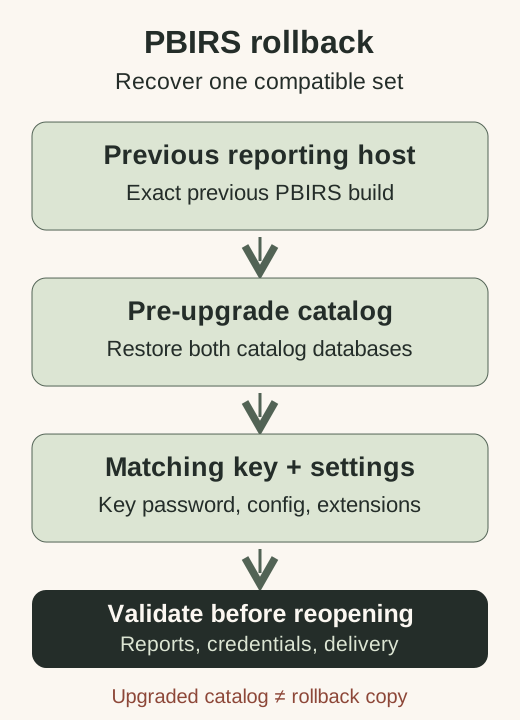
Rollback requires the previous reporting build, compatible catalog backup, matching key and configuration. Test restoration of that set during rehearsal; previous binaries cannot use an incompatible upgraded catalog.
Recover the previous PBIRS installation
- Keep publication and delivery restricted. Stop the upgraded reporting instances before restoring their catalog, following the rehearsed procedure.
- Recover the previous reporting host or reinstall the exact previous PBIRS build. Restore its compatible pre-upgrade catalog databases; confirm the configured SQL Server and database names.
- Restore configuration and custom extensions for that previous build. Reconnect through Configuration Manager and restore the matching encryption key when required by the recovered installation.
- Validate reader access, stored credentials, representative PBIX/RDL reports and controlled delivery. Reopen publication and schedules only after recovery is accepted.
A host snapshot and a database backup taken at unrelated times may not form a consistent recovery point. Coordinate the reporting host and catalog recovery plan with their administrators. Check where report publication, subscription changes and other writes can occur during the window.
Restoring the pre-upgrade catalog removes changes made after its backup. Restrict publication until acceptance or define how later reports, permissions and subscription changes will be reconciled. Include missed deliveries in the rollback assessment.
After acceptance, resume schedules and monitor a complete reporting cycle. Retain the previous recovery set for the specified period and record the installed PBIRS and Desktop builds. Microsoft's upgrade guidance also describes Microsoft Update security servicing.
For Microsoft Update delivery, enable updates for other Microsoft products in Windows Update's advanced options, subject to the company's patch policy. Security servicing does not replace planning a PBIRS feature-release upgrade or updating Desktop RS.
The SQL Server upgrade planning guide covers related engine work. Remote SQL Server upgrade support is available with reporting-specific scope agreed separately. The PBIRS reference lists builds and downloads.
Power BI Report Server upgrade questions
Can I upgrade directly from an older PBIRS release?
Microsoft documents an in-place upgrade process without a complete source-to-target matrix for all historical releases. Eligibility therefore requires the exact starting build, target prerequisites and applicable changelog, followed by an isolated test of that pair. Any required intermediate release or rejected source must be resolved before deployment.
How much downtime does a PBIRS upgrade need?
Duration depends on catalog size, configuration and validation requirements. Measure final backups, setup, restarts, report checks and scheduled processing in rehearsal, then include recovery time within the maintenance window.
Does a PBIRS upgrade preserve reports and subscriptions?
The in-place process retains the existing catalog. Validation still covers permissions, data-source credentials, extensions, refresh and subscriptions because their behavior can change independently of content preservation.
Can I downgrade Power BI Report Server after an upgrade?
An upgraded report-server database cannot be downgraded to work with an older instance. Restore a compatible pre-upgrade catalog together with the previous reporting installation, matching key and configuration. Preserve original PBIX files as well; files resaved with the newer Desktop RS may need separate recovery.
Do report authors need a new Power BI Desktop version?
Yes. Microsoft instructs authors to use the Power BI Desktop for Report Server version matching the upgraded server. Use the Desktop RS compatibility checks for publishing failures and retain report copies before resaving them.