

Most SSMS add-ins solve one part of the day. SQL Prompt and SQL Complete work in the query editor, where they help with suggestions and formatting. SQL Search finds existing database objects and references. Tools Pack and SSMSBoost are closer to a DBA’s workbench, with shortcuts for reopening a query or reaching a familiar connection.
The remaining choices are more specialized. dbForge Source Control connects database changes to a repository, SQL Enlight checks T-SQL against rules, and SQL Shades changes how SSMS looks. SQLExtended puts several smaller utilities in one extension. The useful split is between editing the statement, finding something in an existing database and keeping routine administration manageable.
SSMS add-ins compared by task and compatibility
A build listed here identifies a vendor-documented release or compatibility example. Check the exact SSMS version and architecture against the extension's current download before installing.
| Add-in | Daily job | SSMS compatibility | Install route | License |
|---|---|---|---|---|
| Redgate SQL Prompt | SQL completion, formatting and code analysis. | SQL Prompt 11 lists SSMS 18–22. Follow build-specific guidance. | Redgate installer for the supported host. | Paid subscription and trial. Bundles vary. |
| Devart dbForge SQL Complete | Completion, formatting and SQL editing. | SSMS 22 integration with a release-specific update for 22.6. | Devart installer and current revision history. | Express and paid editions. Verify needed features. |
| SSMS Tools Pack | Recover statements and reduce repeated work across tabs. | Tools Pack 7.4 lists SSMS 22.7 or later in the 22 branch. | Select the download for the installed SSMS family. | License by computer count. Check VM terms. |
| Redgate SQL Search | Find names or text across visible SQL Server objects. | Check 3.9 release notes and the 22.3 compatibility note. | Redgate download for the matching release. | Free. |
| Devart dbForge Source Control | Review database object changes against source control. | SSMS 22 integration and a separate 22.6 update. | Devart installer. Link a test database to a repo. | Paid standalone product or qualifying bundle. |
| SSMSBoost | Connection shortcuts, formatting and query history. | Match the publisher's SSMS 21 or 22 build list. | Version-specific publisher downloads. | Free Community and paid Professional editions. |
| Ubitsoft SQL Enlight | T-SQL static analysis and rule feedback. | SSMS integration. Confirm the exact installer and host. | Ubitsoft installer and supported hosts. | Commercial. Include automated analysis if required. |
| SQL Shades | Change editor or grid readability. | SSMS 21 and 22. Classic Blue requires 22.7 or later. | Match the release and platform, including ARM64 where listed. | Free themes and paid Pro. |
| SQLExtended | Editor and SQL workflow utilities in one extension. | Targets SSMS 22. Check the relevant project release. | Source and packages on GitHub. | MIT. |
Redgate SQL Prompt
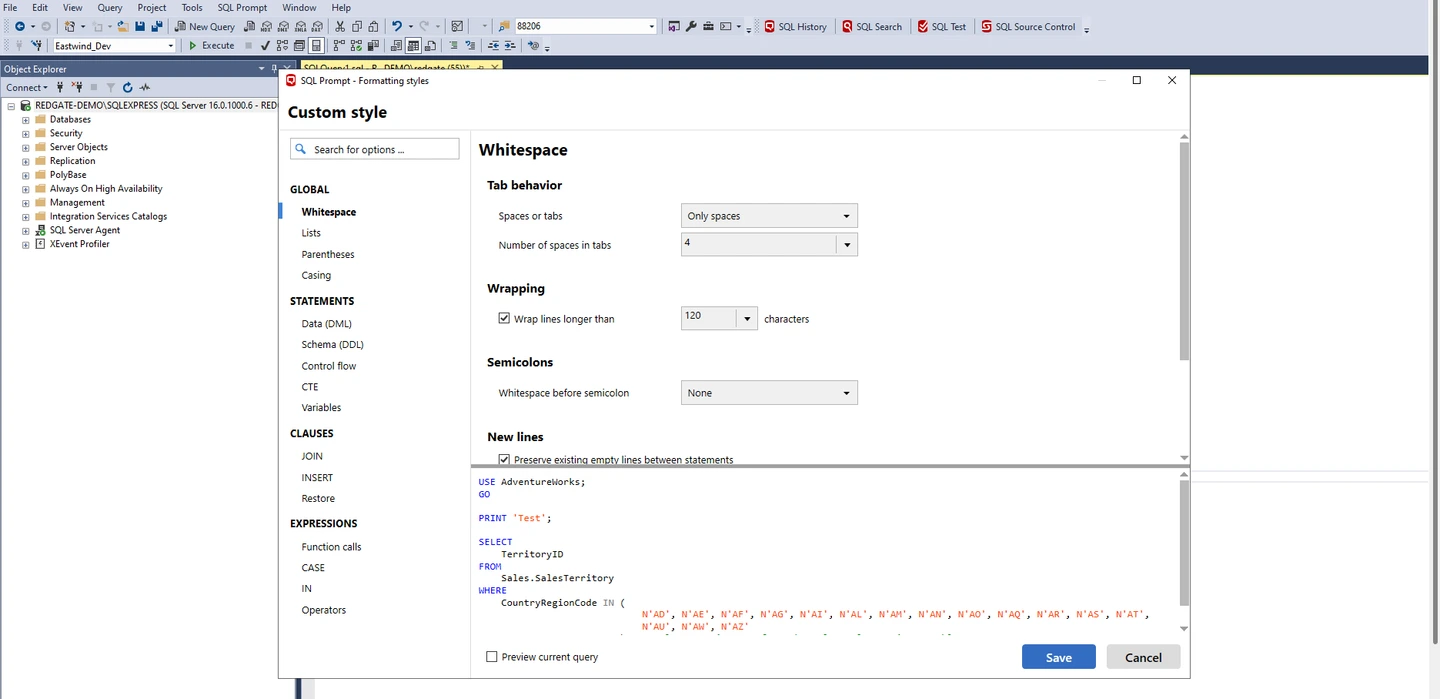
Redgate SQL Prompt adds schema-aware completion, snippets, formatting and analysis rules to the SSMS editor. In a procedure with several table aliases, completion helps keep the object and column names straight. A shared formatting style makes the same procedure easier to review when several people edit it.
That combination is valuable for a team that writes and reviews T-SQL every day. The built-in SSMS formatter can handle basic formatting on its own, so the stronger case for Prompt is the combination of completion, reusable snippets and review rules. The AI features bring their own licensing and data-handling questions.
Completion earns its place when suggestions resolve the alias and expected columns inside a long query. Try a query that uses a common table expression and aliases from more than one source. Compare the completion with the native IntelliSense response and check whether the rule list identifies issues your team already reviews.
Treat a shared style as a small configuration release. Format one checked-in procedure, review the diff and confirm how colleagues receive the same formatting and snippets. If you also run SQL Complete or another editor extension, check which one owns the shortcuts and suggestions.
- Compatibility
- SQL Prompt 11 lists SSMS 18 through 22. Some point releases, including SSMS 22.3, have specific installer guidance.
- License and trial
- Commercial subscription with a trial. SQL Toolbelt entitlements vary by plan.
Devart dbForge SQL Complete
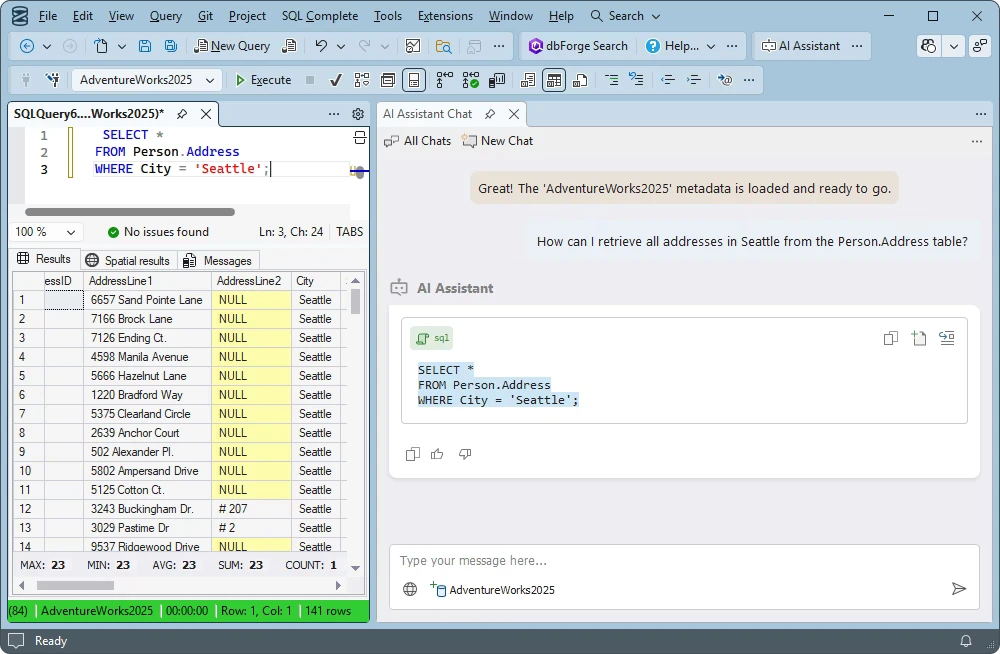
Devart dbForge SQL Complete works inside SSMS. Its suggestions can qualify objects, add aliases and fill in join conditions. The column picker shows the available fields and their types, which helps when a wide table has several similarly named columns.
SQL Complete belongs next to SQL Prompt when the purchase is mainly for everyday editor work. Devart’s Express edition provides a way to start with basic completion. Formatting, code analysis and assistant features need a separate look at the intended edition because a basic editor install and a shared team setup can require different entitlements.
SQL Complete fits a developer who wants completion and formatting inside SSMS and already works with Devart tools. The edition comparison matters when the reason for paying is a shared style, more advanced suggestions or analysis. Check that the task is available in the edition you will actually deploy.
Run completion and two consecutive format passes against the same stored procedure. Verify whether formatting changes the meaning of string literals, leaves comments useful and produces a stable diff. A formatter that works on one editor tab still needs a reliable setup after upgrading SSMS.
- Compatibility
- Devart’s release history documents SSMS 22 integration and a specific update for SSMS 22.6. Supported client builds depend on the add-in release.
- License and trial
- Express and commercial editions. The vendor publishes a feature matrix and offers a trial.
SSMS Tools Pack
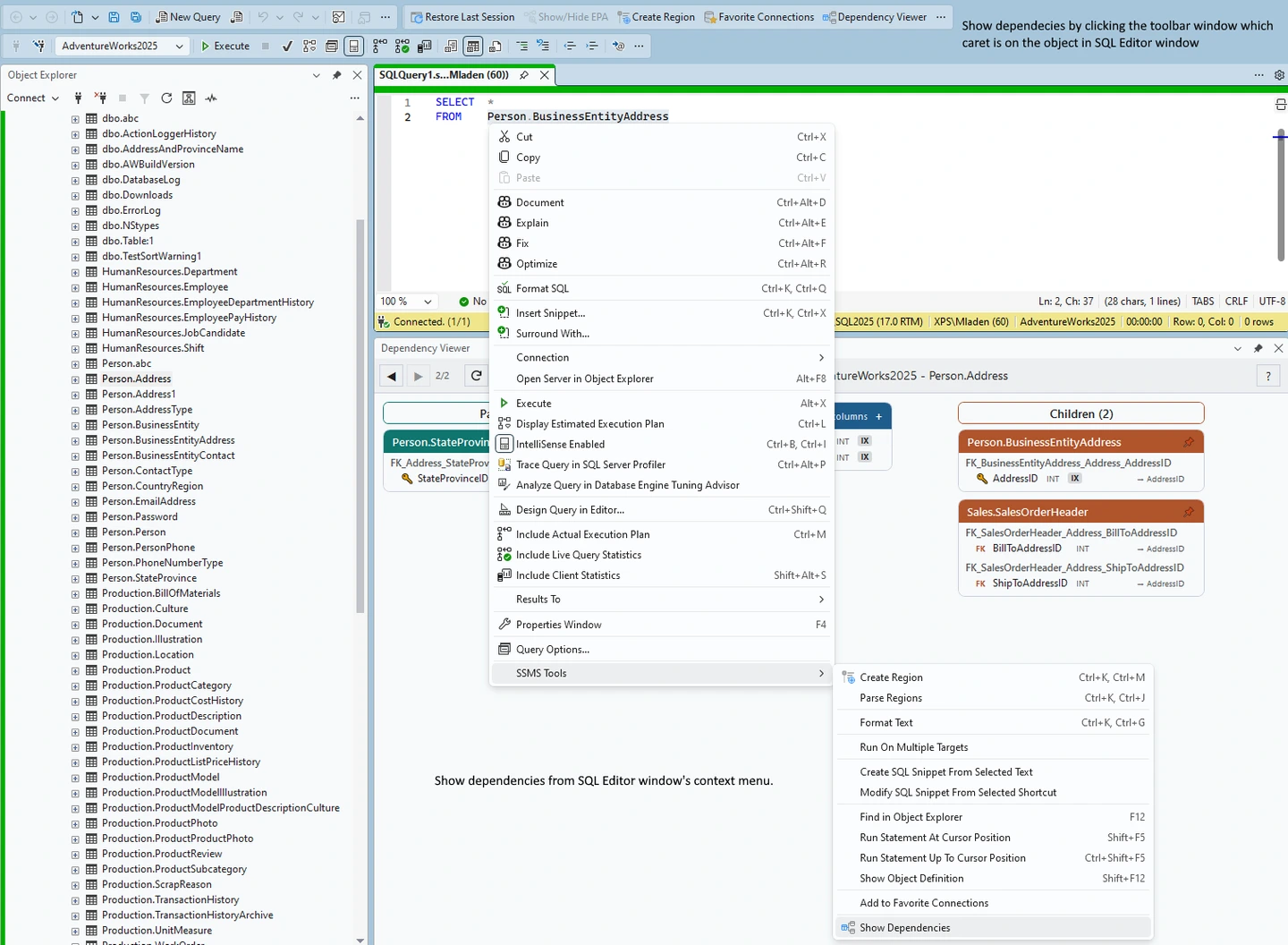
SSMS Tools Pack brings query history, favorite connections and a table Dependency Viewer into one add-in. History can recover a statement from an earlier session. The viewer makes direct relationships around a table easier to inspect while investigating an unfamiliar database.
These features suit support work where the same servers and incomplete investigations come up repeatedly. The trade-off with keeping query history is that the saved SQL can contain literal values, object names and notes. The storage location and who can read it matter on shared workstations and jump hosts.
History is valuable when it saves recovering a recently executed statement after closing a tab or reconnecting. Check what the history stores, where it is kept and whether the original connection remains clear. Someone with similar names for several databases benefits from a reliable connection cue as much as from recovering the SQL.
The machine-based license matters for teams issuing an additional workstation or a virtual desktop. Match the planned rollout to the vendor's computer and VM terms. Run the same recovery check after a restart using a clean lab profile.
- Compatibility
- Tools Pack 7.4 lists SSMS 22.7 or later for the 22 branch and offers downloads for older SSMS releases.
- License and trial
- Commercial licensing is based on computer count, with virtual-machine terms in the publisher’s license table.
Redgate SQL Search
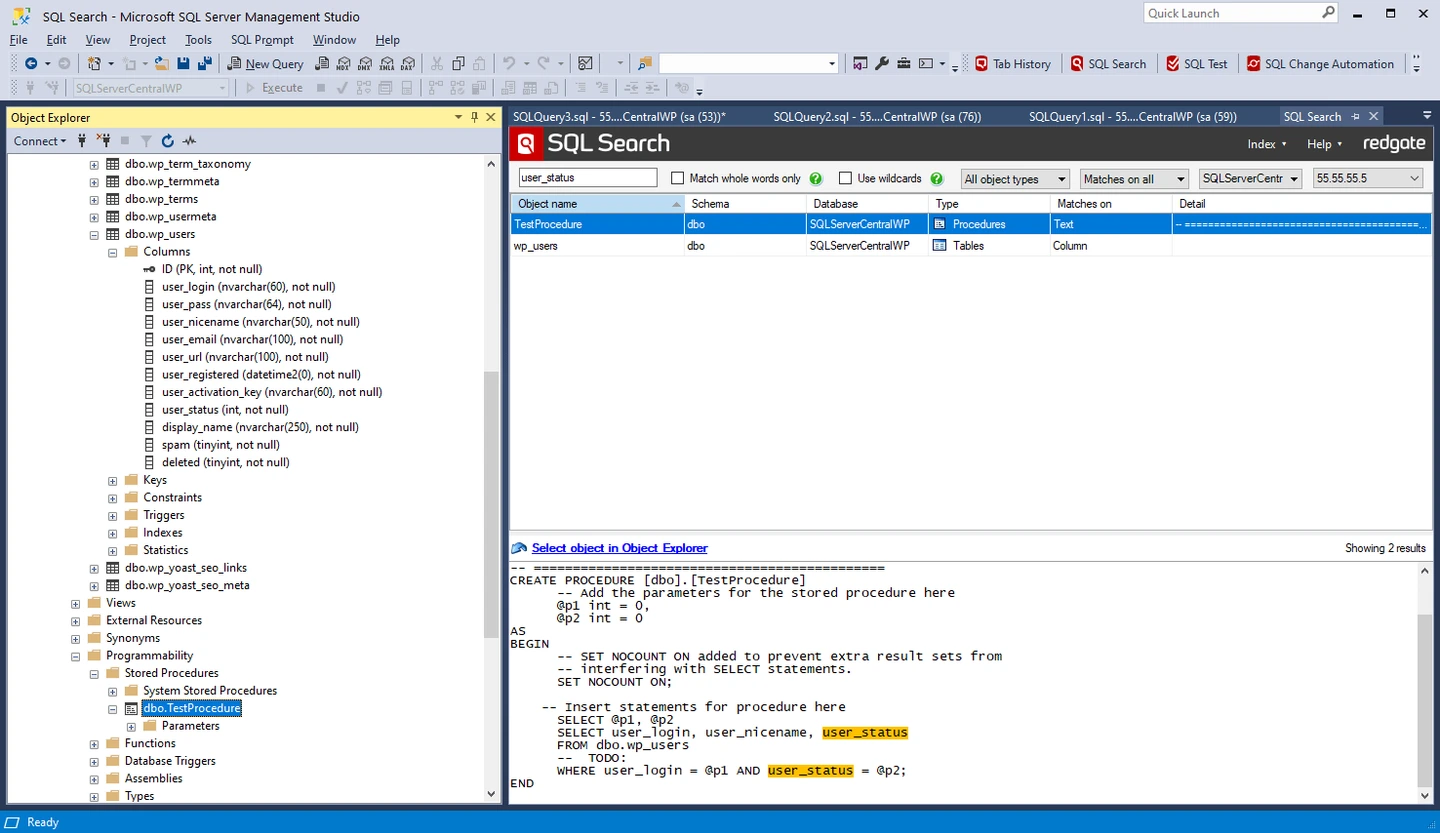
Redgate SQL Search searches database objects and definitions from SSMS. A developer looking for a column can find procedures and views that mention it beside objects with a similar name. That gives a quick starting point for change impact investigation without opening each definition from Object Explorer.
A result is as complete as the definitions available to the connected login and the references present in searchable text. Encrypted definitions and names assembled by dynamic SQL leave gaps. SQL Search is particularly useful for finding candidate callers before a change, with dependency checks and execution tests covering the remaining cases.
Use SQL Search when the common question is where a table, view, routine or column appears. A useful trial includes an object with a distinctive name and a reference inside procedure text. That separates object-name search from finding SQL text in available definitions.
The account and chosen database scope decide what the extension can retrieve. Repeat the search as a normal developer who can see one project and has restricted access to the other. Confirm the tools you choose help with the team's actual metadata permissions.
- Compatibility
- Redgate’s 3.9 release notes document supported clients. SSMS 22.3 has separate installation guidance.
- License and trial
- Free download from Redgate.
Devart dbForge Source Control
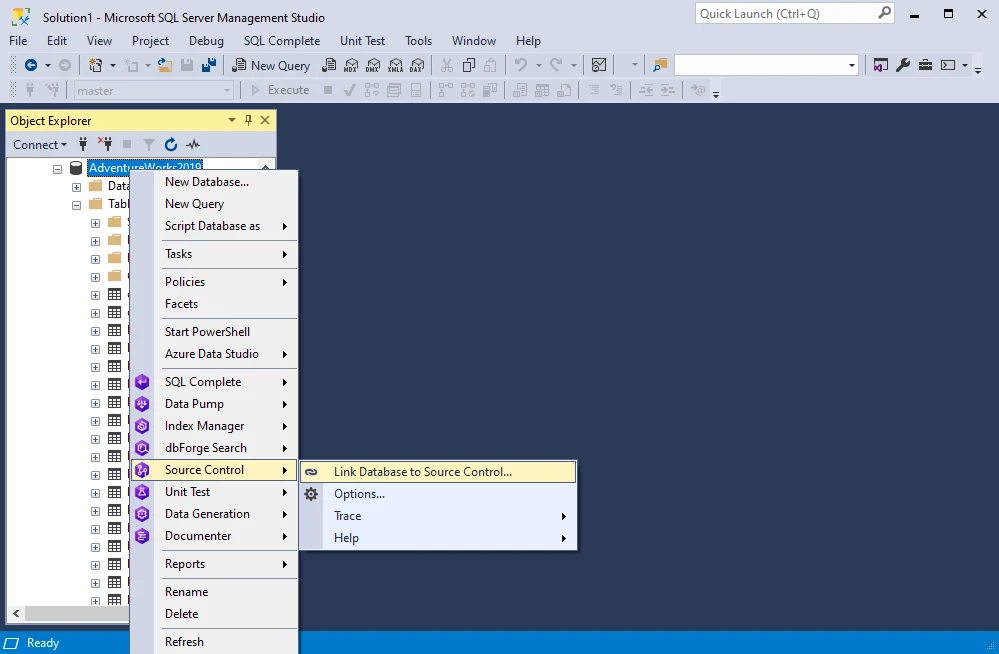
dbForge Source Control links a SQL Server database to a repository from the SSMS Object Explorer. It gives a developer who edited a procedure or table locally a place to compare the database change with the repository and commit its definition.
That connection is useful when development starts inside the database and the change still needs a normal Git review. Conflicts and object renames remain part of the database design work, especially in a shared development copy. Reviewed object definitions are input to a release process that still needs a deployment script and a rollback plan.
Source Control helps teams that still make object changes from SSMS and need to review them in Git. Link a development database and make a procedure change. The useful output is a small reviewable definition, with a clear record of where the previous state came from.
Define what happens when two people edit the same object. A safe commit path also needs the surrounding release review, database deployment identity and drift process. An add-in makes the developer's object review easier and leaves CI/CD policy to the tools that run the deployment.
- Compatibility
- The revision history includes SSMS 22 integration and a release update for SSMS 22.6.
- License and trial
- Commercial dbForge add-in. Bundle entitlements depend on the selected license.
SSMSBoost
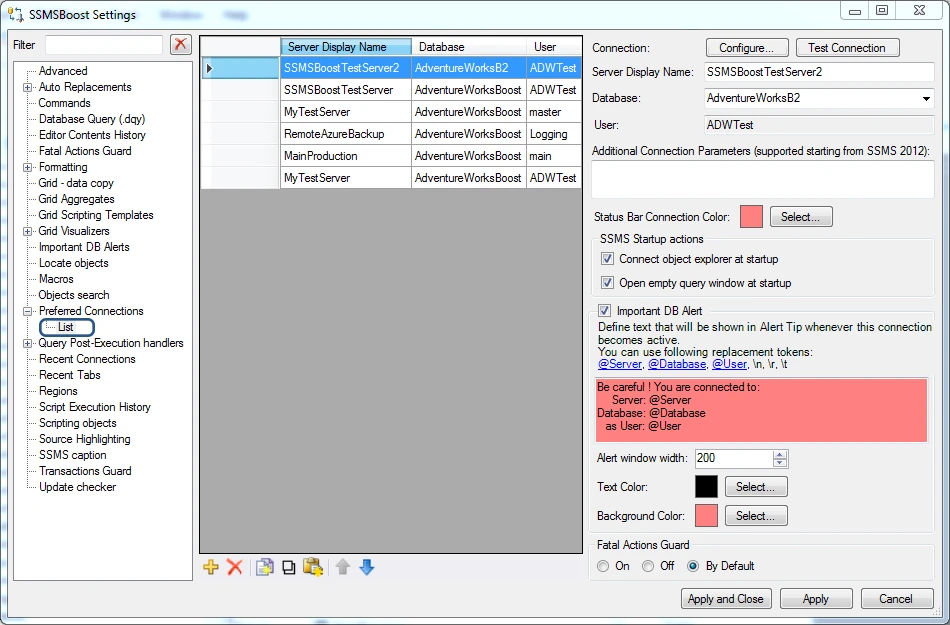
SSMSBoost extends the workstation side of SSMS with preferred connections, session history and guards for common editor mistakes. Preferred connections are particularly helpful when development and production carry databases with the same names. A recognizable connection indicator gives the DBA another cue about where the editor is pointed.
The strongest case is a workstation that switches among several instances all day. History and transaction alerts add context if an investigation is interrupted. Connection indicators remain a visual reminder, with production write restrictions enforced by the SQL Server login.
SSMSBoost is useful for people who switch between connections and need to find earlier editor work. Test the same stored procedure on two disposable databases with similar names. The shortcut should preserve the intended database and expose which settings follow the SSMS profile.
The Community limit on preferred connections can be material in a multi-instance lab or estate. Compare a normal day's connection list against the published edition grid. Check local history and connection data before rolling the extension out to a shared workstation.
- Compatibility
- The download page lists specific combinations of SSMSBoost and SSMS 21 or 22 builds.
- License and trial
- Free Community and paid Professional editions. Community is limited to two preferred connections.
Ubitsoft SQL Enlight
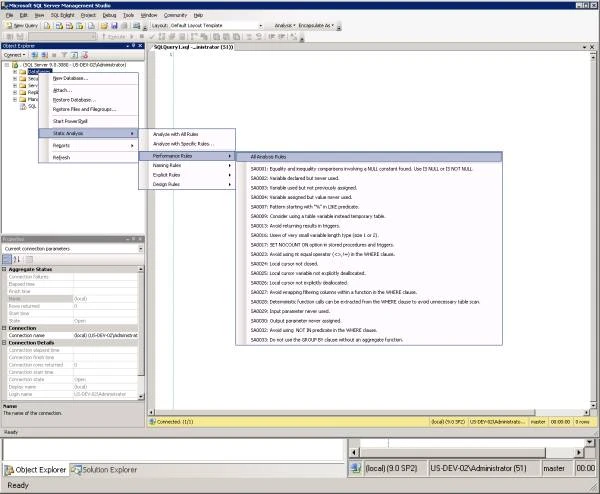
SQL Enlight performs static analysis on T-SQL in SSMS. It can flag code patterns such as an unused variable or a suspicious NULL comparison before a procedure reaches a review. A shared set of rules gives several developers a consistent explanation for why a pattern was flagged.
It fits teams that want a repeatable code review policy more than an editor shortcut. Static rules report patterns they recognize, so a useful policy distinguishes findings that could change query behavior from style issues. The command-line path and its license are relevant if the same policy needs to run in CI.
An analyzer is useful when its output can be repeated in the review that blocks or approves a change. Configure agreed rules, add a known finding to a test script and correct it. Look for the same rule identifier and clear location in the editor or supported automation output.
Decide how to handle legitimate exceptions before making the check mandatory. A broad rule list can include patterns your codebase needs. The pilot should capture a valid T-SQL pattern alongside an intentional violation to see whether the team's conventions create repeat warnings.
- Compatibility
- Ubitsoft documents SSMS integration. Compatibility depends on the installer release and the SSMS build.
- License and trial
- Commercial product. Editor and automated analysis entitlements depend on the license.
SQL Shades
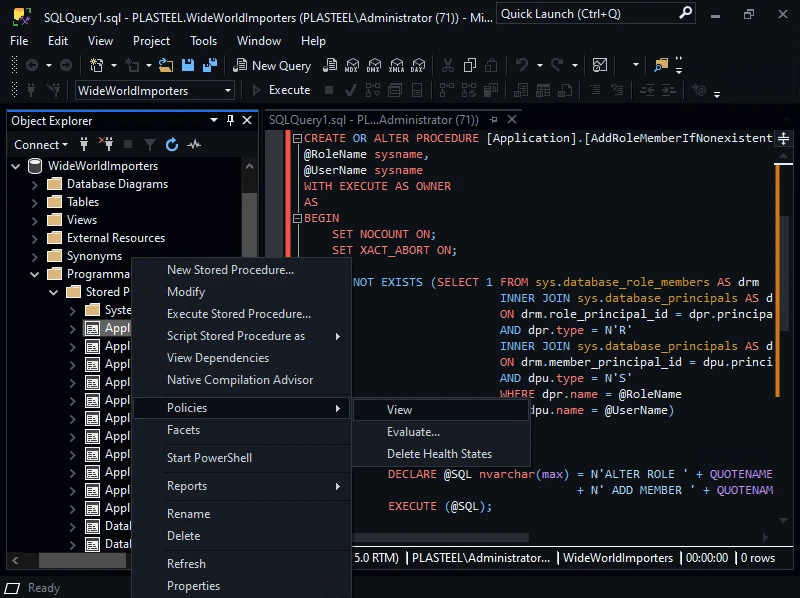
SQL Shades provides themes for SSMS, including areas such as the Object Explorer and results grid. A theme can make the selected row or current editor easier to see on the screen a DBA actually uses. Its value is in the readability of those everyday views.
It is a narrower purchase than a formatter or code review add-in. The main comparison is with the built-in SSMS themes and with the visibility of other add-ins’ dialogs, the results grid and query plans. Free themes may already provide the visual treatment someone needs.
SQL Shades solves readability problems in the client. Compare the native and selected theme on the query editor, plan, result grid and dialog you use most. The best choice depends on whether the important text remains distinct under the workstation's scaling and contrast settings.
An SSMS theme can need work after an Office or Windows display setting changes, or when SSMS adds native styling. Record the exact supported version and rollback path. Test a workstation with the same architecture and screen settings as the person who relies on it.
- Compatibility
- The publisher documents SSMS 21 and 22 support, with Classic Blue requiring SSMS 22.7 or later and ARM64 installers on supported releases.
- License and trial
- Free themes and a commercial Pro tier with additional customization.
SQLExtended
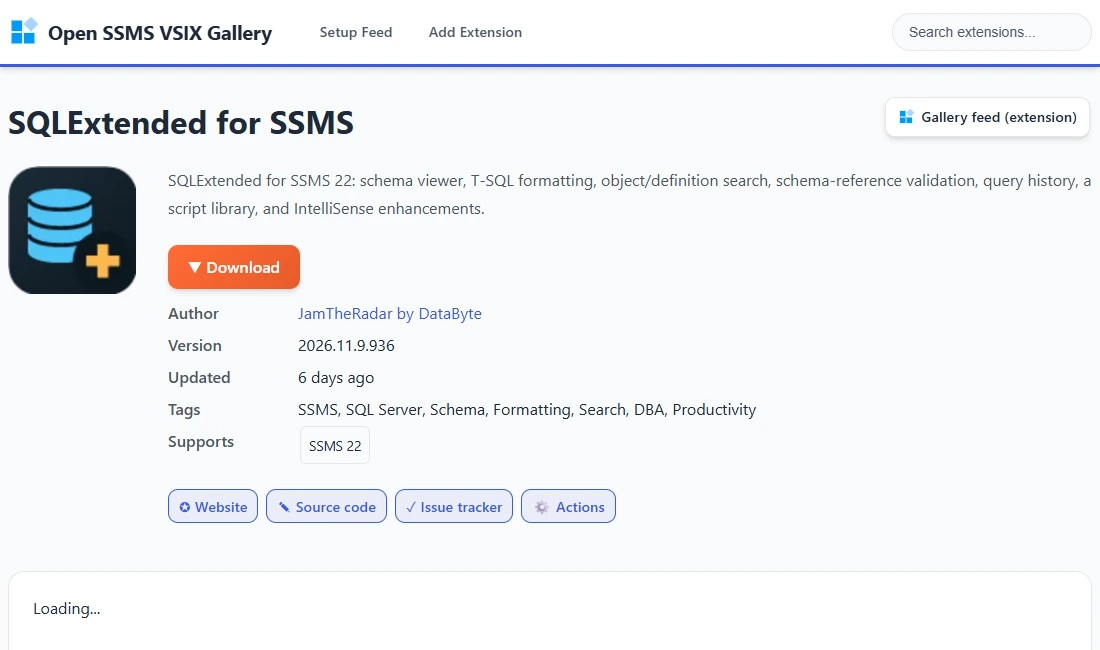
SQLExtended is an open-source SSMS 22 extension with schema search, formatting and results-grid tools. A developer can use it to find an object definition and sort through a result set within the same extension. The project also includes monitoring dashboards.
The bundled utilities make it a useful candidate for someone who needs several small improvements and can maintain the extension internally. The maintainer documents reliance on undocumented SSMS assemblies, so an SSMS update can affect compatibility. That matters more on a tightly managed company workstation than on a development profile.
SQLExtended is useful when a maintained free extension covers several small actions. Start with the one or two features that replace a recurring editor step. Confirm the installed package version against the project release and document how anyone on the team can repeat setup.
Source availability makes it easier to inspect what an extension does. An operator still needs to verify the installer and the current SSMS compatibility notes. An upgrade check should cover startup, common shortcuts and how to disable the extension.
- Compatibility
- The project targets SSMS 22. Compatible builds and installation packages are listed in the project’s releases.
- License and trial
- MIT licensed. The project publishes its source and release packages.
SSMS add-in shortlist by job
| What you need | Tools to shortlist | What to verify |
|---|---|---|
| Write and format T-SQL | Format the same stored procedure and compare the resulting diff. Try completion after an alias and check the edition required. | |
| Find objects and references | Find a known column across procedures and views using your normal SQL login. | |
| Recover queries and switch connections | Restart SSMS and recover a query. Reconnect and check how the editor identifies the current database. | |
| Review and version a database change | Decide whether you need to track the schema change in Git, apply T-SQL analysis rules, or do both. Test against a procedure the team maintains. | |
| Improve editor and grid readability | Open the results grid, an execution plan and the dialogs you use under Windows at your usual zoom level. |
Which SSMS add-in should you install first?
Choose from the task that occurs most often. Completion and formatting overlap across several products, so start with one editor extension and measure the difference before adding another. Search, history and source control answer different problems.
Writing or reviewing T-SQL
Try a single editor extension
Use the same procedure to compare completion, formatting, rule feedback and shared styles.
Finding an object or a statement
Compare search and history
Check a known object in two databases and recover a statement after restarting SSMS.
Reviewing a database change
Test the Git workflow
Commit one procedure, review the diff and resolve a change from a second developer.
Check compatibility before updating SSMS
The SSMS build, add-in build and workstation architecture are separate inputs. An extension that lists SSMS 22 can still require a specific point release or installer. Record the current combination before you allow an update across a team.
Open SSMS as a normal developer after updating and repeat one action that depends on the add-in. A successful installer only verifies that the package ran. The next check is that the extension loads, recognizes its license and uses the intended connection and editor profile.
| Check | Record | Expected result |
|---|---|---|
| Client update | SSMS build before and after, Windows architecture and add-in version. | The selected vendor release lists the deployed combination. |
| First startup | Extension menu, license, and the key action it supplies. | The same SQL or object can still be reached and the add-in loads. |
| History and credentials | Storage location and behavior after restarting with a clean connection. | The workspace follows the intended information retention and permissions. |
| Fallback | Disable or uninstall steps from the current vendor instructions. | The built-in editor still opens and a normal developer can continue the task. |
How to compare these tools
Check the add-in against your exact SSMS version. Try completion, formatting and any query-history feature on the same script and work through a normal connection change. Extension compatibility comes from the publisher’s release notes. Sources checked .
Run the same trial on each shortlisted add-in
Use a disposable Windows profile and the SSMS build your company deploys. Run the read-only fixture before and after formatting. The first result should show customer 1 with 25.50 and customer 3 with 7.25. The second result should contain the literal ORDER BY.
Read-only T-SQL fixture for formatting
T-SQL · 19 lines
- Establish a baseline in plain SSMS. Open a stored procedure, use IntelliSense to find a column and try built-in formatting where available. Install one add-in and repeat the tasks. Record which work it saves and check for duplicate suggestions or shortcuts.
- For completion or formatting, compare the diffs from two passes over the same procedure. Include comments, a nested query, bracketed identifiers and a GO batch separator. For static analysis, add a known issue and verify that fixing it clears the finding.
- For search, history or connection features, use a normal developer login and two test databases with similar names. Reconnect and restart SSMS. Check that the extension identifies the right database and preserves only the local history your policy permits.
- For source control, commit and review a stored procedure change, then resolve an intentional conflict against a second developer’s change. For a theme extension, inspect the same grid, plan and dialogs in the native theme and the add-in theme.
- Repeat the relevant checks after updating SSMS. Confirm the add-in loads, the license is still valid and a colleague can disable it if it interferes with the editor.
Conclusion
Choose one add-in for the biggest daily bottleneck. SQL Prompt and SQL Complete are the first two to compare for editing and formatting. SQL Search is a low-friction option for object search. Tools Pack and SSMSBoost are better places to start if connection switching or history takes more time than writing SQL. Match every install to the actual SSMS build and document the behavior you expect to survive the next update.
Frequently asked questions
What are the best free add-ins for SSMS?
Try Redgate SQL Search for object search, dbForge SQL Complete Express for supported editing features, or SQLExtended for an open-source SSMS 22 option. SQL Shades offers free themes. Check the add-in’s license and the version your company deploys.
Do SSMS 21 add-ins work in SSMS 22?
Compatibility depends on the add-in and the specific SSMS build. Check the vendor release notes and use a test profile. Microsoft says third-party extensions can load in SSMS, with support handled by their publishers.
Should I use SQL Prompt or SQL Complete?
Trial both on the same T-SQL script. Compare completion after table aliases, the formatted diff, shared style settings and the edition the team will license. SQL Complete has an Express edition, with the current limits listed by Devart.
Can an add-in replace a separate SQL Server client?
The products here extend SQL Server Management Studio on Windows. For a different client or for macOS and Linux, use the SSMS alternatives comparison.
Can I run multiple SSMS add-ins at once?
Install and test them one at a time, then repeat your daily tasks with the final set. Check duplicate suggestions, overlapping shortcuts, startup time and how to disable an extension when diagnosing a problem.
Can SSMS format T-SQL without an add-in?
Yes. SSMS 22.7 and later include T-SQL formatting. Try the built-in command and settings before buying a formatting add-in. Use the same script to compare team style settings, snippets and review features.
Do SSMS 22 add-ins work on every point release?
Check the exact client and extension combination in the publisher's release notes. Several add-ins list a particular 22.x update or require a newer build. Also check the Windows architecture and installation method.
Can I install more than one SSMS formatter?
Several extensions can coexist in a profile. Compare which one owns completion, shortcuts and formatting before using them together. One configured formatter can simplify team diffs and upgrades.