

SQL Prompt and SQL Complete both add completion, formatting and reusable snippets to a SQL editor. The value is easy to see when a developer writes a lot of T-SQL against unfamiliar objects or reviews code from several people. Suggestions help the author find the right names as they type. Formatting is a separate job, and teams get the most from it when one style produces predictable diffs.
The decision changes if the rules also need to run outside the editor. A tool can format a query in SSMS without providing the same workflow under a build identity. SSMS and Microsoft’s VS Code extension cover basic authoring. SQL Enlight and SQLFluff are more relevant when the team wants rule checks over source files. SQL Prompt and SQL Complete sit between those use cases, with automation and shared settings that depend on the chosen product and license.
SQL Prompt vs SQL Complete at a glance
Start with the two add-ins and treat the built-in SSMS tools as the baseline. The other tools cover specific needs such as a lightweight extension, cross-platform editing or linting in CI.
| Tool | Best use | Main qualification | Host and license |
|---|---|---|---|
| Redgate SQL Prompt | SSMS completion, code analysis and Redgate team tooling | Shared settings and command-line workflows are license-dependent | Windows SSMS or Visual Studio; paid standalone and Toolbelt options |
| dbForge SQL Complete | Configurable completion and formatting with a choice of editions | Professional and Enterprise formatting CLI; Enterprise code analyzer | Windows SSMS or Visual Studio; Express and paid editions |
| SSMS built-in IntelliSense and formatter | Start with free Microsoft editing tools | Check the current SSMS version and the formatting settings it exposes | Windows SSMS; free |
| SSMSBoost | Shorthand expansion and selected SSMS enhancements | Check exact build support and selected formatter | Windows SSMS; publisher terms vary by edition |
| SQL Enlight | Rule-based T-SQL analysis and file workflows | Check CLI entitlement and rule behavior | Supported Windows integrations; commercial |
| SQLExtended | Community SSMS 22 add-in for editing and navigation | Verify exact extension build and shared style workflow | Windows SSMS 22 at the cited project version; open source |
| Microsoft MSSQL for VS Code | SQL Server authoring from an application editor across platforms | Check connected completion, formatting and database tasks in the extension | VS Code on supported platforms; free |
| SQLFluff | Repository-level T-SQL linting and formatting | Set the T-SQL dialect and confirm parsing against representative files | Python CLI and integrations; open source |
Redgate SQL Prompt
Redgate SQL Prompt adds context-aware completion, configurable formatting, snippets and code analysis to supported editors. Its custom styles let a team standardize the layout of T-SQL that several developers or DBAs touch. Completion and code analysis are useful on the same page because the developer can catch certain problems while writing the query.
It fits teams that want formatting and T-SQL assistance embedded in normal editing. Sharing a style helps reduce formatting-only changes, but the command-line bulk workflow has its own licensing requirement. Editor behavior, shared profile distribution and automated formatting are three parts of the rollout.
Test completion under the SQL login the developer normally uses. Try an explicitly qualified column after an alias and inspect the suggestions on both sides of a join. Save a standard style and verify whole-script and selected-statement formatting against one sample procedure.
Redgate lists team sharing and bulk operations under eligible Toolbelt licenses. Compare the standalone and bundle quotes using the same seat count, term and currency. Verify whether the host supports the feature. For AI, use the opt-in settings and product documentation when deciding what can be sent.
- Compatibility
- Windows add-in for supported SSMS and Visual Studio releases. Features differ by host.
- License and trial
- Commercial. Redgate documents bulk operations under eligible SQL Toolbelt licenses.
dbForge SQL Complete
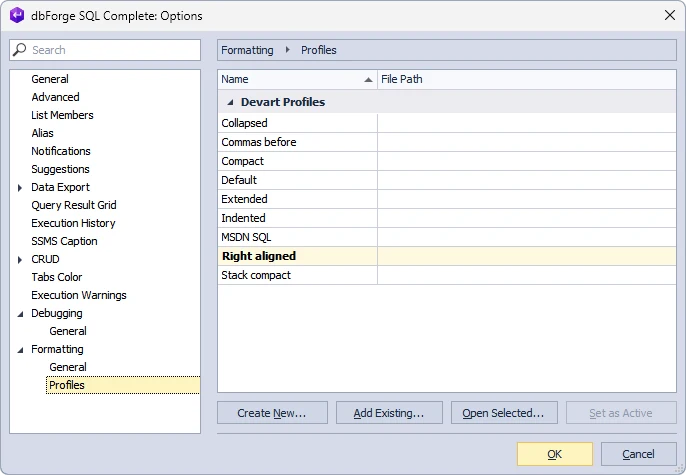
dbForge SQL Complete provides completion, reusable snippets and SQL formatting in SSMS and Visual Studio. Its formatting profiles are useful when teams maintain several codebases with different rules. A developer can apply a profile in the editor, and the documented command-line formatter can take a profile for a file-based workflow.
It is a good fit when the team wants to tune formatting in detail or apply an exported profile to recurring work. Available actions vary across Express, Standard, Professional and Enterprise. A trial can expose functions a team will lose if it later chooses a different edition.
The Devart matrix distinguishes an Express starting point, paid editing tiers and the Enterprise analyzer. Validate a custom profile, alias suggestions and snippet placeholders on the edition to be purchased. Run the CLI separately if you intend to use the same settings after commit.
Execution warnings and static analysis are different team workflows. Check the warning settings for the sandbox connection and the feature matrix for the edition. Devart documents separate AI activation and a database attachment option. Use synthetic schema during the trial.
- Compatibility
- Windows add-in for supported SSMS and Visual Studio releases, subject to edition and version.
- License and trial
- Free Express and paid editions. Command-line and advanced features are edition-dependent.
SSMS built-in IntelliSense and formatter
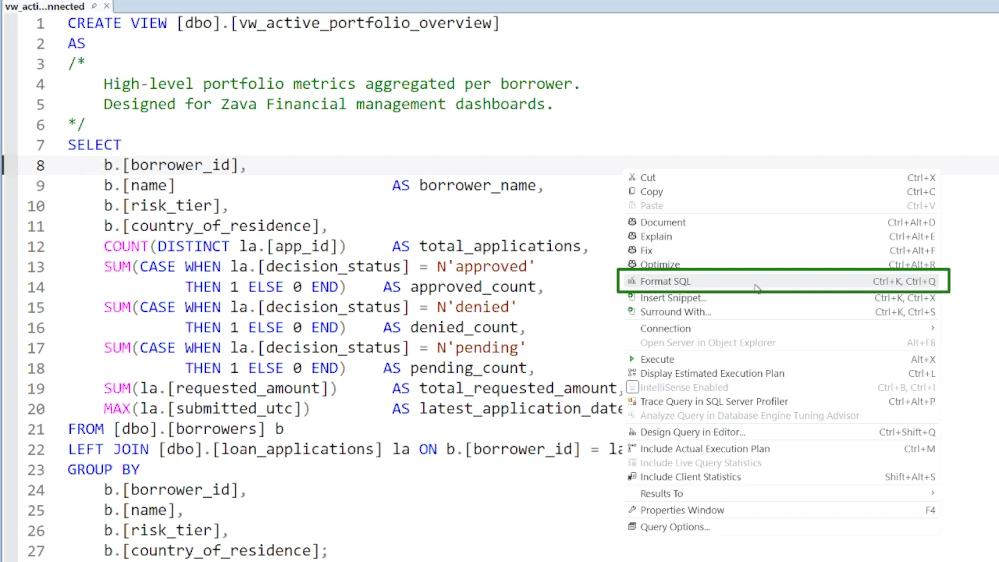
SSMS includes object-aware IntelliSense, T-SQL snippets and, in current supported releases, a built-in formatter. The formatter uses Microsoft’s ScriptDOM parser. It covers the common case of someone writing and maintaining T-SQL from the same client they use to administer SQL Server.
The built-in tools can be sufficient when an individual or small team mainly needs name suggestions and a consistent basic layout. An editor command applies locally, while a shared style and repeatable command-line run require a separate workflow. Completion also depends on the connected context and the metadata SSMS can see.
Run the built-in formatter first on a small script to establish what a free SSMS installation does. Record whether the formatter can handle the current dialect and how the active connection affects IntelliSense. Review any differences against the team's actual SQL style.
Use the same alias and snippet experiment you use for the commercial products. If a feature is handled by a separate CI tool, compare the editor's result with that tool as well. This establishes which tasks would gain from an add-in.
- Compatibility
- Supported Windows SSMS release with the built-in formatting feature and access to the target SQL Server.
- License and trial
- Free Microsoft client.
SSMSBoost
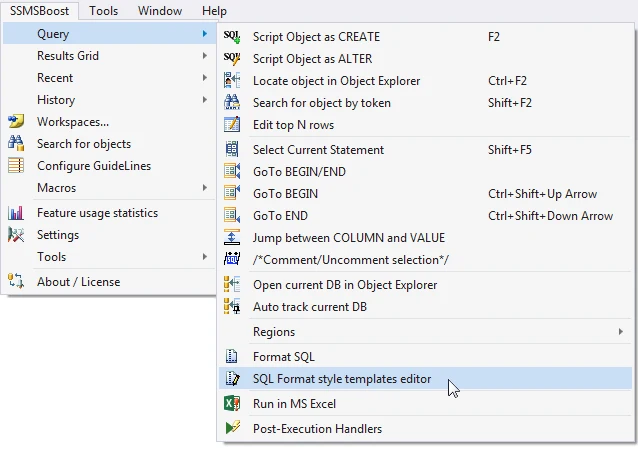
SSMSBoost adds formatting and shorthand expansion to SSMS. AutoReplacements can expand a short token into a familiar statement. Multiple formatting choices are documented, including the external Poor Man’s T-SQL Formatter integration. It is useful when a DBA wants editor conveniences alongside frequent operational scripts.
A team relying on AutoReplacements can get immediate value without changing its wider development environment. The chosen formatter determines which syntax and options are available. The add-in still has to load in the actual SSMS version used by the team.
Use a common administrative abbreviation to try AutoReplacements. Check the expansion before execution, including identifiers and placeholders. For a formatting comparison, record the actual backend selected and evaluate it on the same T-SQL script.
Install the supported build on a clean SSMS profile and test the shortcuts the team uses. Confirm whether any shared settings or exports reproduce the expected result. Keep a saved profile if the desktop environment will be rebuilt.
- Compatibility
- Windows SSMS add-in. Compatibility depends on the installed SSMS and add-in versions.
- License and trial
- Free and commercial options are subject to the publisher’s current terms.
SQL Enlight
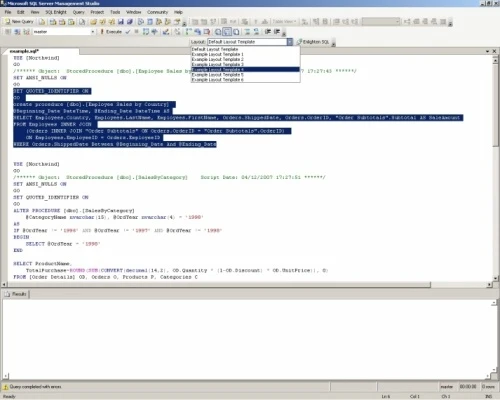
SQL Enlight includes T-SQL formatting and static analysis for files and project workflows supported by its desktop tools and CLI. Formatting changes the presentation of a query. Its rules can also report design or coding issues that still exist after the layout is consistent.
It fits a group that needs a documented review rule to be visible outside a developer’s editor. The command-line workflow is useful when a team wants a repeatable report for a set of files. The selected analysis rules and warning thresholds determine what the result means in a build.
Select a small rule set and use both the editor and documented CLI workflow when the product license supports them. A formatting comparison should use the same input file as a rules check. Record rule names and the relevant configuration with the output.
Exercise a script with one deliberate issue, then run a valid script through the same policy. Inspect the report for severity and file location. Decide how a developer will get from the reported file to the same rule in the editor.
- Compatibility
- Windows tooling for supported SQL Enlight IDE integrations and command-line execution.
- License and trial
- Commercial. CLI use is subject to the applicable SQL Enlight license.
SQLExtended for SSMS
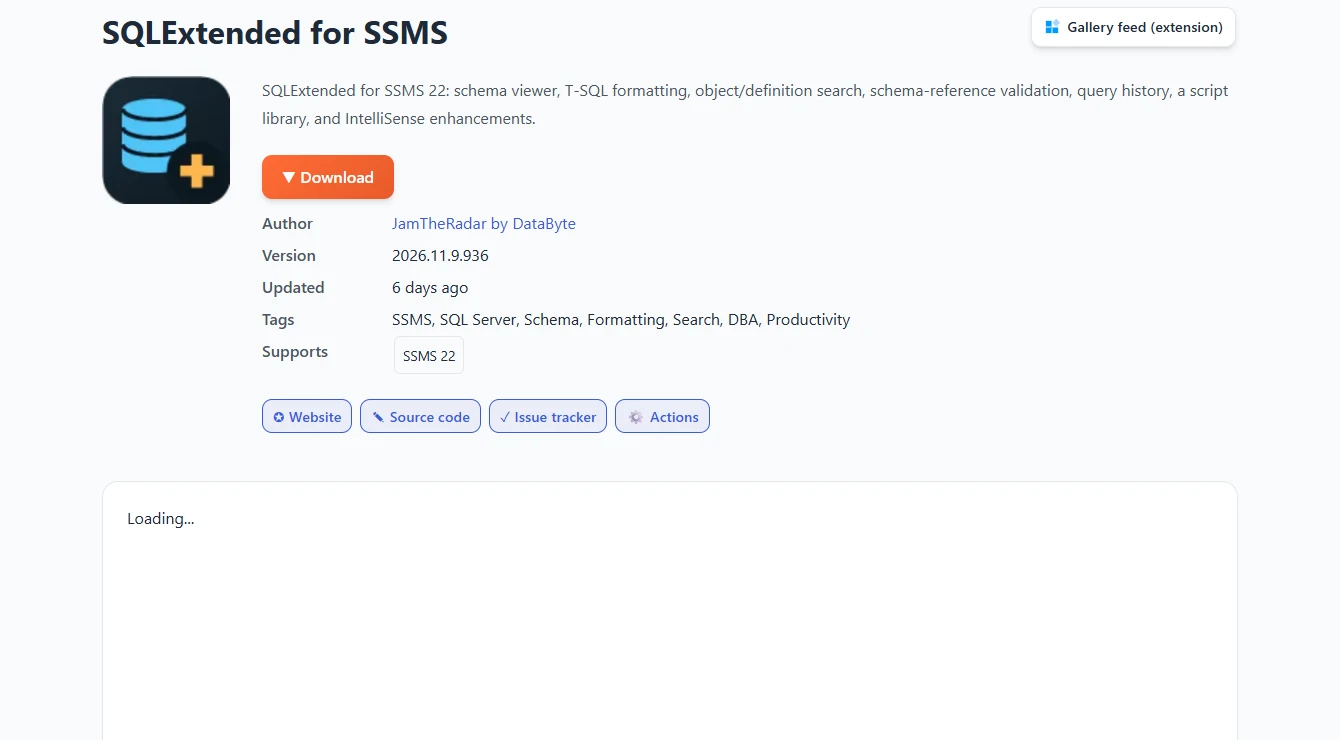
SQLExtended is an open-source SSMS 22 add-in with formatting, IntelliSense, schema search and operational tools. It is useful when a DBA wants a broader set of editor and navigation features together, including a quick route from a query to the related object or schema.
Its appeal is a large set of SSMS capabilities in a community-maintained extension. Formatting behavior and supported SSMS releases depend on the project’s current version. A team that needs one repository-wide style still needs a way to agree on settings and run them in the rest of its development workflow.
Check the release that targets your installed SSMS 22 build before trying the community add-in. Try object navigation on the same example and compare the formatting against the built-in tool. Capture the release and settings used for the test.
Check which settings travel across profiles before rolling the extension out to several users. Keep the normal SQL project build independent so the team can validate changes when another workstation or editor opens the file.
- Compatibility
- The maintainer targets SSMS 22. Windows and the appropriate SSMS installation are required.
- License and trial
- Free, open-source add-in.
Microsoft MSSQL extension for VS Code
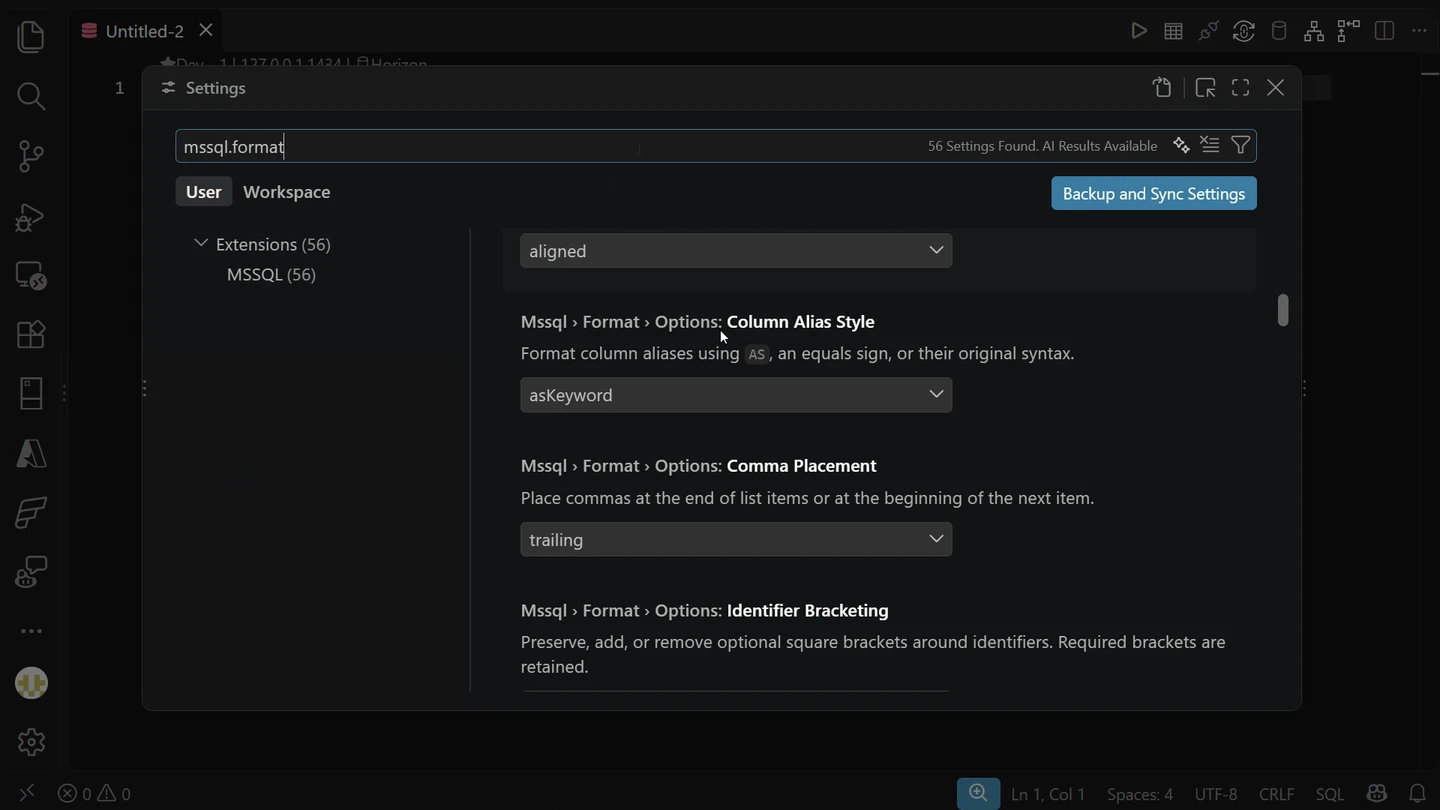
Microsoft’s MSSQL extension adds SQL Server editing, completion and T-SQL formatting to VS Code. It is useful when developers already open application code and SQL files in that editor, or when the team includes machines outside Windows and wants a shared editor setup.
Workspace settings make a common editing setup easier to distribute. A formatter command runs through the extension, while repository-wide verification needs a separate build step. It is an option for SQL authoring, and SSMS remains relevant when the same developer also handles native instance administration.
Use the Microsoft extension with the same SQL Server connection and schema as the SSMS trial. Test client completion and formatted output on the same procedure. Review which workspace settings can be committed and which depend on a developer's local profile.
Bring a macOS or Linux contributor into the test if platform support drives the decision. Run the same repository checks for both contributors. Compare features needed for authoring with any instance administration work the development team performs.
- Compatibility
- VS Code on supported Windows, macOS and Linux hosts with access to a supported Microsoft SQL target.
- License and trial
- Free Microsoft extension.
SQLFluff
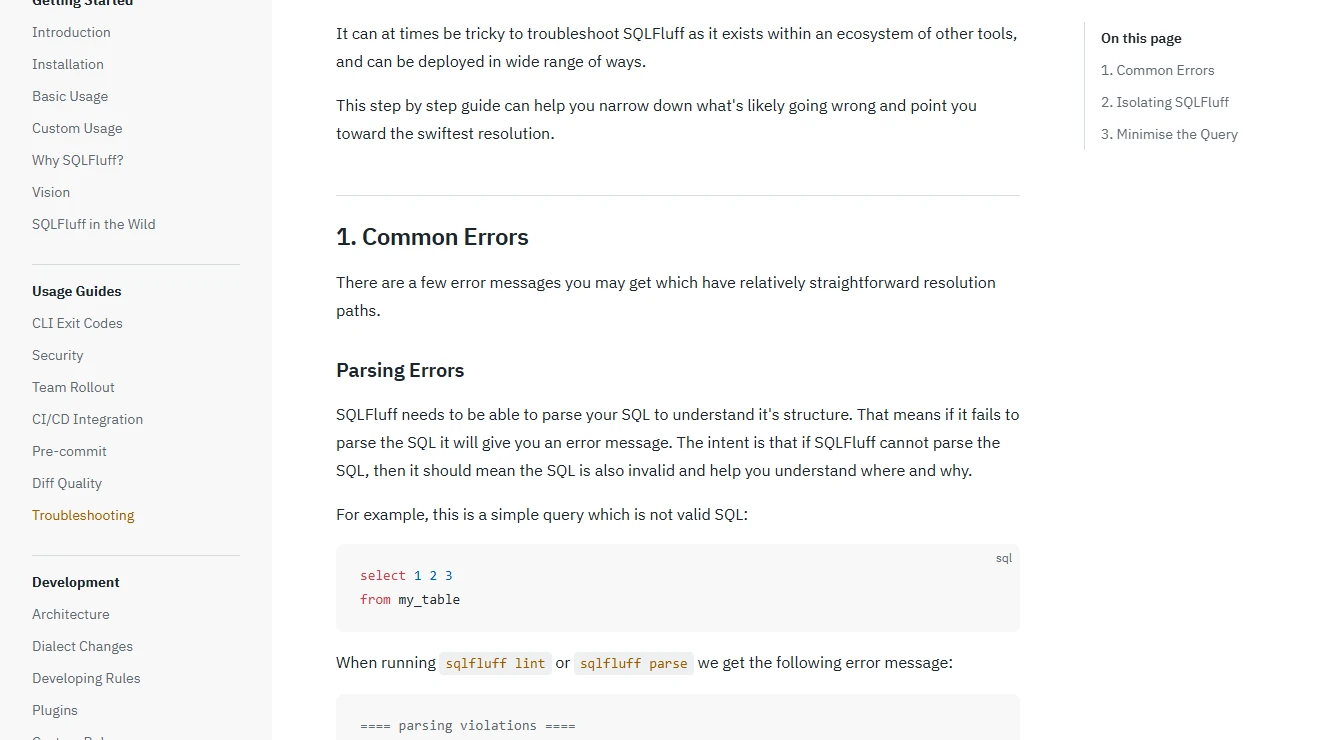
SQLFluff lints and can fix SQL files using a configured dialect and rule set. Its T-SQL dialect is useful when SQL files already live in Git and the team wants a common command for editors, pre-commit hooks or CI. The workflow centers on files and is independent of a database connection.
It is strongest when the result needs to be repeatable across contributors. Templating and parser coverage matter because a file that SQL Server accepts may still need a parser or templater adjustment. Connection-aware object suggestions and snippet expansion remain the responsibility of the editor.
Put the T-SQL dialect and layout decisions in the repository configuration. Run the linter from a fresh checkout with the version pinned. Test a file containing the syntax and templating your team actually uses before making the rule mandatory.
Compare the checked file before and after automatic fixes. Run the resulting script against a disposable database to confirm the behavior, especially joins, predicates and null handling. Use the editor separately to test live schema suggestions.
- Compatibility
- Python-based CLI and editor integrations. Configure the documented T-SQL dialect for SQL Server files.
- License and trial
- Free, open source. The team owns its rules, versions and CI installation.
SQL Prompt and SQL Complete feature comparison
| Feature | Redgate SQL Prompt | dbForge SQL Complete |
|---|---|---|
| Completion and editing | SQL Prompt suggests objects, columns and snippets as you type. Review the suggestions under your ordinary database login. | SQL Complete offers schema-aware suggestions and configurable completion behavior. Devart offers an Express edition with basic completion. |
| Formatting styles | Choose a built-in style or edit a custom style. SQL Prompt documents JSON style files in current versions. | Choose a built-in or custom formatting profile. SQL Complete can export and import XML profile files. |
| Shared snippets and styles | Redgate documents shared folders and lists shared snippets and styles under its SQL Toolbelt Essentials subscription entitlement. | Devart documents shared snippet folders and formatting profile import. Check the feature matrix for the edition you plan to deploy. |
| Static analysis | SQL Prompt can apply static rules while you type or review a query. Review the actual warnings against your team's rules. | Devart lists the T-SQL Code Analyzer in Enterprise. Check execution warnings separately in the edition matrix. |
| Command-line formatting | The command-line formatter is part of licensed bulk operations. Redgate lists SQL Toolbelt Essentials or SQL Toolbelt. | Devart lists the formatting CLI in Professional and Enterprise. Its edition table lists the CLI Wizard separately. |
| A good first trial | Apply your style to a stored procedure, check how completion handles a temp table and import a shared snippet on a clean profile. | Repeat those tests using the intended edition. If you need scripted formatting, compare the CLI output with the SSMS result. |
SSMS editing and formatting options by task
| What you need | Tools to shortlist | What to verify |
|---|---|---|
| Add completion and repeatable editing actions in SSMS | Use a restricted login to complete a temp table, a synonym and a cross-database name. | |
| Standardize format and snippets in SSMS | Share a profile and a snippet, then apply them from a second developer account. | |
| Enforce T-SQL style from source control | Run the chosen CLI on a copy and compare its exit status, warnings and output with the developer workflow. | |
| Edit SQL on a workstation that uses VS Code | Connect with the actual development account and verify suggestions, .sql file formatting and shortcuts. |
Choose the editor, edition and workflow together
Start with the exact host and add-in versions used by the team, then compare the features on the intended license. A fully featured evaluation may expose actions the buyer will need to license separately.
Team sharing or bulk work in an existing Redgate estate
Check the Toolbelt entitlement
Compare SQL Prompt standalone and the eligible bundle using the same price assumptions.
A particular dbForge formatter, analysis or warning feature
Find the lowest edition with that feature
Check the edition matrix and distinguish editor functions, CLI, analyzer and execution warnings.
An individual mainly needs basic code suggestions and formatting
Compare the free baselines first
Trial the built-in SSMS tools and SQL Complete Express on the same script.
Compare the one-year license and the guardrails you will use
Collect one-year quotes for the same number of seats, currency and tax basis. Include a standalone SKU and a bundle that covers your required features. The Redgate pages calculate the local amount in checkout and Devart offers several terms. Record the quoted renewal separately so the comparison has the same scope.
Keep static warnings, execution prompts and deployment controls distinct. Use a scratch script and observe whether an editor warning appears for an unfiltered update. For AI, begin with the default settings and verify what your license and data policy allow before attaching real metadata.
| Decision | SQL Prompt evidence | SQL Complete evidence |
|---|---|---|
| Host | Check Redgate's exact SSMS or Visual Studio requirements | Check Devart's editor and build support |
| Quote | Same one-year term and seat count for standalone and Toolbelt Essentials | Same term and count for the required tier or an eligible dbForge bundle |
| Formatter | Editor and eligible bulk CLI with the same style | Editor profile and Professional or Enterprise formatting CLI |
| Guardrails | Record SQL code analysis rule and editor behavior | Verify Enterprise analyzer and separately check execution warning settings and entitlement |
| AI | Opt-in with documented eligible subscriptions | Separate activation and optional attachment of database context |
Run a before-and-after T-SQL check
The two procedures below should return the same result. The comparison uses the same join and predicate placement. In the editor, format the candidate procedure as a whole and then one selected query. Save the original and any output for review.
| Check | Input | Expected evidence |
|---|---|---|
| Semantic parity | Customer 10 has a posted and a cancelled order. Customer 20 has no orders. | Both procedures return 25.50 for customer 10 and 0.00 for customer 20. |
| Alias context | In a copy, type an alias before a shared column name. | Record which scoped members the add-in suggests. |
| Unsafe statement | Inspect an unfiltered update on the disposable order table. | Observe static analysis and execution warning behavior separately in the configured edition. |
| Team style | Same procedure, clean profile and reviewed formatting settings. | Record the diff and see whether the intended style reproduces in the editor and licensed CLI. |
How to compare these tools
Apply completion, formatting and a repeated edit to the same scripts. Compare the output, controls and licenses for the editions you’re evaluating. Sources checked .
Run the same stored procedure through both editors
Use an empty SQL Server database named SqlFormattingTrial. The compressed procedure provides formatter input and the second procedure gives a manually formatted reference. The script confirms that the two written forms return the same output. Compare the output from each installed editor separately.
Compare unformatted and formatted SQL procedure results
T-SQL · 47 lines
- Create the lab with the provided script and confirm there are zero differences. Use the compressed procedure body as the initial input in each disposable editor tab.
- Format one selected statement and then the file. Check aliases and snippet placeholders under the intended edition. Save the outputs and repeat the stored procedure's logic test after reviewing the diff.
- In the lab, inspect the deliberately unfiltered update shown as a comment. Evaluate static analysis without executing it. If you test an execution prompt, use an isolated transaction and cancel the prompt or roll back. Record the edition and settings.
Conclusion
Choose the license that includes the specific work you need. SQL Prompt is a good fit when its editing workflow and rule list suit your team. SQL Complete gives you a basic free edition and published tiers for CLI formatting and analysis. Try the native SSMS formatter when repository formatting is the main task.
Frequently asked questions
Which is better, Redgate SQL Prompt or dbForge SQL Complete?
Both cover everyday SSMS editing. Compare suggestions with your real schema and login, then check the exact edition for team sharing, automation or static analysis. Use the tool that produces the expected output in your trial.
Is there a free alternative to SQL Prompt?
SSMS includes IntelliSense and, from version 22.7, a built-in T-SQL formatter. Devart offers SQL Complete Express with basic completion. SQLExtended is an open-source SSMS 22 add-in with completion and formatting.
Can SQL Prompt and SQL Complete format T-SQL from the command line?
Both vendors document a command-line formatter. Redgate includes it under bulk operations for SQL Toolbelt Essentials or SQL Toolbelt. Devart lists the formatting CLI for SQL Complete Professional and Enterprise.
Can a team share SQL formatting rules and snippets?
Both vendors document shared settings workflows. Check the exact license features, share the files from a controlled location, and verify the same output and snippets on a second clean profile.
Does SSMS need a third-party SQL formatter?
SSMS 22.7 and later can format T-SQL on demand or on save using SSMS settings and .editorconfig. Check it on the team's real scripts. Consider an add-in when the team needs more completion, snippets or analysis features.
Do SQL editor execution warnings also cover deployments?
A warning is specific to the configured editor and execution path. Use the deployment pipeline's own checks for scripts run there. Verify a warning with the exact editor build, edition, context and statement.