
Distinguish SQL Server Agent job failures from missed runs
Record the job, instance, expected time, last run, affected step and missing output. Identify whether the execution failed, was cancelled, remains active or never started; each condition uses different diagnostic records.
This guide uses SQL Server on Windows for service, file-share and proxy checks. SQL Server Express has no Agent; installing SSMS does not add it. Azure SQL Database uses other scheduling services, while Azure SQL Managed Instance has Agent with different subsystem and proxy limitations. On Linux, use the platform's supported Agent features and service controls. Check Microsoft's edition matrix and Managed Instance limitations before applying Windows instructions.
For a job that did not start, check the Agent service, job and schedule enabled settings, active dates and next run. A disabled job can still be started with sp_start_job. If the service failed to start, inspect its Agent and Windows logs. Microsoft describes job enabled behavior.
The affected operation determines incident priority. Failed maintenance, missing file delivery and broken log-backup sequences have different consequences. The backup guide and log-full guide cover backup-related failures.
Find the SQL Agent job failure error in SSMS
Individual step history contains the step's stored error. The overall job outcome may identify the failed step without its detailed message.
- Connect SSMS to the Database Engine instance that owns the job. Expand SQL Server Agent → Jobs.
- Right-click the job and select View History. Find the failed execution by its start time.
- Expand that execution and select the failed step. Read the message in the selected row's details, including the SQL error number or external-process exit code.
- Save the step name, time, message and nearby retry entries. Remove passwords or sensitive values before sharing them.
Microsoft's job-history instructions describe the SSMS viewer. Visibility of the Agent node and jobs depends on edition and permissions as well as service configuration.
For service startup, subsystem or mail problems, expand SQL Server Agent → Error Logs, right-click the relevant log and select View Agent Log. This is a different log from Database Engine error logs under Management. The Agent log does not replace detailed step output. Agent error-log viewer.
Find the failed job step in msdb history and activity
Read recent history for one named job
T-SQL · 10 lines
Replace the job name and use an account authorized to read these msdb tables. Direct SELECT permissions differ from visibility through SSMS or Agent procedures. Empty results can indicate a wrong name or purged history.
Step 0 is the overall job outcome; positive step IDs identify individual steps. Status 0 is failure, 1 success, 2 retry, 3 canceled and 4 in progress. History generally updates after a step completes, so it is not the authoritative live-running view. Job-history field definitions.
The numeric date is yyyyMMdd, time is HHmmss, and duration is an encoded hours/minutes/seconds value, not a count of seconds. Hours can exceed 23 for long runs. For example, run_duration = 10130 means 1 hour, 1 minute and 30 seconds: 3,690 seconds.
Query failed jobs and steps from the last 24 hours
This read-only query returns retained failure rows whose job or step started in the last 24 hours. It includes step 0 summaries and individual failed steps, even if later error-handling steps made the job finish successfully. The datetime conversion uses TRY_CONVERT, available in SQL Server 2012 and later.
Failure history rows started in the last 24 hours
T-SQL · 20 lines
The window uses the server's clock and start timestamps. A run starting before the cutoff is omitted even if it failed later within the window. Several rows may belong to one execution. Add AND h.step_id = 0 for failed overall outcomes or AND h.step_id > 0 for failed steps. The 200-row limit and history retention also affect the returned set.
Check activity in the latest SQL Server Agent session
Job Activity Monitor and the following query describe execution activity. The query requires existing sysadmin access because Microsoft restricts syssessions. Other accounts can use permitted SSMS views. Check the Agent service status when interpreting unfinished activity records after a service interruption.
Recorded activity for one job in the latest Agent session
T-SQL · 17 lines
last_executed_step_id identifies the last executed step, which may differ from the current step. Filtering to the latest Agent session excludes unfinished records from older sessions. See the activity field definitions.
sysjobschedules refreshes every 20 minutes. Its next-run values can lag schedule edits, so recent changes also require inspection of the schedule definition. See Microsoft's refresh note.
Preserve both failed and successful nearby runs. Differences in start time, input volume and execution node can explain an intermittent pattern. Correlate the job time with application, server and storage logs using the server's time zone.
Check SQL Agent step commands, output logs and retry flow
sysjobhistory.message stores up to nvarchar(4000). Longer subsystem output requires separate logging when the step supports it. Retain records corresponding to the failed execution.
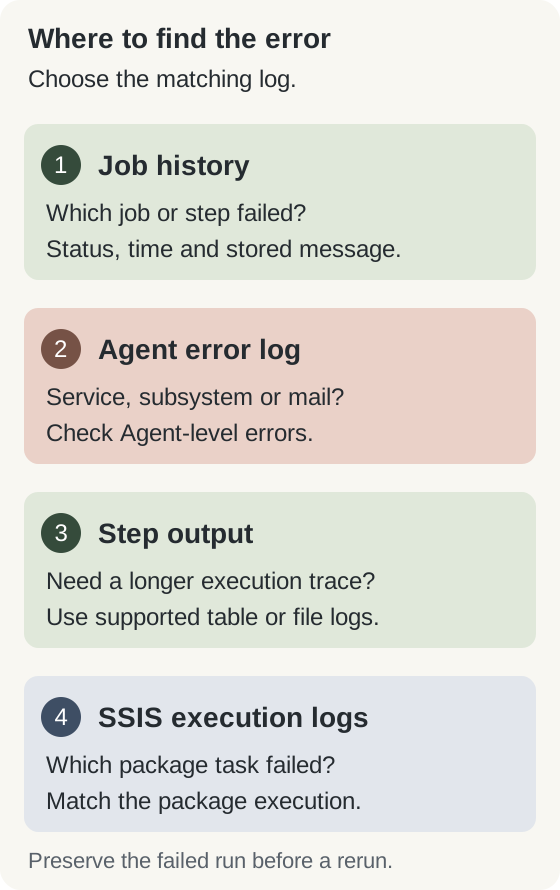
- Job history: identify the execution, failed step, status and stored message.
- Agent error log: investigate service startup, subsystem and mail problems.
- Step table or file output: inspect longer output where the subsystem and permissions support it.
- SSIS logs: inspect the matching package execution; for an SSISDB deployment, use its catalog reports and operation messages, subject to the catalog's permissions.
Read a job's step configuration
T-SQL · 3 lines
The procedure reads job-step configuration without executing the job. Its output may contain internal commands and paths. Microsoft's procedure reference lists fields and permissions. SQLAgentUserRole members can inspect their own jobs; broader visibility requires the appropriate role.
In Job Properties → Steps → Edit, inspect the General and Advanced pages. Check the selected database or executable, success and failure actions, retries and logging. If table or file output was configured, preserve the relevant run's output. SSIS and replication have subsystem-specific logging; use the corresponding execution details rather than expecting every failure to appear fully in Agent history.
When output was not retained, configure supported logging for a test reproduction. On the step's Advanced page, Log to table enables table output and View displays it afterward. Without append, later execution overwrites earlier output. OS output-file logging requires the documented sysadmin context; non-sysadmin roles use supported table logging. SSIS has separate execution logs. Apply output protection, retention and destination permissions. Job or step deletion also removes its associated Agent log. See the advanced logging options.
Preserve the job definition and history before configuration changes. Recreating a job removes diagnostic records and can alter ownership, schedules or notifications.
Check SQL Agent job owners, proxies and execution permissions
Execution from an SSMS query window uses that session's identity. Start Job at Step and sp_start_job instead request execution by Agent under the configured step identity. Differences between manual Agent starts and scheduled runs may involve timing, inputs, overlapping work or enabled settings. See sp_start_job execution behavior.
| Step type | Check | Common mismatch |
|---|---|---|
| T-SQL | Job ownership, database and any configured database-user context | Desktop administrator has rights the job owner lacks |
| CmdExec / PowerShell | Run-as proxy or Agent service account, runtime and executable path | Different Windows identity, PATH or installed module |
| SSIS | Execution identity, environment, parameters, connection managers and runtime bitness | Desktop values or provider differ from scheduled execution |
T-SQL steps do not use Agent proxies. For a non-sysadmin job owner, the step uses the owner's SQL execution context. With a sysadmin owner, it uses the Agent service account unless an authorized database-user context is configured. For supported non-T-SQL subsystems, the selected proxy supplies the execution credential. Running those steps without a proxy uses the Agent service account and requires the documented sysadmin privileges. Microsoft's step security and subsystem rules.
A proxy requires both subsystem authorization and resource access for its credential identity. Creating it does not grant file-share or remote SQL permissions. Check these permissions under the configured identity. See the proxy configuration requirements.
For a share, check both share and file-system permissions for the executing identity. A drive mapped in an interactive session may not exist in the service context; use the approved UNC path. For a remote connection, verify the actual identity and delegation path, then use the 18456 guide if the server rejects that login.
Account departures, domain changes and migrations can invalidate job ownership. Agent fixed database roles provide permissions for specific operating responsibilities.
Troubleshoot file share, SSIS, provider and command failures
- Permission denied: compare the effective account, database and resource rights. Separate SQL permissions from operating-system or share permissions.
- File or executable not found: check the Agent host, full path, quoting, runtime installation and service environment. A file on the DBA's workstation is not on the execution server.
- Login or certificate error: inspect the deployed connection and driver. A client update can expose TLS validation before authentication.
- Deadlock, timeout or blocking: correlate workload overlap and the failed statement. Retries may recover a transient failure but do not explain a recurring concurrency problem.
- Disk or log full: check the database and destination volume, backup failures and reuse waits. A job rerun without capacity repair can fail at the same point.
For an SSIS decryption error, check the package's ProtectionLevel. A package protected with EncryptSensitiveWithUserKey depends on the user who saved it; a different execution identity may not decrypt its sensitive values. Use the deployment's approved parameter or credential mechanism instead of saving passwords in a job command. SSISDB uses its own catalog protection. Microsoft's package-protection rules.
CmdExec invoking PowerShell and the Agent PowerShell subsystem use different runtime arrangements. Record the executable and module dependencies. SSIS also requires the expected 32-bit or 64-bit provider; the OLE DB guide covers provider loading.
Agent uses the external process's returned status to classify the step. A wrapper can print an error yet return the configured success code. A controlled nonproduction failure checks status propagation and alerting. See the sqlcmd wrapper examples.
Review partial completion before rerunning a failed Agent job
Each step can quit with success, quit with failure or continue to another step. A failure path that later quits with success can produce a successful job outcome despite an earlier error. The configured flow should reflect the operation's required outcome. See step success and failure actions.
Recovery depends on what earlier steps committed or delivered. Restarting an import can duplicate a partially loaded batch, while restarting a delivery can send files again. Starting at the failed step may omit prerequisites.
Choose the recovery point using checkpoints, batch identifiers and the job's recovery procedure. Check for active earlier executions or external processes. Retry settings repeat the operation; idempotency must be implemented by the operation itself.
Verify the recovery run under the configured identity and check the next scheduled execution. Executing the command directly under an administrator account tests a different context.
Set SQL Agent failure notifications and verify the result
Verify the expected output as well as job and step status: backup files and recovery checks, imported batch contents or delivered files. Duration and counts can help identify incomplete output even when the step returns success.
On Windows, failure email requires Database Mail, an Agent mail profile, an enabled operator and job notifications. The end-to-end test includes all four settings.
- Have the administrator configure Database Mail and test delivery to the intended recipient.
- In SQL Server Agent → Properties → Alert System, enable the mail profile, select Database Mail and choose the approved profile. Microsoft requires an Agent restart after this setup; schedule it around active jobs.
- Create or check an enabled operator under SQL Server Agent → Operators, with the correct email address.
- Open Job Properties → Notifications, check Email, select the operator and choose When the job fails.
- Create a separate test job with a controlled failure to verify notification delivery.
Microsoft describes Agent mail setup and job-status notification options. Managed Instance requires AzureManagedInstance_dbmail_profile and uses controls different from Windows Agent restart procedures.
An execution that never starts cannot trigger its failure notification. Monitor expected completion times and output separately. Critical missed-run monitoring also needs to remain available when Agent or its monitoring jobs are stopped.
Retain history and output for the required diagnostic period. The job record should identify its administrator, purpose, schedule, runtime identity, expected output, rerun procedure and notification recipient.
The monitoring guide covers missed runs and notification checks. Remote monthly DBA support can provide regular job, backup and account reviews where those responsibilities need ongoing attention.
SQL Server Agent job failure FAQ
Why did a SQL Agent step fail while the job reported success?
The failure action may continue to a later step that quits with success. An external command may also return a success code after printing an error. Compare step history, configured outcome actions and wrapper exit status.
Why is there no history for a job that should have run?
Check the correct instance and job, Agent service, job and schedule enabled settings, active dates and history retention. A job that never started has no completed-run entry. Also check your permissions if SSMS cannot show the job. Use current-session activity alongside history; empty history alone does not identify the cause.
Can a T-SQL job step use a SQL Server Agent proxy?
No. T-SQL steps use the documented job-owner or Agent service-account context, with an optional database-user context for an authorized sysadmin configuration. Agent proxies apply to supported non-T-SQL subsystems. Check database permissions for the actual execution identity.
Does increasing retries fix intermittent SQL Agent failures?
Retries can recover transient failures when repetition is supported by the operation. Partial commits, file deliveries and concurrent execution need assessment before retrying. Retry configuration does not provide idempotency.