

Moving a SQL Server instance involves more than restoring its user databases. Applications may also depend on logins and their security identifiers, Agent jobs, linked servers, credentials and instance settings. A backup tool can move the database files and preserve a log-based cutover. A migration tool can move some of the surrounding configuration as well.
The useful comparison starts with an inventory of what the new Windows instance needs to provide. A side-by-side upgrade may use an assessment and a backup-copy-restore workflow. A team with an established backup platform may restore the databases through that product and migrate server objects separately. The cutover should cover what works at the destination and how the old instance stays available for recovery.
SQL Server instance migration tools for Windows at a glance
Start with the target and which instance objects must move. A backup-based product can handle the data transfer while other steps recover jobs, logins or integrations.
| Tool | What it moves | Best fit to evaluate | Cutover check |
|---|---|---|---|
| dbatools Start-DbaMigration | Databases and supported instance metadata by option | Scripted Windows instance migration | Exact login, job and database selections |
| SQL Server Management Studio migration component | Assessment plus backup-copy-restore and eligible logins | Guided side-by-side SQL Server migration | Assessment findings and remaining objects |
| Devart dbForge Studio for SQL Server | Database copy workflows | Selective transfer or staged database copy | Objects, constraints and data consistency |
| Redgate SQL Backup Pro | Scheduled backup and restore workflow | Database moves based on supported media | DB recovery and separate instance dependencies |
| Quest LiteSpeed for SQL Server | SQL backup and supported log shipping | Pre-seeded database progression | Final data point and reversible routing |
| Veeam Plug-In for Microsoft SQL Server | Supported SQL database restore | Move SQL data from approved backup storage | Target access and remaining instance work |
| Commvault SQL Server Agent | Supported out-of-place SQL database recovery | Database move within existing protection platform | Restored media and actual application identity |
| Azure Arc SQL Server migration to Azure VMs | Assessment and supported Azure VM migration workflow | Move to SQL Server on Azure VM | Eligibility, cutover workflow and retained instance dependencies |
dbatools Start-DbaMigration
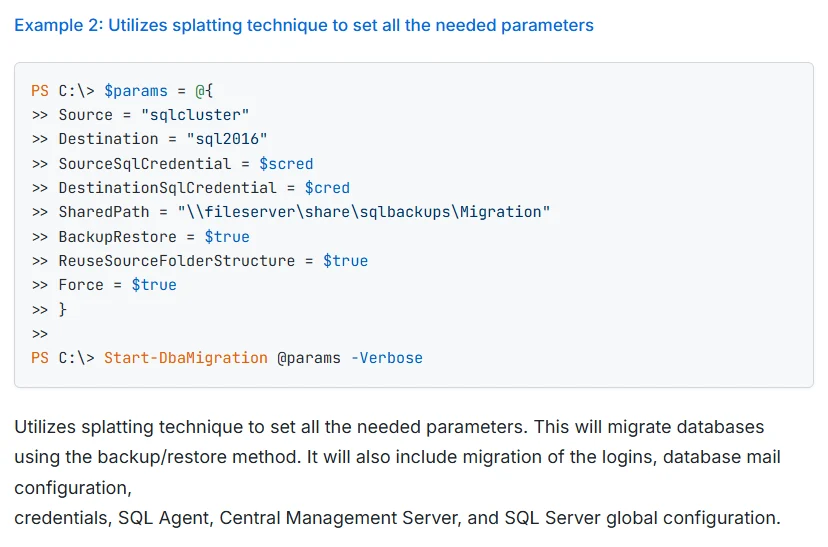
Start-DbaMigration orchestrates several dbatools commands to move SQL Server databases, logins and selected server objects. Supported workflows include backup and restore, and it can move items such as Agent objects and configuration. It is useful for a DBA who wants a scriptable side-by-side instance move.
Its strength is treating databases and instance objects as separate migration work within one run. Some objects require additional privileges or source context, and credentials, MSDB dependencies and feature differences still need review. The status output helps a team identify which steps succeeded and which require follow-up.
Select the explicit databases and instance objects in the Start-DbaMigration run. Review options that disable jobs or alter source and destination state before the rehearsal.
Test a read-only app identity and confirm its database mapping after the transfer. Record jobs that need source resources and compare their target setup before enabling them.
- Compatibility
- PowerShell, dbatools and sufficient source, destination and storage access.
- License and trial
- Free, open-source module.
SQL Server Management Studio migration component
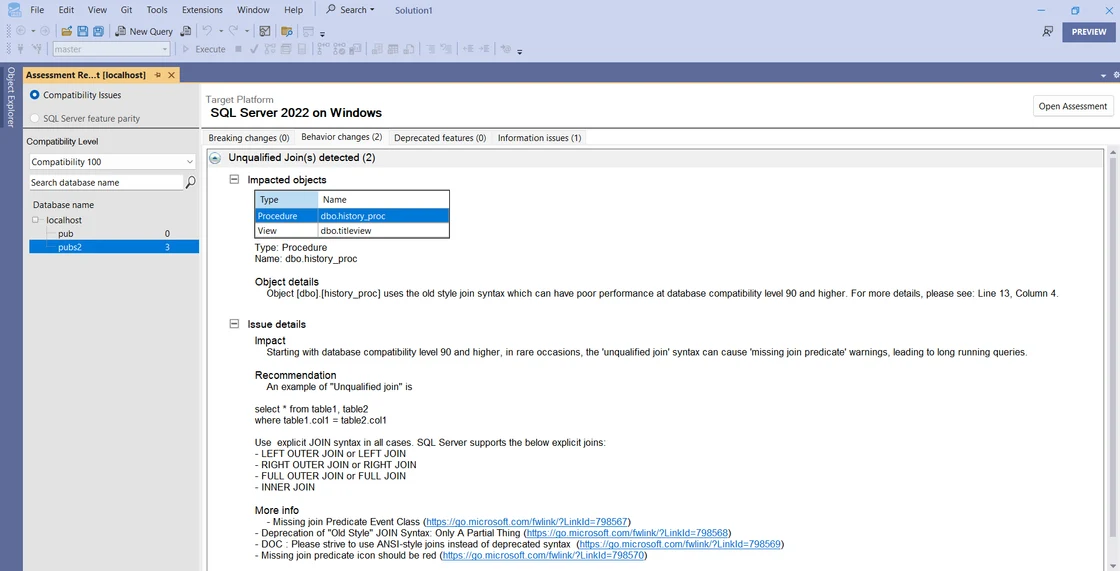
The SSMS migration component can assess supported SQL Server upgrade scenarios and move databases using a backup-copy-restore workflow. It is useful when a DBA wants Microsoft’s assessment and a guided side-by-side database migration from the same client.
The assessment and copy workflow are most useful when the destination is an eligible higher-version SQL Server. The required instance objects still need an inventory and migration path of their own. File locations, network access and the selected migration mode affect the cutover plan.
The SSMS migration component can assess versions and transfer databases with backup, copy and restore, including eligible logins. Verify the installed component and supported source and target versions.
Review the resulting database and the nominated login before cutover. Record SQL Agent jobs and other required metadata independently when they are outside the guided operation.
- Compatibility
- Supported SSMS with the Hybrid and Migration workload and eligible source and target SQL Server versions.
- License and trial
- Free Microsoft tooling. SQL Server and infrastructure costs are separate.
Devart dbForge Studio for SQL Server
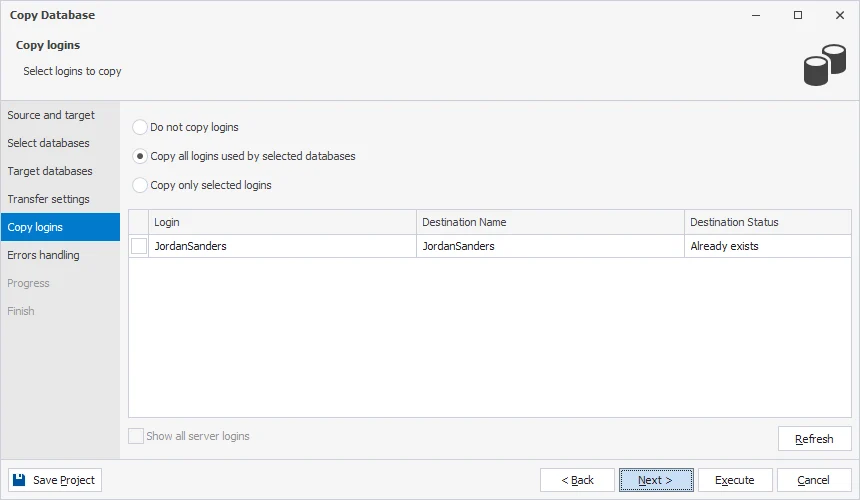
dbForge Studio for SQL Server documents copying a database and restoring a backup to a different server. It is useful when an operator wants a graphical way to move or inspect a database and already uses Devart tools for SQL Server management.
The benefit is a guided workflow for the database and its destination files. The available methods have different SQL Server, storage and permission requirements. A completed copy still needs testing with the correct SQL login, instance configuration and jobs on the new server.
Select the database copy operation and verify compatibility and supported items in the planned edition. Check what operation preserves each object definition, data subset, constraint or key.
Compare application access and selected data after the copy. Keep a separate inventory and plan for SQL logins, jobs and other instance objects the database operation doesn't handle.
- Compatibility
- Supported dbForge Studio edition and compatible Windows SQL Server targets.
- License and trial
- Commercial Devart licensing.
Redgate SQL Backup Pro
Redgate SQL Backup Pro can schedule restores to a supported destination and configure the options for using its backups there. It is useful when the team already stores SQL Backup Pro media and can stage the new server using its familiar restore workflow.
Its strength is working with the existing backup history and supported SQL restore options. Server-level objects and application routing still need a separate plan. The migration schedule depends on media access, the restore chain and which Redgate components are available at the destination.
Use the supported SQL Backup Pro destination and backup selection mechanics, with compatible source and destination media access. Record how final changes will reach the target after the initial restore.
Reopen the migrated database and verify the expected marker using the approved app identity. Compare dependent logins and jobs separately and save the details of the final restore point.

- Compatibility
- SQL Backup Pro and a supported SQL Server restore destination with media access.
- License and trial
- Commercial Redgate licensing.
Quest LiteSpeed for SQL Server
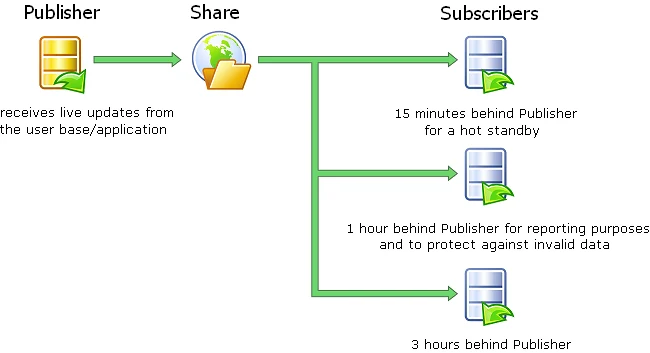
Quest LiteSpeed for SQL Server provides backup and restore capabilities and documents a log shipping workflow. That makes it useful for a team that already uses LiteSpeed and wants to stage a database with backups and continuing logs before a planned cutover.
The benefit is allowing changes to collect on the destination before the final switch. LiteSpeed media, scheduled jobs and permissions must remain available through the move. Recovering the database and transferring Agent jobs, logins and external dependencies are separate tasks.
Check the supported LiteSpeed log-shipping configuration and target environment. Record how backups move during pre-seeding and how the final set reaches the target at cutover.
Rehearse the final data restore and application switch in the lab. Save elapsed time and identify which instance configuration and Agent workloads move through independent steps.
- Compatibility
- Supported LiteSpeed SQL Server configuration and compatible destination and storage.
- License and trial
- Commercial Quest licensing.
Veeam Plug-In for Microsoft SQL Server
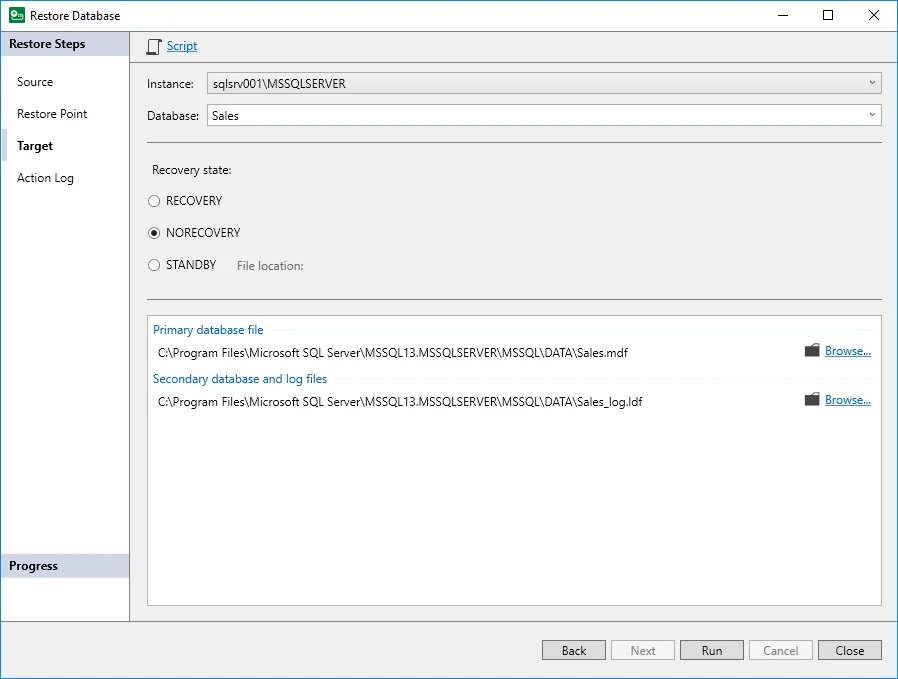
Veeam’s SQL Server recovery workflow can restore an eligible database to a selected SQL Server destination and choose files or a time supported by the backup. It is useful when Veeam already protects the workload and the DBA wants to stage its data on a replacement Windows instance.
The main value is reusing a known backup and restore path for the copied databases. The target must support the source backup and the selected restore options. Logins, jobs and other instance-level dependencies need to be made available on the destination separately.
Verify the Veeam SQL plug-in and required repository access for the alternate destination. Record the format, target SQL Server prerequisites and migration checkpoint.
Restore the database and verify a known marker on the target. Confirm the source job policy and separate plans for SQL Agent, linked services and the application account.
- Compatibility
- Supported Veeam SQL Server protection and appropriate Windows SQL Server destination.
- License and trial
- Commercial Veeam terms.
Commvault SQL Server Agent
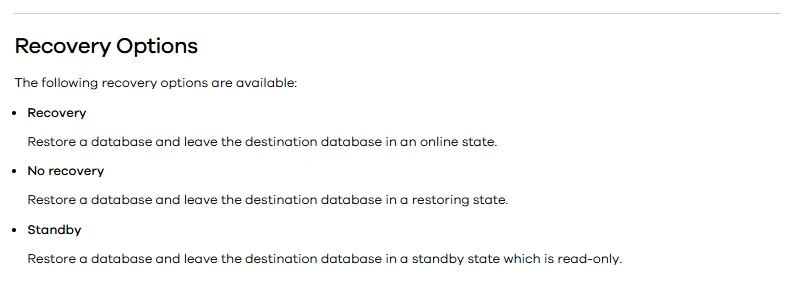
Commvault SQL Server Agent can restore supported databases out of place. It is useful when an organization wants to use its Commvault catalog and storage to place SQL Server databases on a new Windows instance and validate them before redirecting the application.
The supported catalog, media and alternate host must all be available. A database restore is one part of the instance move. Instance rights and objects, media throughput and the final recovery point determine how much migration work remains.
Use the documented Agent out-of-place restore and its applicable SQL Server options. Check the version, compatibility and storage targets before relying on a fresh destination.
Match the recovery job and intended SQL state. Use a separate confirmed plan for the mapped login and SQL Agent workload when the database restore does not provide them.
- Compatibility
- Commvault SQL Server Agent with supported out-of-place destination and media access.
- License and trial
- Commercial Commvault licensing.
Azure Arc SQL Server migration to Azure VMs
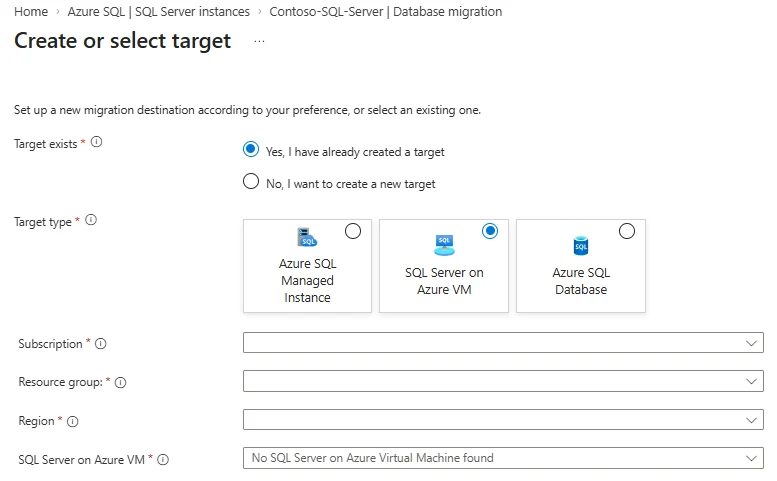
Azure Arc-enabled SQL Server can assess migration readiness and document a path for migrating SQL Server to eligible Azure VMs. It is useful when the destination is Azure and the team wants recommendations and migration steps integrated with its Azure resource inventory.
The fit depends on Azure Arc onboarding, supported source and destination, and the chosen migration workflow. The Azure resource setup and network route are part of the move. Outside dependencies, identity and cutover tests still determine whether the application can run on the new instance.
Follow the documented Azure Arc SQL Server assessment, target selection, database move and cutover path. Verify supported versions, VM and network requirements for the Azure destination.
Record the exact migration job and application route after the test. Identify separately which dependent objects, job identities or instance settings must be prepared before enabling traffic.
- Compatibility
- Supported SQL Server enabled by Azure Arc and eligible Azure VM migration configuration.
- License and trial
- Azure, Arc and applicable infrastructure terms.
What needs to move to the new server?
| What you need | Tools to shortlist | What to verify |
|---|---|---|
| Move databases and instance objects with a repeatable script | Compare login SIDs, job owners and the migration log against the source inventory. | |
| Use a wizard for selected databases and logins | Confirm the wizard includes each needed login. Inventory Agent jobs and other dependencies that need their own transfer. | |
| Stage the move with existing SQL backup tools | Measure the final restore time and query the last source write on the target. | |
| Move to a provisioned SQL Server on Azure VM | Confirm preview eligibility and rehearse a separate move for SQL Agent jobs, credentials and other excluded objects. |
Inventory databases and instance-level dependencies before migration
Separate the data move from the surrounding SQL Server instance. Inventory required SQL logins and mapped users, SQL Agent jobs and proxies, linked servers, credentials, encryption keys and scheduled workloads. Record target edition, version, supported upgrade direction and app connectivity.
Decide who owns source and target jobs through cutover. Validate migrations side by side with the target job scheduler controlled. Keep the original routing and recovery plan available for the approved cutover exercise.
Data and a broad set of instance objects
Trial a documented instance migration workflow
Confirm exact object coverage and control state changes on both sides.
Only database movement is required from the tool
Use a supported backup, copy or restore path
Handle identity and application dependencies as explicit steps.
Target is SQL Server on Azure VMs
Check Azure Arc workflow eligibility
Compare Azure target, network and cutover requirements.
Verify database contents, login mapping and job ownership at cutover
Prepare a synthetic InstanceMigrationTrial database with dbo.MigrationTrialMarkers and source-verified rows. Migrate a dedicated SQL login named MigrationTrialLogin with database user MigrationTrialUser. Check both source and target catalog visibility under an authorized migration identity, then prove the application connection with the intended account.
Confirm which jobs should be disabled or enabled on each side and test the connection with the intended application URL or alias. Review access to external dependencies through the test network. Retain the source and destination outputs until cutover is approved.
| Layer | Evidence | Pass condition |
|---|---|---|
| Database transfer | Target name and fixture row | Expected data is present on the new instance |
| Login and user | SQL security identifier mapping and application query | Mapped account can connect and do the required work |
| Jobs and dependencies | Source and target job states and integration checks | One approved active schedule and expected dependencies |
| Migration timing | Last source operation and accepted target cutover | Measured interruption meets the agreed window |
How to compare these tools
Move a disposable database and the instance objects it needs. Compare login SIDs, job ownership, linked dependencies and the application connection after cutover. Sources checked .
- Microsoft checklist for database metadata needed on another server
- Microsoft on transferring server logins and passwords
- Microsoft on Database Engine upgrade and side-by-side options
- Microsoft on moving a TDE-protected database
- Microsoft on registering Kerberos service principal names
- Microsoft on Windows service accounts and permissions
Rehearse a side-by-side SQL Server cutover
Create the synthetic marker table with MarkerId and Marker columns in the disposable database before migration. Review the result of this query under an authorized catalog reader, then use the dedicated test application login to run the marker query separately.
Reconcile the migrated SQL login and database user with a test row
T-SQL · 18 lines
- Record eligible source and target, choose the transfer path and keep the object inventory. Move the isolated database and selected test login without activating overlapping jobs.
- Compare catalog mappings, data markers and the intended SQL application connection on the destination. Check dependencies and job plan independently.
- Use the results to prepare the timed cutover and rollback exercise. Capture the source's final data check and destination acceptance evidence in the tested order.
Conclusion
Use dbatools for a repeatable move with a large instance inventory. Try the SSMS migration component or dbForge Studio when a database and login wizard fits the move. Use an existing backup platform when its final restore fits the outage window and your cutover plan covers instance objects. Before switching production, verify an application write and a scheduled job on the new host.
Frequently asked questions
What moves when I restore a SQL Server database to a new Windows host?
The user database carries its objects, data, and database users. Check server logins, Agent jobs, linked servers, credentials, certificates, and server-level settings separately. For the network path, verify client connections, SQL Server service identity, and TLS or Kerberos requirements.
How do I avoid orphaned users after moving SQL Server?
Transfer the SQL logins with the required SIDs or remap database users to matching destination logins. Compare the actual destination login SID with the database user SID and test the login through the application connection.
Can dbatools move SQL Agent jobs to another instance?
Yes. Its migration command coordinates multiple instance object copies, including SQL Agent jobs. Review the objects selected by your command and check each job owner, proxy, credential, and schedule on the destination.
Does restoring a SQL Server database move its TDE certificate?
For certificate-based TDE, arrange the corresponding certificate and private key on the destination before the restore. Microsoft documents the transfer procedure. Confirm any external key provider is configured if the source uses a different protector.
How do I measure downtime for a side-by-side SQL Server move?
Measure from the pause in source writes to the first successful application write on the destination. Record the final sync or log restore, connection switch and app checks. Set a decision point for rollback and a separate plan for writes accepted after cutover.
Does RESTORE DATABASE migrate SQL Server Agent jobs and all logins?
The user database has its own metadata. Plan restore or recreation of needed instance-level dependencies and verify the resulting job and login behavior explicitly.
Can the SSMS migration component move eligible SQL Server logins?
Microsoft documents selecting eligible logins in the guided migration. Review other SQL instance requirements separately and verify the actual target login and app connection.