

Recovering a table or stored procedure from a SQL Server backup is usually a two-stage job. One option is to restore the database to a separate location and copy the needed rows or definitions. Some products can mount or inspect a supported backup and extract an object without waiting for a full independent copy. The output may be a database object, a script or a set of rows.
The recovery target matters as much as the extraction. Current tables may have new keys, constraints or triggers. A schema comparison can recover a definition, while a data comparison can identify specific rows to reinsert. A successful extraction still leaves the decision about how to reconcile that data with changes that happened after the backup.
SQL Server table and object restore tools at a glance
Select the recovery job first. Evaluate a separate database restore, targeted data comparison and schema scripting as distinct ways to retrieve what is missing.
| Tool | Recovery path | What to extract | Test limitation |
|---|---|---|---|
| Native SQL Server restore and SSMS | Restore complete backup to a different database | Select needed rows or script objects from the recovered copy | Check free space, encryption material and target engine version |
| Veeam Explorer for Microsoft SQL Server | Database or supported schema and data recovery | Supported objects from the protected SQL workload | Verify the object type, permissions and target path |
| Redgate SQL Data Compare Professional | Use a supported backup as a comparison source | Selected row-level differences and synchronization script | Review keys, filters and other differences before deploying |
| dbForge Studio for SQL Server | Compare a supported backup and current source or target | Data or schema synchronization steps supported by the workflow | Confirm which backup and compare options are available |
| Redgate SQL Compare Professional | Schema comparison to a supported backup | Definitions and dependent objects | Check dependency selection and generated SQL |
| Stellar Backup Extractor for MS SQL | Extract from a supported SQL backup file | Recovered objects or table contents by edition | Verify source format, consistency and resulting types |
| SysTools SQL Backup Recovery | Read supported SQL backup objects | Export recovered data and definitions | Prove completeness and compatibility in a destination |
| Rubrik SQL Live Mount | Expose supported historical SQL database on a target | Inspect and copy selected rows or objects independently | Check runtime, access duration and dependencies |
Native SQL Server restore and SSMS
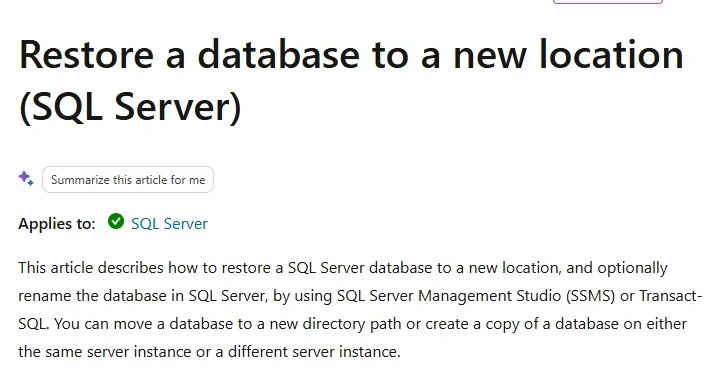
Native SQL Server restore and SSMS can recover a supported database backup to another instance or a new database name. A DBA can then script an object or query and transfer the relevant rows. This is useful when the backup chain includes logs or encryption that should be handled by the engine itself.
The approach exposes the entire recovered database and its relationships for inspection. It takes destination space and time for the restore, and other database changes need careful handling when rows or definitions are brought back. Identity values, keys and dependent objects may require explicit reconciliation.
Restore the backup to an alternate SQL Server database and leave the source unchanged while you inspect rows and object definitions. Use the correct destination files, version and required encryption material.
Use a filtered SELECT to stage the one recovered row. Compare its parent key and currently live dependent rows before any approved change. Keep the native restore and extracted data available for review.
- Compatibility
- Compatible SQL Server restore target with the required backup media, file access and decryption keys.
- License and trial
- Built-in SQL Server capabilities and free SSMS.
Veeam Explorer for Microsoft SQL Server
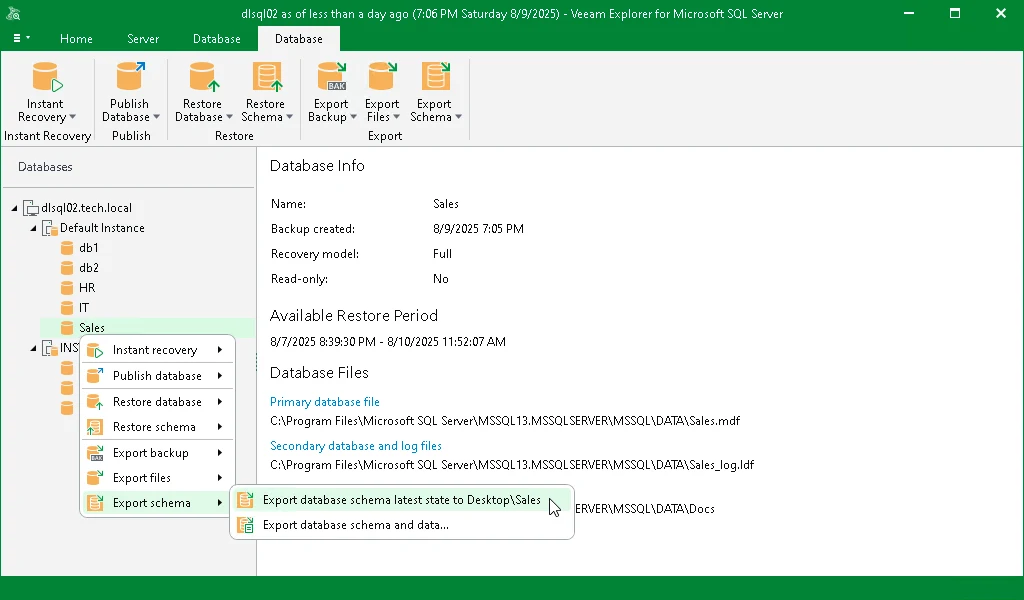
Veeam Explorer for Microsoft SQL Server provides a documented database schema and data restore workflow that can include eligible tables. Staging and export options let a DBA inspect or move selected content from a protected recovery point. This is useful when Veeam already owns the backup catalog.
Its value is making selected objects accessible without restoring every database into production. Staging requirements, backup type and unsupported table features can affect the result. The target may have changed since the backup, so recovered objects and data still need reconciliation.
Verify that the deployed Veeam Explorer supports schema and data recovery for the SQL backup type and object in scope. Select the actual backup point and test the destination settings in a separate lab database.
Inspect the resulting objects and data separately. Verify whether the restore includes constraints, related rows or other definitions required by the target, and keep a limited review plan for the remaining changes.
- Compatibility
- Veeam Explorer, supported SQL Server recovery point and any applicable staging or target SQL Server.
- License and trial
- Commercial Veeam terms.
Redgate SQL Data Compare Professional
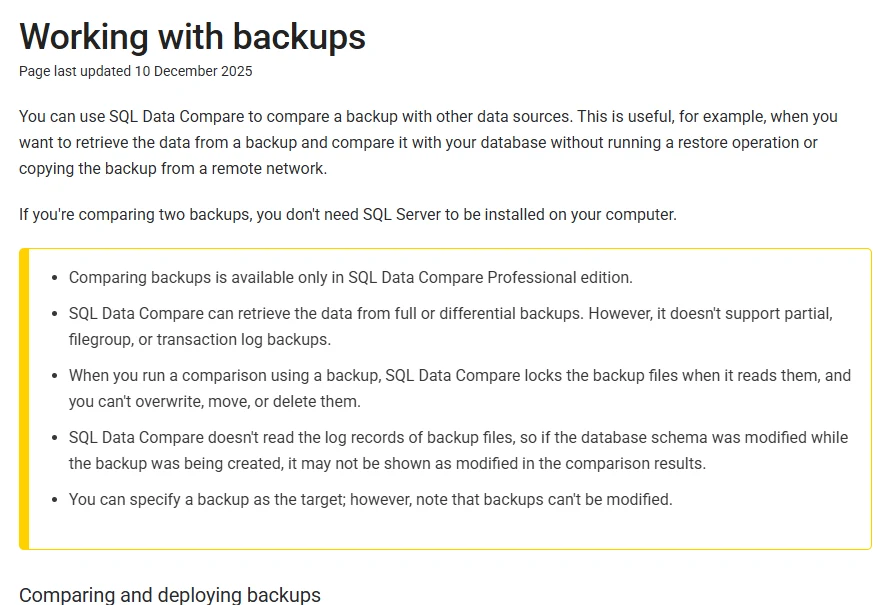
Redgate SQL Data Compare Professional can read compatible full or differential backups and compare selected data with a database. It can generate synchronization SQL for differences. This is useful when the goal is to recover specific rows while reviewing changes already present on the target.
Its strength is making data differences visible before applying them. Backup sources need a suitable key, index or constraint and have format and encryption limitations. Transaction log backups are outside this comparison path, so a restored staging database is more appropriate when recovery needs a precise log endpoint.
Use SQL Data Compare Professional for the documented backup comparison path. Select the backup as the historical source, verify the key and table and restrict the resulting differences to the needed invoice.
Review generated SQL for any deletion of current rows. Open a separate target to confirm that invoice 100 returns while current invoice 200 remains and that columns or parent keys required by the new schema are handled.
- Compatibility
- SQL Data Compare Professional, compatible backup source and supported SQL Server connection.
- License and trial
- Commercial Redgate entitlement for backup comparison.
dbForge Studio for SQL Server
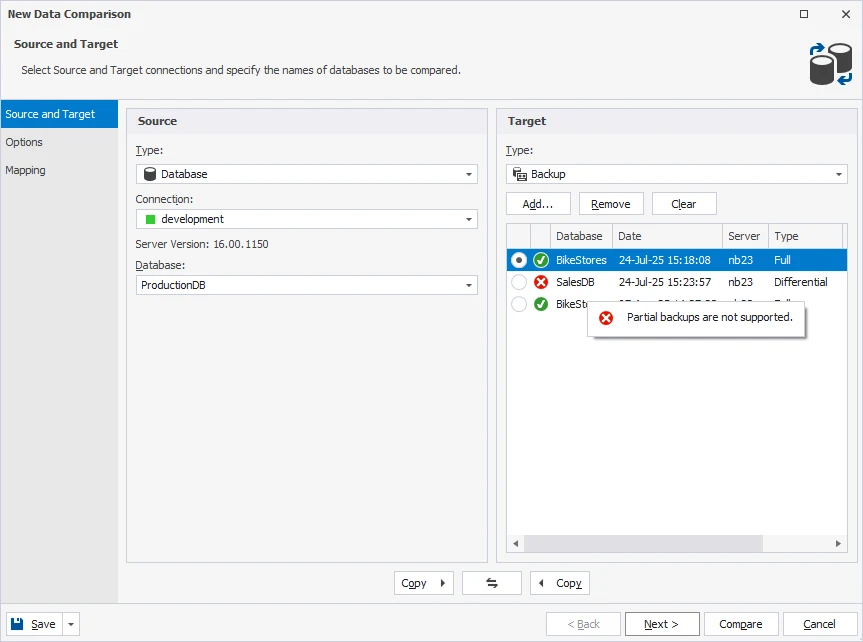
dbForge Studio for SQL Server can compare data from supported backup files and other SQL Server sources. Its row-level comparison helps a DBA see differences and prepare synchronization SQL. This is useful when the recovered data needs to be compared with a newer live or staged version before it is used.
The chosen backup format, object mapping and row identity determine what it can compare. A synchronization script can include changes beyond the intended recovery if the comparison scope is too broad. A complete alternate restore remains useful when the file or log chain falls outside the direct backup comparison workflow.
Select the supported backup file and compare in the correct direction. Confirm which objects, comparison keys and backup features are supported by the deployed edition before using it for on-call recovery.
Inspect the script instead of deploying all differences. Compare extracted invoice row, current row retention and dependency checks in the two lab databases and save the selected operation.
- Compatibility
- Supported dbForge Studio edition, SQL Server target and compatible backup file.
- License and trial
- Commercial Devart tooling and applicable comparison entitlement.
Redgate SQL Compare Professional
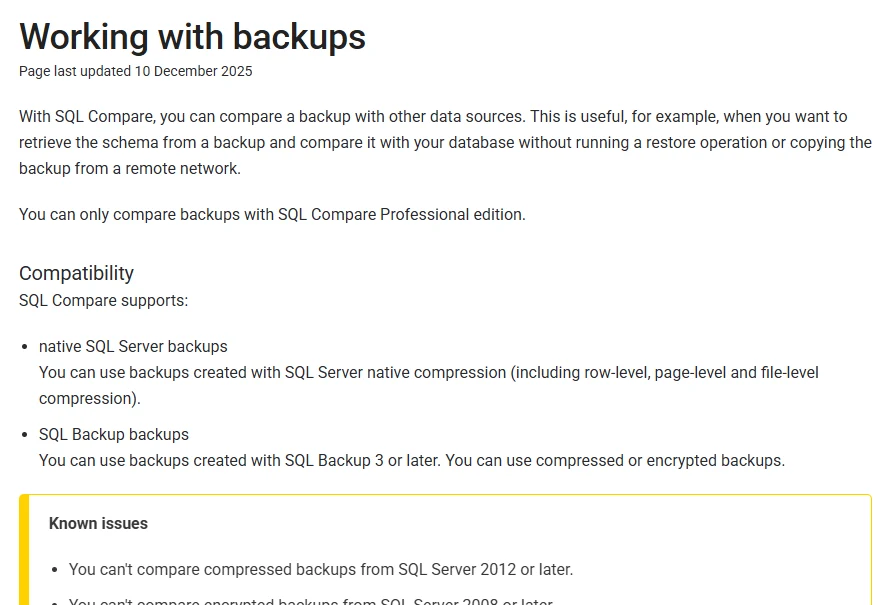
Redgate SQL Compare Professional can retrieve schema from compatible backup files and compare it with a current SQL Server database. It can generate a script for selected differences. This is useful when the missing item is a table definition, view, stored procedure or another supported schema object.
Its strength is recovering or reviewing the definition separately from the table’s data. Backup format, encryption and object restrictions still apply. Dependencies and deliberate changes made since the backup must be considered before applying the resulting script.
Use SQL Compare Professional to recover the required schema definitions from a supported backup. Check object dependencies and target environment differences before generating the script.
Compare the recovered definition and dependency list to the isolated restore baseline. A definition compare does not establish the historical data for a row, so retain a separate backup data or restore workflow.
- Compatibility
- SQL Compare Professional with supported backup and schema inputs.
- License and trial
- Commercial Redgate entitlement for backup comparison.
Stellar Backup Extractor for MS SQL
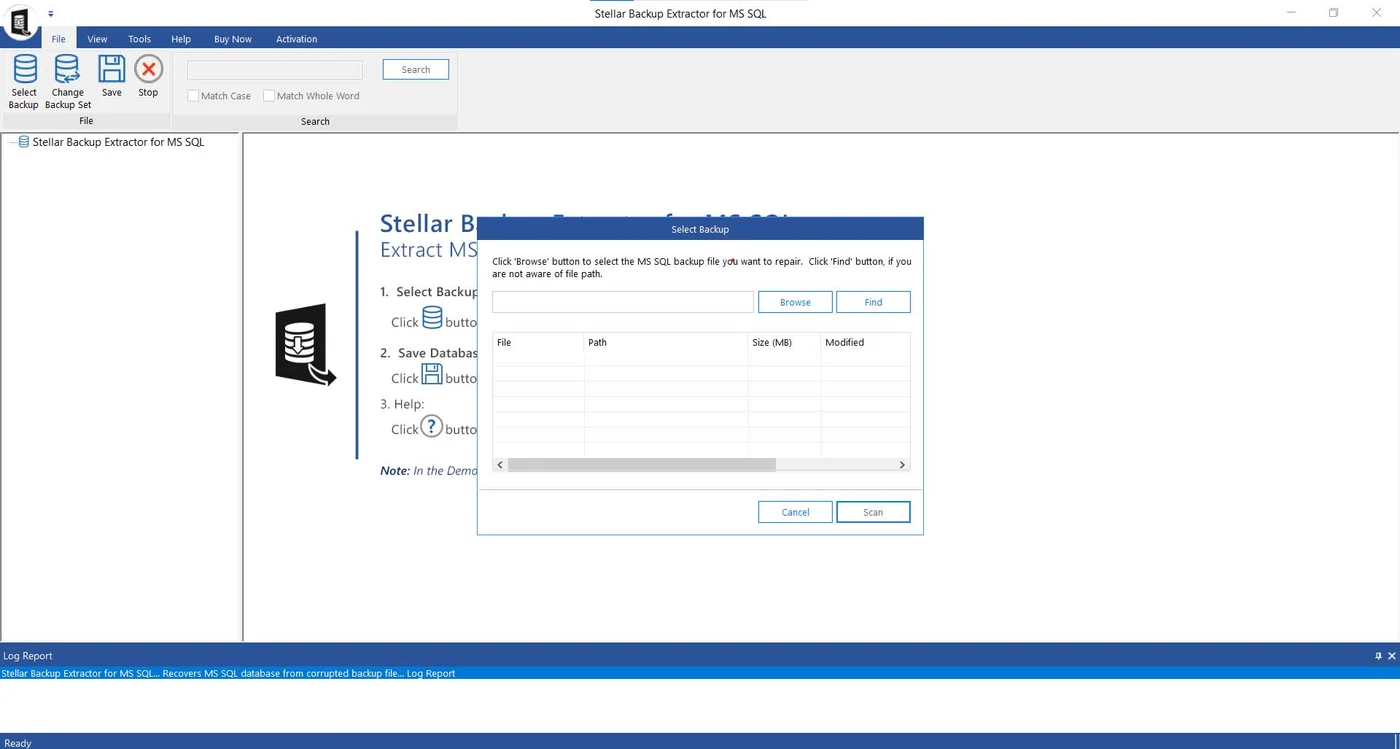
Stellar Backup Extractor for MS SQL scans supported SQL Server backup files and presents recoverable database objects for preview and export. It is useful when an operator needs to assess what a difficult or inaccessible backup contains before deciding how to recover a specific table or definition.
An extractor is most useful when it can read the actual format and show the requested objects. Successful export is stronger evidence than a preview. Recovered rows or definitions should be examined on a separate target where constraints, SQL Server compatibility and object completeness can be verified.
Load a disposable SQL backup that matches the edition and feature set supported by the extractor. Keep the original backup as received and scan a lab copy to verify object and data visibility.
Validate recovered types, keys, row count and the synthetic invoice value against a native restore where possible. Check how the tool reports skipped material rather than assuming the preview is complete.
- Compatibility
- Supported Windows utility and compatible SQL Server backup file and export target.
- License and trial
- Commercial. Preview and saving depend on the applicable license.
SysTools SQL Backup Recovery
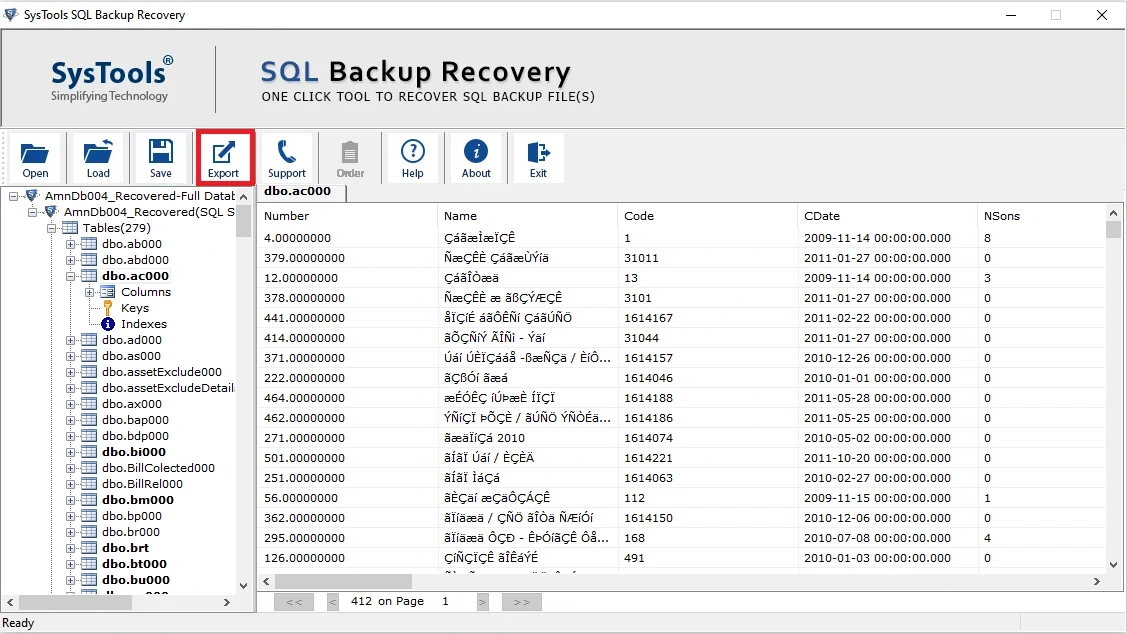
SysTools SQL Backup Recovery can scan a compatible SQL backup and preview and export selected recoverable contents. It is useful when a DBA has a backup file but needs the contents of particular tables or other objects outside the ordinary restore workflow.
The documented input and export formats define which backups can be handled. An export may contain useful data even when it omits other objects or state required by the application. The DBA still needs to confirm keys, row counts and dependencies on the intended target.
Select the actual lab backup file type supported by the product and choose an isolated export destination. Verify whether the workflow outputs data, SQL scripts or both for the object in scope.
Compare export results with the known source and restored row, including parent dependencies, identity settings and data types. Test the failure path for an incompatible or incomplete backup file.
- Compatibility
- Supported Windows utility and compatible SQL Server BAK media.
- License and trial
- Commercial SysTools license. Evaluation and export limits depend on the edition.
Rubrik SQL Live Mount
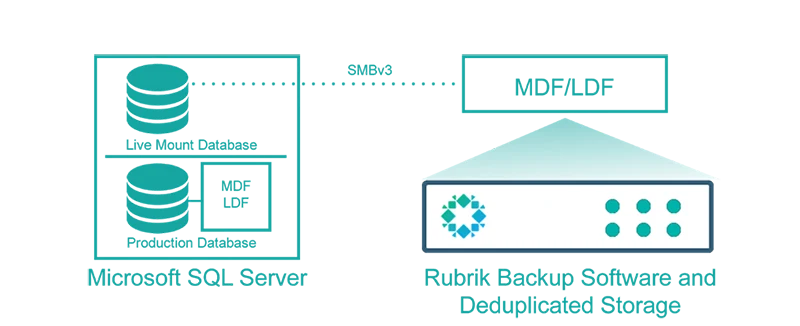
Rubrik SQL Live Mount makes a supported SQL Server recovery point available as a mounted database. A DBA can query it and retrieve the required rows or objects from that instance. It is useful when the team wants fast access to an otherwise large protected database for a selective recovery.
The mount gives the DBA a SQL source to inspect before changing the live database. Availability and performance depend on the supported backup, mount infrastructure and target. Moving the selected data or schema into production remains a separate operation.
Use the supported SQL Server Live Mount workflow with an approved temporary target and identity. Confirm the isolation, available historical point and cleanup ownership before making the database queryable.
Read the deleted row from the mount and stage only the approved data. Confirm whether the mount's lifetime and permissions allow a second reviewer to reproduce the extraction before it expires.
- Compatibility
- Rubrik SQL Server Live Mount with a compatible backup and target instance.
- License and trial
- Commercial Rubrik licensing.
Choose how to reach the object in the backup
| What you need | Tools to shortlist | What to verify |
|---|---|---|
| Stage the SQL database or mount a protected copy | Use a separate name and inspect the rows and schema before copying back the affected object. | |
| Export selected objects and records from a backup | Verify which table structures, keys and rows the product exports. Review the generated script or staged object. | |
| Compare backup data with the destination before syncing | Map the table by a reliable key. Preview the change set and exclude updates or deletions outside the repair. | |
| Recover a table definition or programmable object | Review the generated definition and dependencies. Validate the script in staging first. |
Choose between row recovery, table recovery and schema scripting
For a single deleted row, recover the backup to a safe copy, find the exact key and stage the result. A dropped table also needs schema, constraints and dependencies. A procedure or view usually needs its definition and references. Each path requires a different validation step.
Verify the media format and encryption support before choosing a direct extractor. For the pilot, compare each outcome with an isolated native restore when available. Keep the extraction scope separate from the eventual approved change script.
One row or a small set of related rows
Use isolated recovery or a bounded data comparison
Verify keys and check that newer current rows survive.
A dropped table and its data
Recover the table, rows and dependencies
Check parent keys, indexes, constraints and permissions.
An object definition such as a procedure
Script or compare the backed-up definition
Review dependencies and apply the change in a safe test target first.
Recover an older invoice while preserving a newer one
The fixture puts invoice 100 in the full backup. A later committed change removes it from the source and adds invoice 200. Restore the old data to ObjectRestoreRecoveredLab or access the equivalent historical data through the shortlisted product. Use the two invoice IDs to verify that the comparison is in the correct direction.
A proposed recovery should add only invoice 100 to the current dataset. Stage the output, verify CustomerId 7 and run any generated change against a disposable copy of the current source before using it on a real database.
| Stage | Invoice 100 | Invoice 200 |
|---|---|---|
| Historical backup or restored copy | Present, amount 125.00 | Absent |
| Current source after the lab change | Absent | Present, amount 200.00 |
| Test copy after narrowly scoped recovery | Present, amount 125.00 | Present, amount 200.00 |
How to compare these tools
Recover one table with dependencies and one programmable object on a test instance. Compare the schema, keys, row counts and any script that would apply the recovered objects. Sources checked .
Recover one row and keep the two later changes
Create an empty disposable ObjectRestoreSourceLab database. Run Setup, take an approved full backup, then run Change in a fresh source execution. Restore the historical backup to ObjectRestoreRecoveredLab and run Check in both databases. Use an isolated copy of current state for testing a projected change.
Create historical and current SQL rows for a scoped restore
T-SQL · 38 lines
- Run the backup and controlled source change. Confirm the two states with Check after the independent restore. Verify the product reads the expected backup or mount.
- Select only invoice 100 and review any proposed script on a copy of current state. Confirm the parent exists and no statement removes invoice 200. Record the extracted value.
- Use ObjectRestoreApplyLab for test application, then verify both invoices. If comparing full table or schema recovery, validate keys and dependencies independently of successful row extraction.
Conclusion
Choose a restore path that shows exactly which object and rows it will change. A staged database gives you the native SQL recovery point, while a tool that reads backup data can narrow work to the affected table. Verify the intended row and the later changes before closing the incident.
Frequently asked questions
Can SQL Server restore one table directly from a BAK file?
A normal native database restore recovers the database. For one table, restore a copy under a different name and query or copy the selected data. Some third-party tools read or mount a backup and export selected objects.
How do I recover a deleted row without losing current SQL Server data?
Find the missing row in a staged copy or backup comparison. Confirm its key and apply a targeted insert to the destination. Verify that unrelated live edits and new rows remain.
Can you compare a SQL Server backup with a live database before restoring data?
Some comparison tools support a full or differential SQL Server backup as a data source. Check the edition and backup format. Review reconciliation by the primary key and select only the rows needed for the repair.
Can I recover a table from a transaction log backup alone?
Recover the database to a suitable point from a complete restore chain, then extract the table or rows. Tools that compare or extract standalone backups may support full or differential backups only.
What should I check after a SQL Server table restore?
Check row values and counts for the affected keys, then review identity behavior, constraints, indexes, triggers and dependencies. Verify current rows that were outside the requested repair.
Can SQL Server RESTORE directly put one table back into a live database?
Use a separate database restore as the native baseline and extract the needed rows or objects from there. Supported third-party workflows may provide narrower extraction or restoration steps.
How can a compare script delete data that was added after the backup?
A whole-table comparison can treat newer target rows as differences and generate deletions. Check the direction, selected rows and generated operations on an isolated target.