

A VS Code setup for SQL Server usually includes a connection provider and may also include tools for formatting, database projects or source history. The connection extension is what opens a database, resolves object names and returns query results. The formatter works on SQL files. Project and Git tooling become useful when a team needs to deploy and review T-SQL changes in the same repository as its application.
Microsoft’s MSSQL extension is a natural starting point for SQL Server and Azure SQL. DBCode, Database Client and SQLTools can appeal when the workspace includes other engines or needs a different way to save queries and results. Adding more than one formatter can lead to different changes on save. The useful comparison is which extension owns the connection, which owns formatting and which still works when the editor is disconnected.
VS Code extensions for SQL Server at a glance
Use the Marketplace identifier to install the exact extension. Set one default formatter for SQL files and compare any query provider against a read-only test connection first.
| Extension | Marketplace ID | Role and connection | Pricing or setup |
|---|---|---|---|
| Microsoft SQL Server (mssql) | ms-mssql.mssql | SQL Server query, object browser, formatting and SQL Database Projects | Free. Choose supported SQL, integrated or Entra authentication for the host. |
| DBCode | DBCode.dbcode | Multi-engine client with documented SQL Server connection settings | Check available plan, connection storage and optional agent access |
| Database Client | cweijan.vscode-database-client2 | Multi-engine query and data exploration | Check current extension tier and required SQL Server auth |
| SQLTools with SQL Server driver | mtxr.sqltools + mtxr.sqltools-driver-mssql | Base SQLTools plus SQL Server connection provider | Install both and verify driver options and batch behavior |
| MS SQL Manager | jakubkozera.ms-sql-manager | SQL Server explorer and query work | Check supported auth and the chosen extension build |
| SQLFluff for VS Code | sqlfluff.vscode-sqlfluff | Lint or format SQL files using configured SQLFluff | Open-source editor workflow; configure the executable and T-SQL dialect |
| SQL Formatter VSCode | renesaarsoo.sql-formatter-vsc | File formatter, without a database connection | Use the proper SQL dialect and assign it as default only if appropriate |
| GitLens | eamodio.gitlens | Git history and review of SQL or project files | Check free and paid features; SQL work comes from other extensions |
Microsoft SQL Server (mssql)
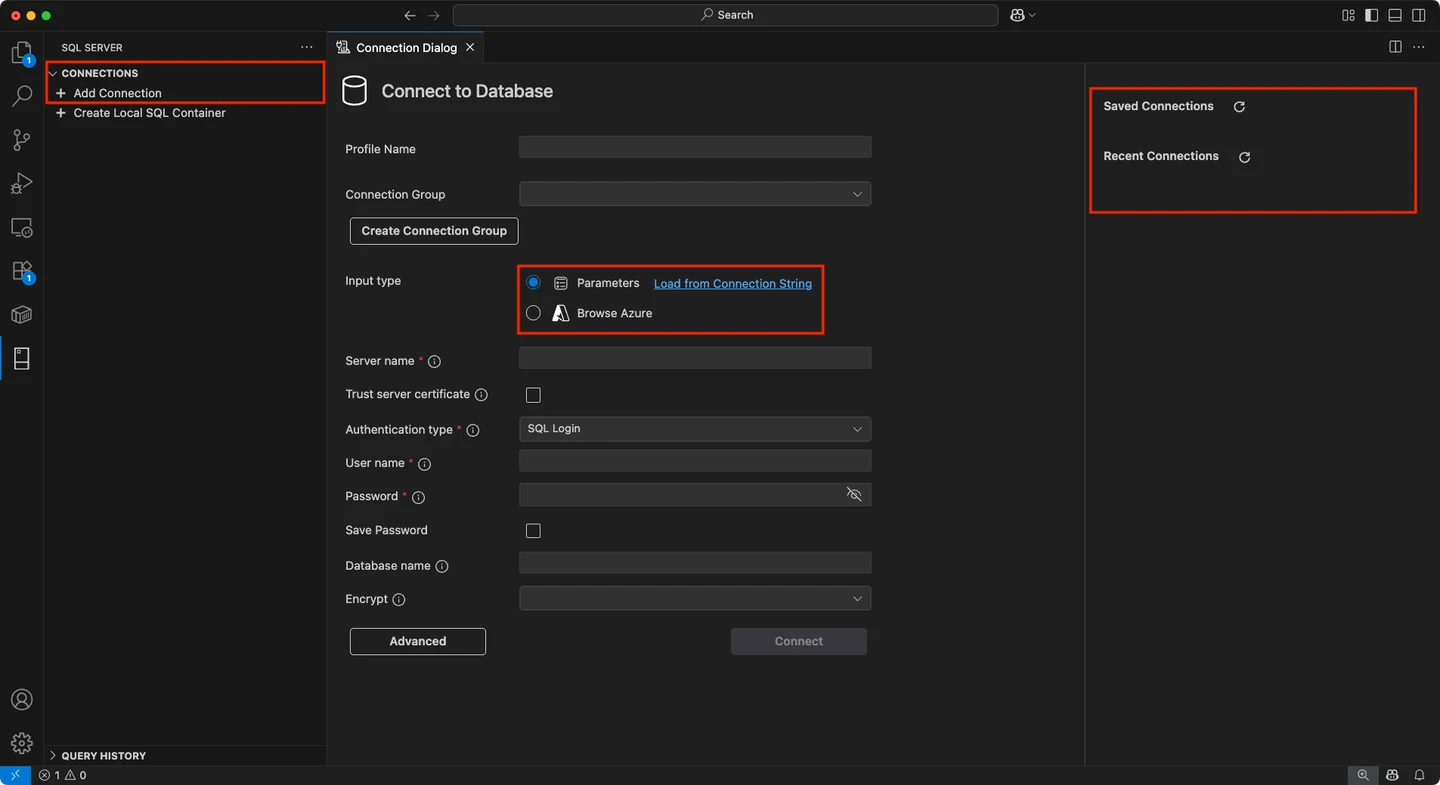
Microsoft’s MSSQL extension gives VS Code a SQL Server connection profile, object explorer, T-SQL editor and result grids. It is a useful default for developers who want Microsoft’s SQL Server and Azure SQL tooling alongside application source. SQL Database Projects can add a buildable database model and DACPAC workflow.
It fits teams that prioritize Microsoft’s documented authentication and feature coverage. Editing queries, managing a database project and performing native administration are separate workflows. The project tooling needs its own setup, and privileged production tasks still depend on the chosen connection and SQL Server deployment.
The Microsoft Marketplace listing now includes Database Projects in the main MSSQL extension. Check Database Projects commands in a clean profile and the .NET SDK requirement before setting up CI. Build the checked-in project and capture the generated DACPAC.
Use the documented connection settings for SQL Server and the available sign-in options for your host. Test the selected editor and connection before running a batch and review options for query auto-execution, telemetry and use of AI features.
- Compatibility
- VS Code on supported desktop platforms and a supported SQL Server, Azure SQL or Fabric SQL target.
- License and trial
- Free Microsoft extensions. Database infrastructure and licenses are separate.
DBCode
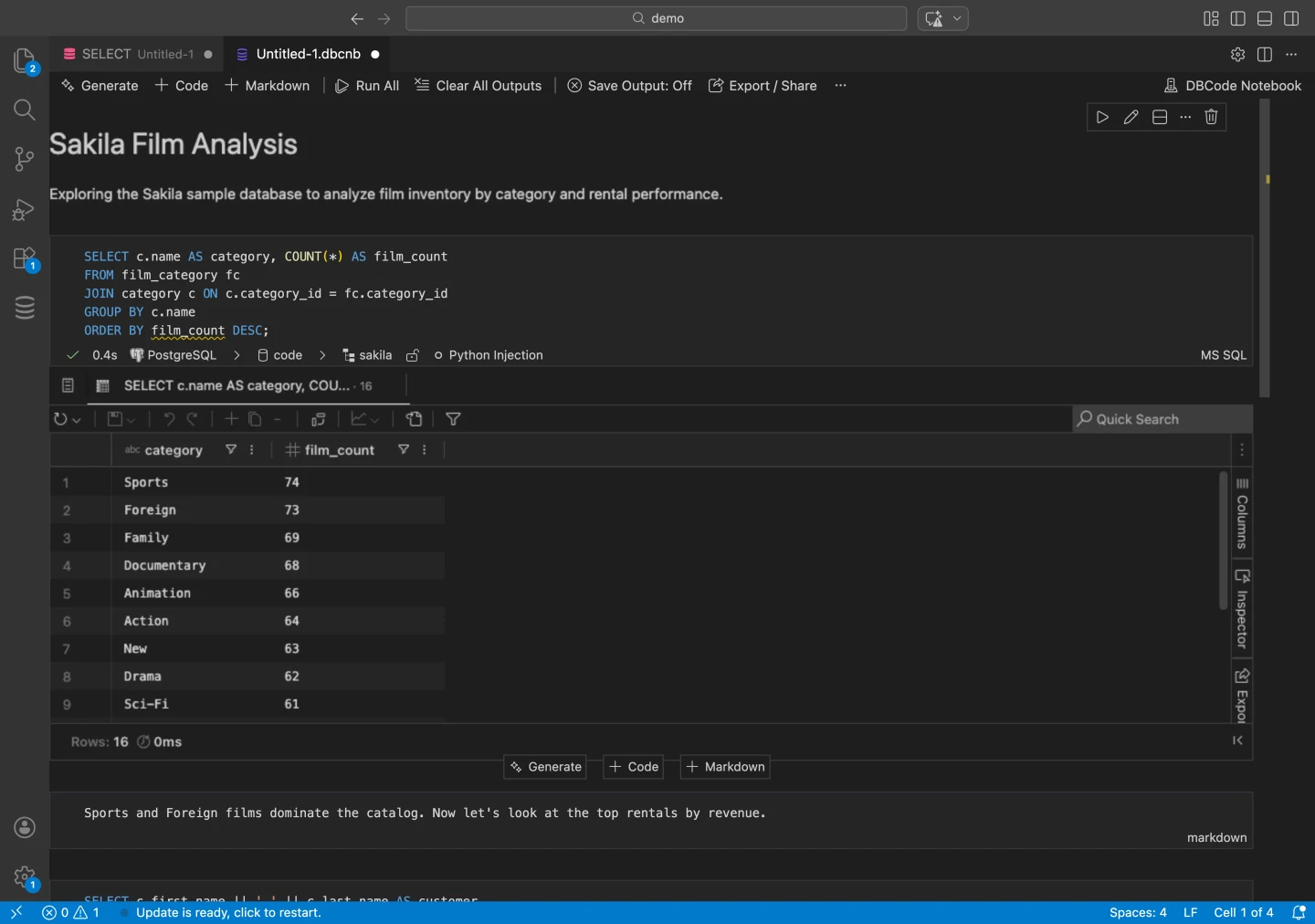
DBCode provides SQL Server connections, schema-aware editing and a results grid alongside support for other engines. Its notebook support lets a developer keep SQL cells next to Markdown and rerun individual cells. That is useful for investigative queries that benefit from a record of context and results.
It fits people who do analysis in the editor and want to keep the query steps together. SQL Server authentication options depend on host setup, especially for Kerberos. Notebook sharing or export can also include data, so the same query may be suitable to share without the recorded result.
Use the SQL Server-specific connection documentation to match the target and authentication mode. Try one connection with limited privileges and test the tab's database selection, result export and query plan workflow.
The extension also publishes AI and MCP capabilities. Decide which permissions are enabled on the selected connection during the trial. Review where the profile and data are stored, then record whether any needed capability requires a paid plan.
- Compatibility
- VS Code extension. The publisher documents SQL Server and Azure connections and platform-specific integrated authentication.
- License and trial
- Free and paid options. Advanced features follow DBCode’s current edition terms.
Database Client by cweijan
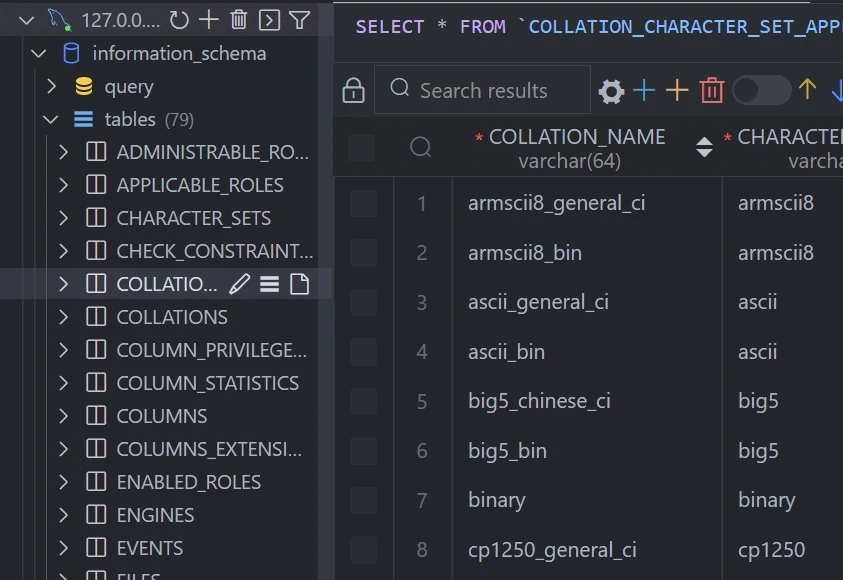
Database Client by cweijan provides connection management, table browsing, queries and data editing for SQL Server and other supported engines. It is useful for developers who want a consistent database view alongside application files and who often switch between development data stores.
Its multi-engine navigation is the main advantage when the workflow centers on SQL and results. The Marketplace listing distinguishes available features across plans. Connection options, access to object metadata and any advanced SQL Server feature still need to be assessed for the target environment.
Enable Database Client in a separate profile and test its SQL Server data source. Check login type, certificate trust and result export from the same lab dataset you used for MSSQL.
Use the published extension ID when sharing a team profile because similarly named extensions exist. Record the exact build and verify the selected tier for one real workflow, such as comparing the columns and serialized values in a file export.
- Compatibility
- VS Code extension with documented SQL Server connection support.
- License and trial
- Free and paid features. The publisher describes current entitlements in Marketplace and product documentation.
SQLTools with the SQL Server driver
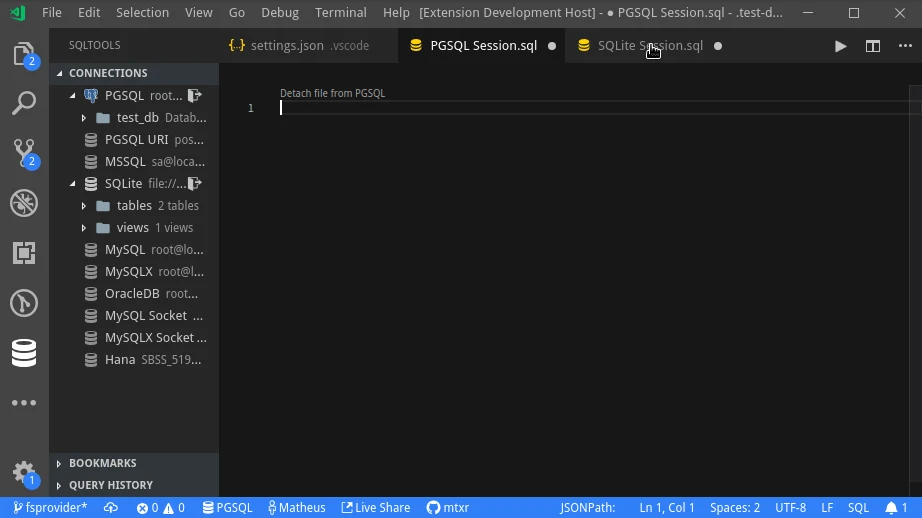
SQLTools provides a database workspace in VS Code and connects to Microsoft SQL Server through a separate MSSQL driver extension. It supports running queries and browsing connection metadata. That is useful when a developer wants a simpler workflow based on editor commands and already uses SQLTools for another database.
The separate driver is both useful and a dependency. It can expose connection options such as instance names, while named-instance discovery still depends on the SQL Server Browser and reachable network ports. That matters when a local test connection succeeds but a remote instance uses different network settings.
Install the SQLTools base extension and its SQL Server driver. Compare its connection options with your required authentication and encryption policy. The common editor features and protocol-specific connection provider have separate settings.
Run the sample as individual batches and as a full script. If the selected driver or command treats GO differently, capture the actual result. Use a project build or native runner for tasks that require that separate SQL Server workflow.
- Compatibility
- VS Code with SQLTools and the MSSQL driver. Connectivity depends on driver and server configuration.
- License and trial
- Free, open-source project and driver.
MS SQL Manager by Jakub Kozera
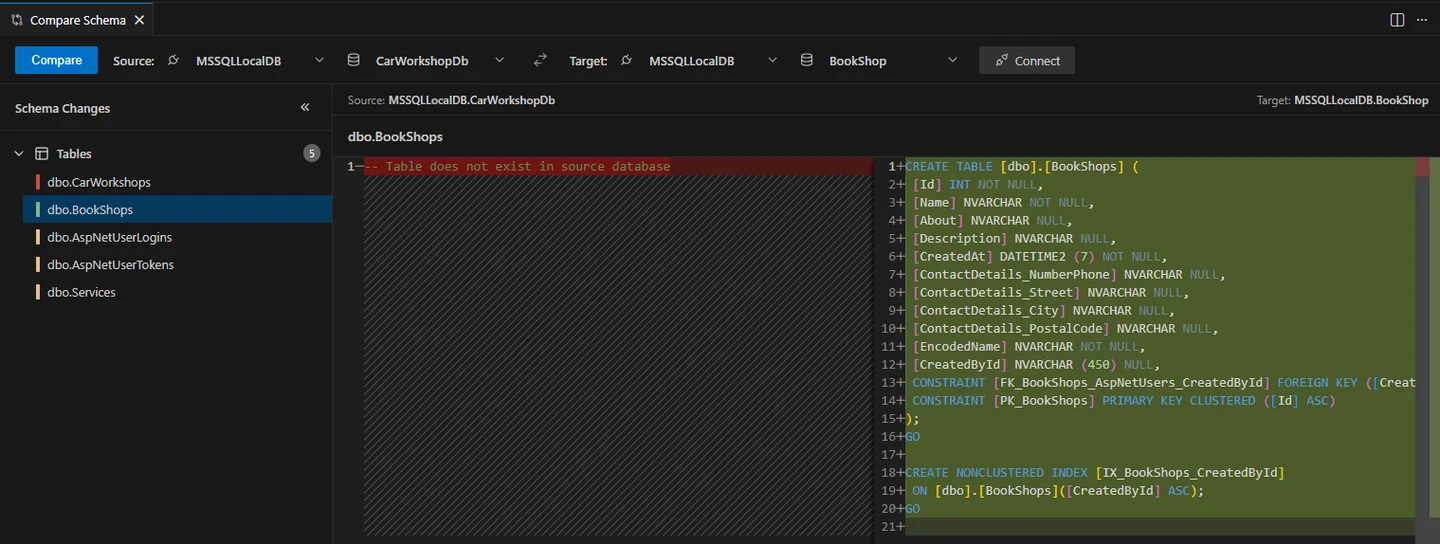
MS SQL Manager by Jakub Kozera provides saved connections, schema browsing and query execution inside VS Code. Its narrow SQL Server focus can be useful when a developer wants to browse objects and run statements while keeping the rest of the workspace independent of database-specific project tooling.
It is a smaller alternative for basic SQL Server work. A broader Microsoft workflow can be useful when the team needs SQL project features or specific authentication options. The extension’s documented connection modes and release activity matter most when standardizing it across several workstations.
Use the Marketplace requirements and the exact extension build to make a named disposable connection. Inspect which database and user the query uses and whether object browsing works under the intended account.
Compare the small multi-batch example with your preferred client. Verify that query result and target context can be repeated by another developer. Check where any saved connection secrets are kept before sharing a profile.
- Compatibility
- VS Code extension with a supported SQL Server connection. Authentication support follows the project documentation.
- License and trial
- Community-maintained Marketplace extension.
SQLFluff for VS Code
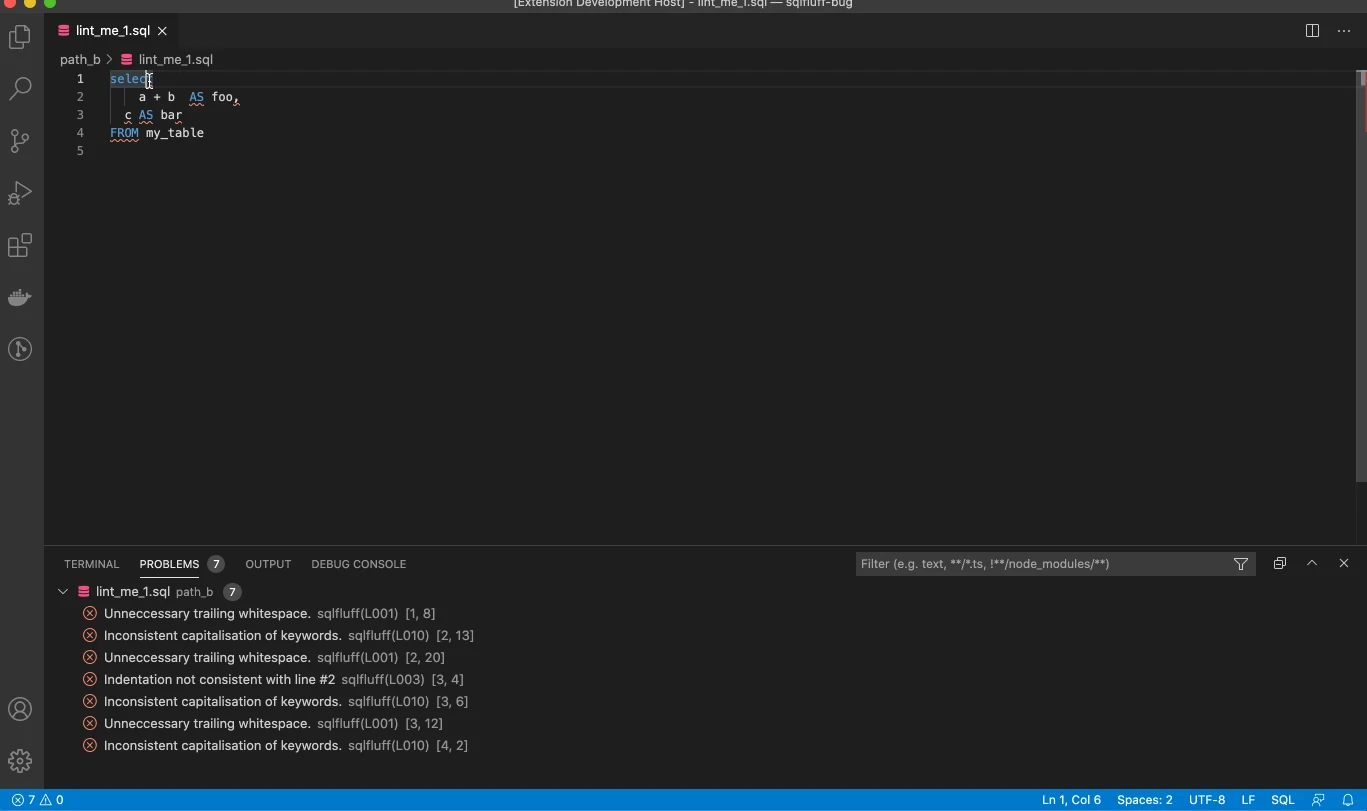
The SQLFluff extension brings a configured linter and formatter into VS Code. Its T-SQL dialect lets teams apply file-based rules to SQL Server scripts. The same rules can be used in the CLI, which is useful for teams that want editor feedback and an equivalent check in CI.
It fits repositories where SQL style and lint rules should be visible in source control. The SQLFluff installation, dialect and templater must agree between machines and CI. Parsing failures can keep eligible fixes from running, even when SQL Server itself can execute the original script.
Select the T-SQL dialect and make the editor extension use the pinned SQLFluff executable and repository config. Start with lint output before enabling automatic fixes. Confirm that the project and local editor see the same files.
Compare the same script in the VS Code Problems view and the CI command. Review the parse errors and rule identifiers separately. Check whether a runnable SQL Server script triggers a rule specific to the chosen parser or configuration.
- Compatibility
- VS Code extension plus a working SQLFluff installation and T-SQL dialect configuration.
- License and trial
- Free, open-source extension and linter.
SQL Formatter VSCode
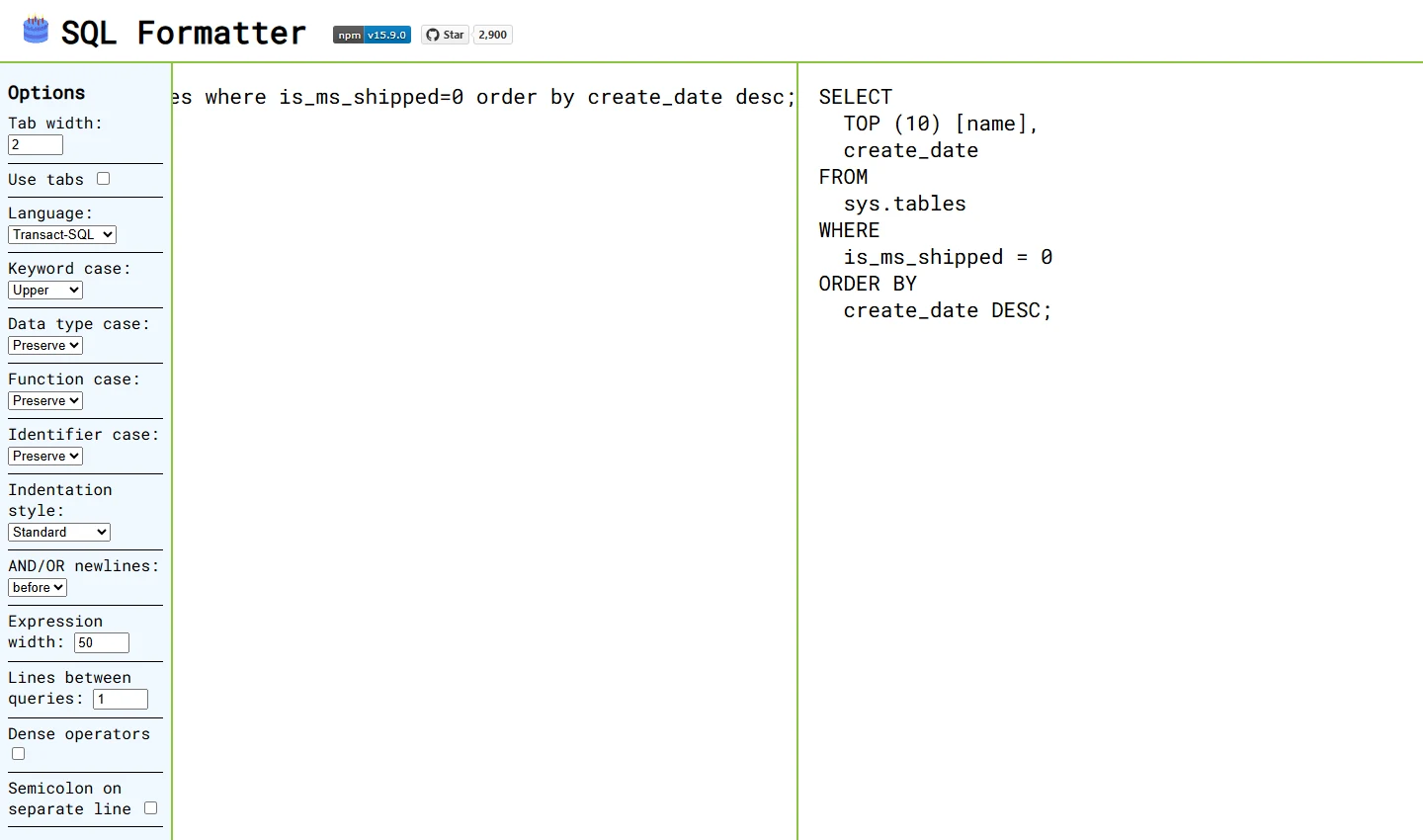
SQL Formatter VSCode formats SQL files with the SQL Formatter library and can be configured for T-SQL. It is useful when the team wants readable layout and a consistent editor action without connecting to a SQL Server instance. The same library is available for other supported workflows.
It suits straightforward format-on-save setups. The formatter deals with syntax and whitespace, while schema-aware completion and rule reporting belong to other tools. A workspace with multiple SQL formatters benefits from a clear default, especially when a file contains dialect-specific constructs.
Set the extension's documented SQL dialect for the file before formatting. Inspect the changes to quoted strings, identifiers and GO separators. Save the result without switching formatters mid-trial.
Use Format Document With to compare output from each installed formatter. Set a single default in the SQL language settings if results differ. Rerun the query against the lab and compare known rows after formatting.
- Compatibility
- VS Code extension. Select the T-SQL dialect for relevant files.
- License and trial
- Free, open-source formatter and editor extension.
GitLens
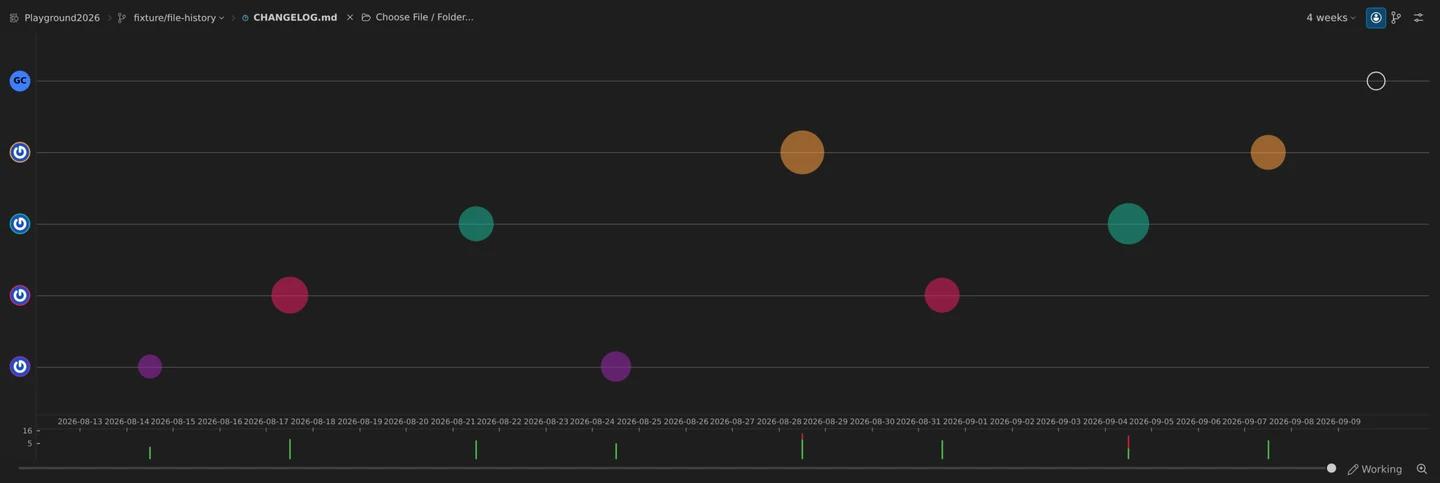
GitLens adds blame, commit and file-history views to VS Code. For SQL Server work, it helps a reviewer trace when a procedure or migration changed and inspect related commits in the same editor. It works on versioned files, making it useful to a team that stores database definitions alongside application changes.
It fits change investigations where source history is available. The history describes the repository while the target database may contain a different deployed definition. Plan entitlements can affect advanced views, and database access and execution remain with a separate extension.
Use GitLens to inspect the history of the query or database project's object definitions. Check the feature needed to review a single schema change and see which Git settings and account are active.
A Git change can show what a `.sql` file contains. Pair that evidence with the project build or a reviewed SQL Server script to establish what the database engine will apply. Keep credentials out of the repository and its history.
- Compatibility
- VS Code and a Git repository. SQL Server access is managed independently.
- License and trial
- Community and commercial plans. Some advanced views depend on the plan and repository type.
VS Code extensions by SQL Server workflow
| What you need | Tools to shortlist | What to verify |
|---|---|---|
| Connect to SQL Server, execute T-SQL and inspect plans | Run a read-only script in two batches and verify the active database, result sets and plan workflow. | |
| Use SQL Server and another database from one editor | Try both connections using the real authentication methods. Check which data editing, notebook and export features fit. | |
| Apply a T-SQL formatting or lint policy | Choose the default formatter. Run the same two files in VS Code and CI if linting is part of the pull request. | |
| Review a schema project and the SQL that changed | Build the project, inspect the schema diff or compare the changed object definition with the release tag. |
Choose a VS Code profile for SQL Server work
Keep the connection provider, SQL formatter and build workflow identifiable. A clean profile makes it possible to see which command or extension affects the result.
Connect, browse and run T-SQL
Install MSSQL and use one configured connection
Verify sign-in, TLS trust and target context on a lab database.
Check formatting or lint files across the team
Assign one formatter and pin the linter
Use the T-SQL dialect and test editor and CLI against the same file.
Build a schema and deploy through CI
Use SQL Database Projects in MSSQL
Build the checked-in project with a matching SDK and review the resulting DACPAC deployment separately.
- Microsoft SQL Server extension and Marketplace ID
- Microsoft SQL Database Projects compatibility package
- Microsoft SQL Database Projects tools
- Microsoft Azure Data Studio retirement and migration
- DBCode Marketplace listing
- Database Client Marketplace listing
- SQLTools SQL Server driver Marketplace listing
- MS SQL Manager Marketplace listing
- SQLFluff VS Code extension
- SQL Formatter VSCode listing and dialect configuration
- GitLens extension Marketplace listing
Verify batches, formatting and project output
GO is a client-side batch separator. A SQL Server query runner needs to split the script appropriately. The temporary table in the fixture also checks whether the individual batches share one connection.
Repeat with the two candidate formatters. Run their output against the same disposable connection and keep the extension ID and version with the result. Store connection settings only after verifying how credentials and optional AI access are handled.
| Check | Tool layer | Expected evidence |
|---|---|---|
| Connect | SQL Server extension or selected query provider | Correct database and authenticated principal |
| Run file with GO | Extension command handles client-side batches | Final amount 24.75 from three rows |
| Format document | Active T-SQL formatter | GO and text containing GO survive; amount stays 24.75 |
| Build a SQL project | MSSQL Database Projects plus applicable SDK | Expected DACPAC from the checked-in object definitions |
| Review SQL files | Git or GitLens | Intentional SQL changes without connection secrets |
How to compare these tools
Try the extensions against the same development instance. Check authentication, result and plan views, formatting, and any separate driver or license the workflow requires. Sources checked .
Set up a clean VS Code profile and run the same SQL file
Use the same SQL file in a clean MSSQL profile and any alternate provider. The fixture creates session-local data and checks that the full file keeps separate batches on the expected connection.
Check SQL Server GO handling and the active VS Code connection
T-SQL · 21 lines
- Open the file on an isolated SQL Server connection and check the active database. Run the complete file and save both result sets.
- Format the file one extension at a time, compare the output and run it again. Record whether the query runner splits GO and whether one connection is used across the file.
- If a team works from SQL Database Projects, build the same project in the editor and the CI runner. Compare the output file and the SDK version separately from the ad hoc query result.
Conclusion
Install Microsoft MSSQL to cover the SQL Server workflow first. Use DBCode, Database Client or SQLTools if a second database engine makes one editor worthwhile. Pick one formatting provider for T-SQL and add SQLFluff when the repository needs a lint policy that CI can reproduce. For SQL Server administration, validate the exact tasks that still require SSMS.
Frequently asked questions
What is the best VS Code extension for SQL Server?
Microsoft’s SQL Server (mssql) extension is the first choice for T-SQL, SQL Server and Azure SQL connections, execution plans and SQL database projects. Add a separate extension when you have a specific need such as cross-engine notebooks, linting or deeper Git history.
Do I need to install SQL Database Projects separately in VS Code?
The current Marketplace notice says SQL Database Projects is included in Microsoft’s MSSQL extension. The old listing is a compatibility package. Check the .NET SDK required by your project build.
What should I use now that Azure Data Studio has retired?
Microsoft retired Azure Data Studio on February 28, 2026 and recommends VS Code with MSSQL for SQL development. Review your extensions, connection methods, notebooks and administration tasks before moving your workflow.
Which VS Code extensions can format T-SQL?
Microsoft MSSQL includes a T-SQL formatter. SQL Formatter VSCode also has a TransactSQL dialect, and SQLFluff can lint and format with its tsql dialect. Select a default formatter and check the output on your real SQL files.
Can VS Code replace SSMS for SQL Server management?
VS Code with MSSQL covers many SQL development tasks and selected backup and restore operations. Compare the connection, SQL Agent, security and recovery steps in your actual runbook to see which tasks still need SSMS.
Why does a SQL Server script run by selection fail when I run the whole file in VS Code?
Check whether the command and driver support client-side GO separators and reuse one session. A selection can succeed even when full-file execution sends a delimiter as SQL or opens a different connection for a later batch.