

Metabase and Tableau Server can both publish SQL Server reports. They give authors and operators different responsibilities. Metabase gives a team a direct route from a database or a saved SQL query to shared questions and dashboards. Tableau Server can publish governed workbooks and data sources and manage the live or extract connection used to serve them.
The useful choice depends on who builds reports, who may see each row and how the data refreshes. A dashboard that relies on the application’s security rules and a live query that uses SQL Server impersonation need different settings. Compare the same report with restricted and unrestricted users, and check whether scheduled exports or extracts preserve the intended access.
Metabase vs Tableau Server for SQL Server at a glance
Compare publishing, freshness and data-access controls using the same data and report viewers. Check the exact license, deployment and chosen connection mode.
| Tool | Self-service model | Data freshness controls | Access proof |
|---|---|---|---|
| Metabase | SQL Server questions, models and dashboards | Live query and applicable cache controls | Verified group scope and exported rows |
| Tableau Server | Published workbooks and data sources | Live connections or supported scheduled extract refresh | Role, user filter or RLS policy result |
| Apache Superset | Datasets, charts and dashboards | Live SQL with configured cache and workers | Dataset and row-access policy |
| Power BI Report Server | Supported published reporting types | Live or scheduled mode supported by report type | Report access and dataset scope |
| Qlik Sense Enterprise on Windows | Managed Qlik apps and models | Reload job and source setup | Published app data and authorized view |
| Sisense | Models and authorized analytics workspaces | Selected live or refreshed model | Query and user-result evidence |
| Yellowfin BI | Managed report and dashboard content | Supported data source and query refresh policy | Role and approved data results |
| Zoho Analytics On-Premise | Local data import and analytics workspaces | SQL Server import and scheduled updates where configured | Current result and configured sharing |
Metabase
Metabase can connect to SQL Server and serve saved questions, SQL results and dashboards. It is useful for teams that need quick reporting on curated database objects and have a mix of SQL authors and users who prefer a visual interface.
Metabase’s collection permissions and data permissions address different access paths. Its row and column security documentation distinguishes native SQL, saved questions and public links. The intended group and connection model need testing, especially if several departments share one database.
Connect SQL Server using the documented path and test the intended viewer, analyst and administrator groups. Review row and column security features and native SQL access rules for the chosen plan.
Publish the small reporting dashboard and check the result after the known SQL update. Verify cache settings, exports and whether users can see only their intended reporting scope.
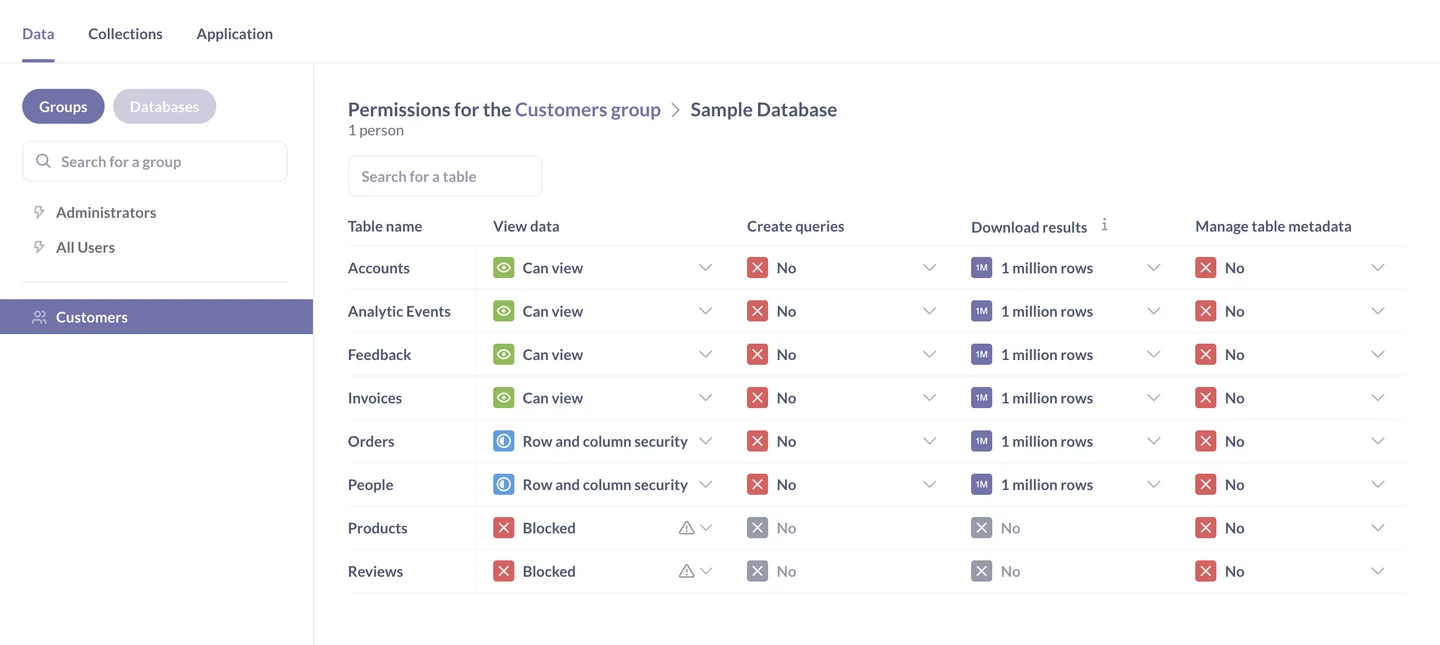
- Compatibility
- Metabase with a supported SQL Server connection and compatible permissions features.
- License and trial
- Open-source and commercial Metabase editions. Advanced access controls depend on the plan.
Tableau Server
Tableau Server hosts dashboards and published data sources that can use SQL Server live connections or extracts. It is useful when the organization needs separately governed data sources, centrally managed workbooks and the ability to publish reports to several user groups.
The live or extract choice affects data freshness and the way user identity reaches the data. Tableau documents SQL Server impersonation and eligible Kerberos delegation for specific live scenarios. Authentication, workbook permissions and extract refresh need to be validated on the deployed server.
Choose a supported SQL Server live or extract connection and publish the trial workbook and data source. Review configured row-level controls, content permissions and relevant product entitlements.
Apply the synthetic SQL update and compare when the workbook reflects it under the selected mode. Test access and export with the intended role and verify the actual refreshed result.
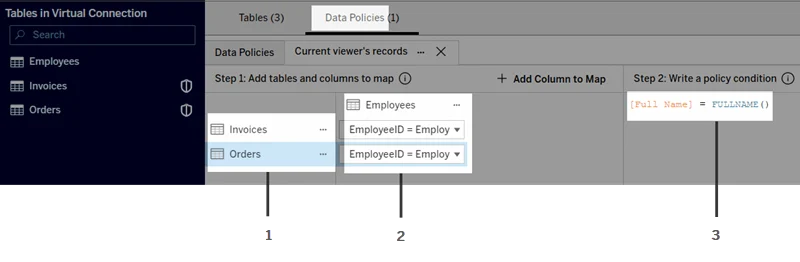
- Compatibility
- Supported Tableau Server and SQL Server connection with the applicable drivers and authentication.
- License and trial
- Commercial Tableau licensing.
Apache Superset
Apache Superset can publish SQL Server-backed datasets, dashboards and visualizations using a supported database driver. It is useful when the team wants to operate its own reporting platform and has the capacity to maintain SQL access, roles, query workers and deployment.
Its value is a configurable open-source environment. Superset’s dataset and security rules are part of how reports are served, while SQL Server permissions still apply to the connection. The team also owns upgrades, cache behavior and runtime settings.
Use the supported SQL Server connector and an explicit dataset. Test the report and decide where row scoping is enforced. Limit the roles allowed to create or edit database queries.
Compare the live result and selected cache policy using the lab metric update. Record what is reported when the SQL login or underlying query becomes unavailable.
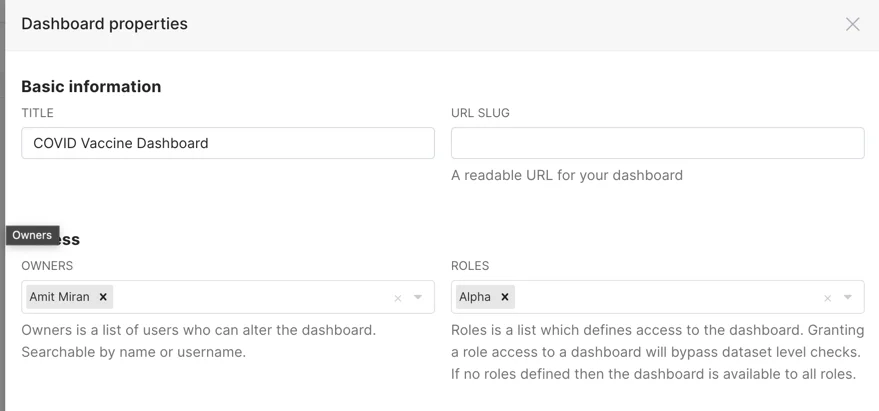
- Compatibility
- Self-managed Apache Superset with an eligible SQL Server driver and networking.
- License and trial
- Free, open-source software. Hosting and support costs are separate.
Power BI Report Server
Power BI Report Server serves supported Power BI and paginated reports from a self-hosted server. It is useful for a SQL Server-oriented organization that already manages Microsoft reports and needs on-premises deployment or paginated subscriptions.
Power BI models and paginated reports have different publishing, refresh and delivery capabilities. The Report Server-compatible authoring version matters, and stored or delegated credentials determine how SQL Server is queried. Report access and data access need to be tested together.
Select the supported report type for the relevant Report Server deployment. Record the SQL Server connection and whether the chosen mode needs scheduled refresh.
Use the same regional fixture to check both report roles and post-update data. Verify that exports and subscriptions follow the intended permission and freshness rules.
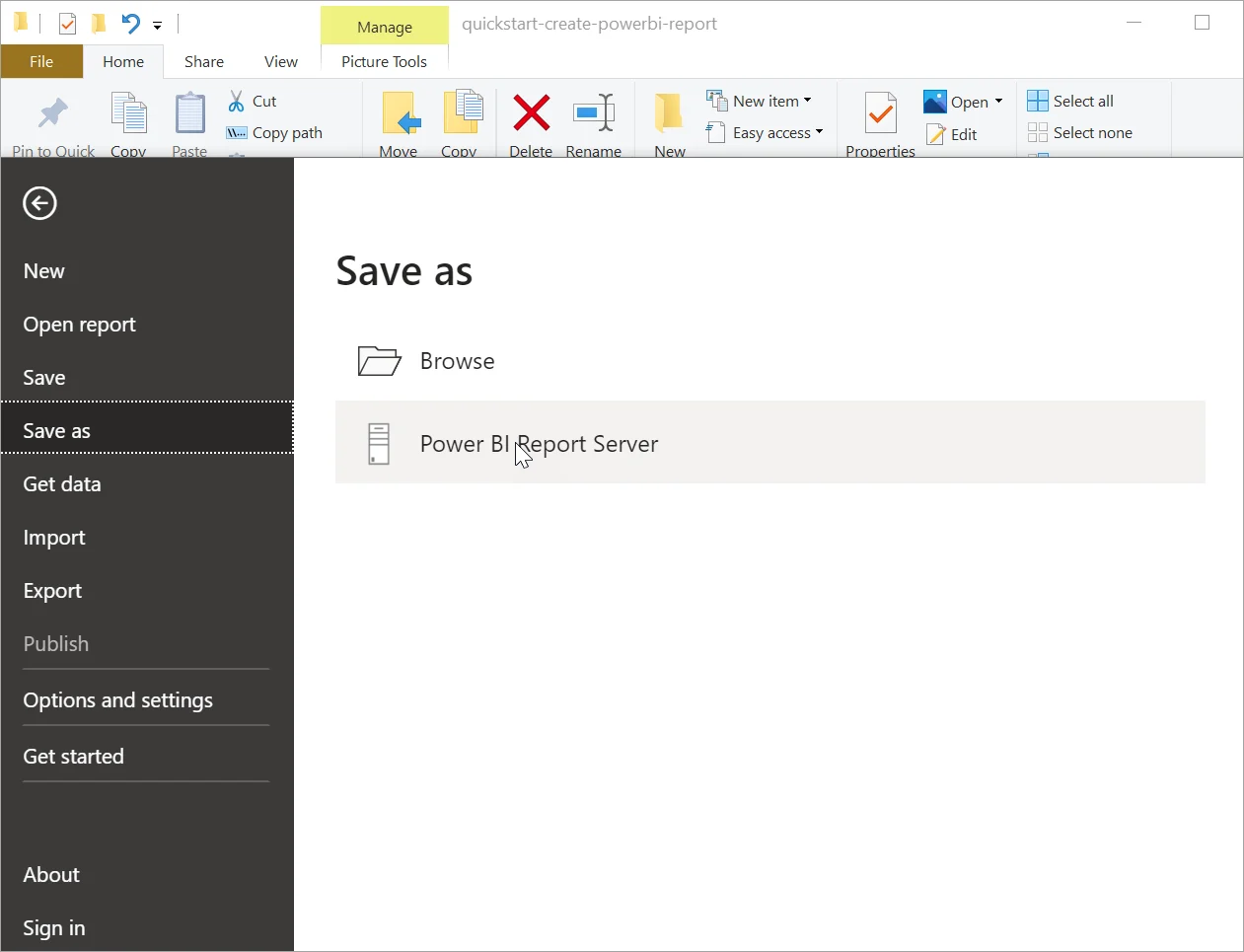
- Compatibility
- Power BI Report Server with the corresponding report authoring tools and SQL Server connectivity.
- License and trial
- Applicable Microsoft Report Server licensing.
Qlik Sense Enterprise on Windows
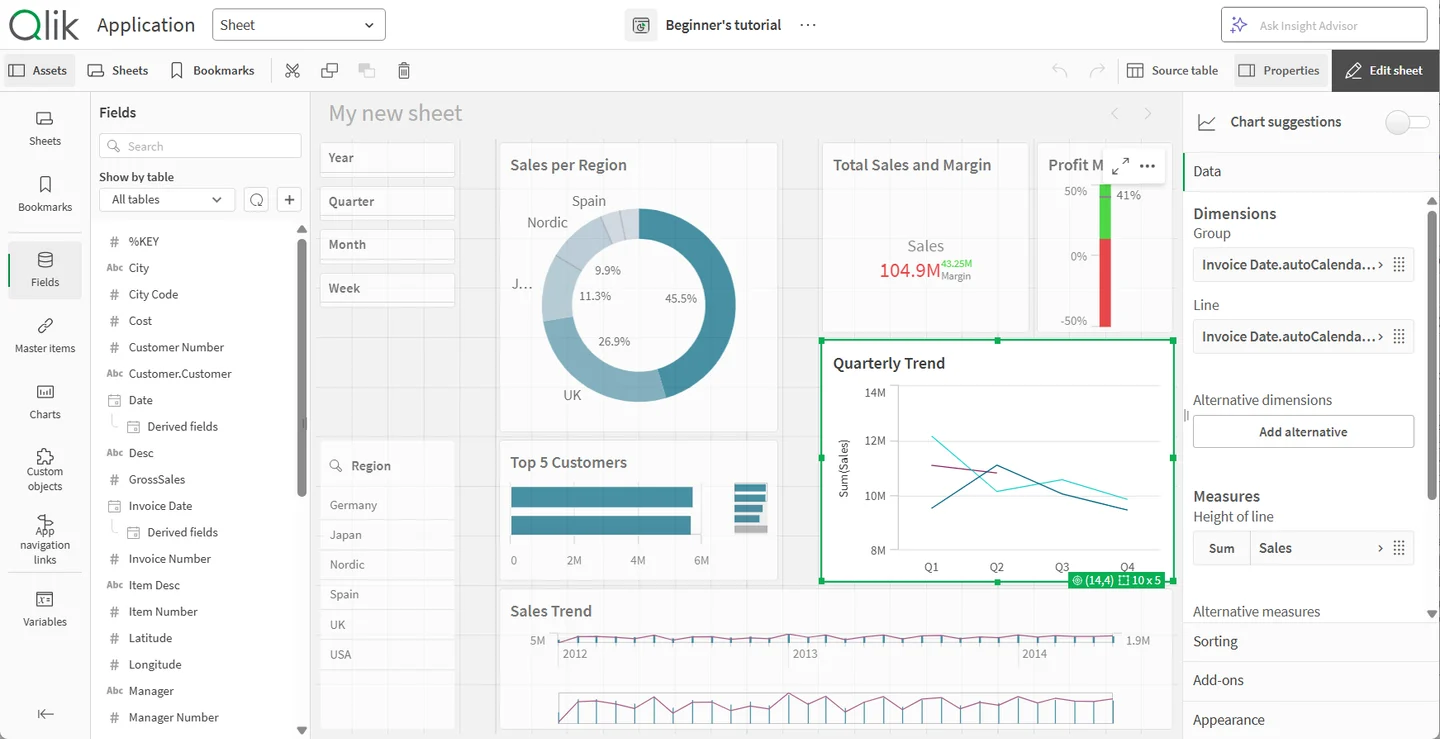
Qlik Sense Enterprise on Windows can load SQL Server data into its associative application model and publish the application to a governed deployment. It is useful if the team already uses Qlik to organize data relationships and wants users to explore published applications on a self-managed platform.
Reload settings determine freshness and SQL Server load, and Section Access can reduce data for eligible users. The security result depends on the script and published app configuration. Scheduling and authentication therefore need the same review as the selected dashboard data.
Connect from the documented SQL data workflow and record the relevant app model or deployable content. Identify which reload job updates the test metric.
Run the reload and verify changed values in the authorized user view. Check read and export permissions independently and retain actual report and task evidence.
- Compatibility
- Supported Qlik Sense Enterprise on Windows with SQL Server connectivity.
- License and trial
- Commercial Qlik licensing.
Sisense
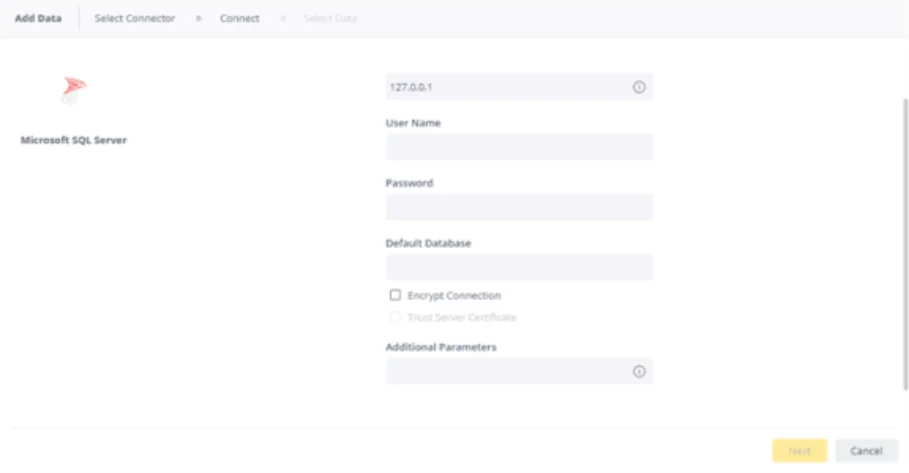
Sisense can connect to SQL Server and use the data in supported models and dashboards. It is useful when a team wants to provide a managed analytical layer on its own infrastructure and publish or embed the same data for different audiences.
The model type affects whether queries are sent live to SQL Server or use data prepared in the platform. Data security settings and the account supplying the model must match the audience. Host requirements and support for the intended export path also matter.
Use the supported SQL Server data connection and selected Sisense model. Confirm how it refreshes and where user-level filters apply to queries and exports.
Update the trial metric and check when it becomes visible to the intended role. Record any schedule or actual deployment difference from the other candidates.
- Compatibility
- Supported Sisense Server deployment with appropriate SQL Server connection and model.
- License and trial
- Commercial Sisense licensing.
Yellowfin BI
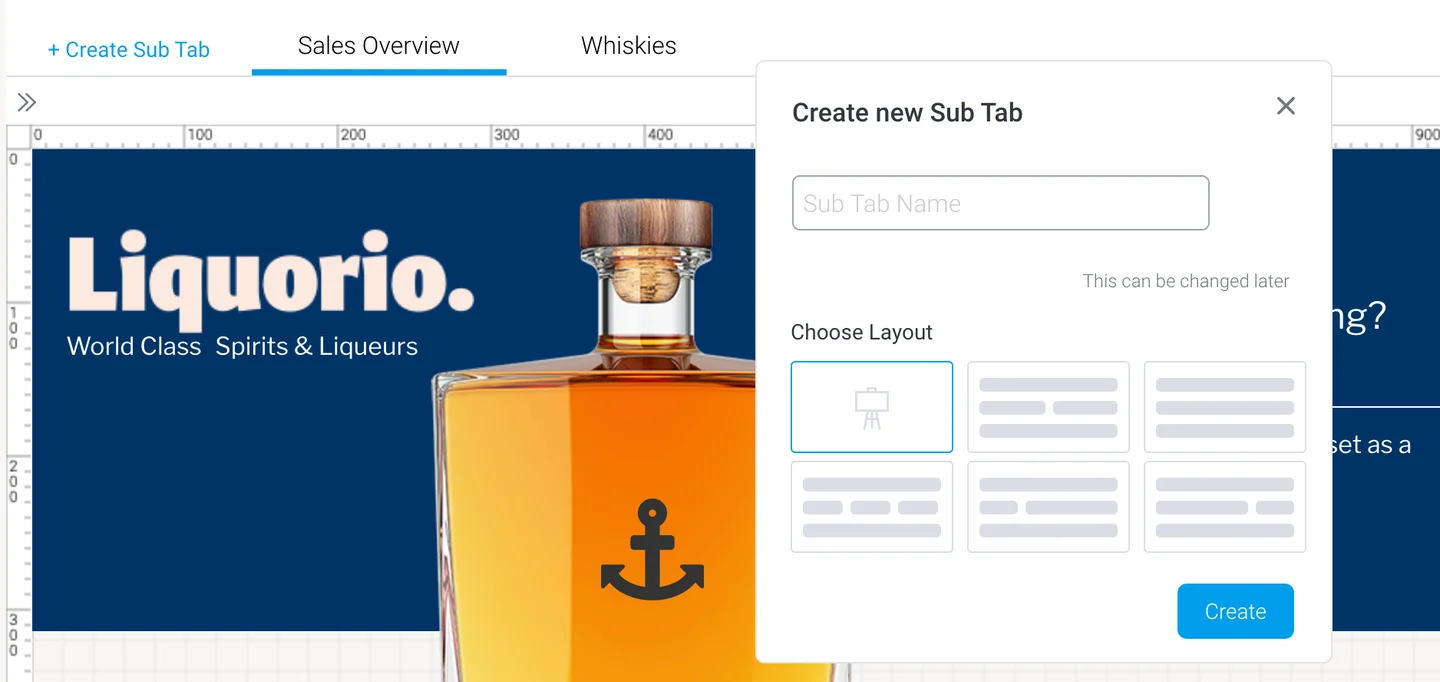
Yellowfin BI can use SQL Server as a supported reporting data source and provides dashboard and reporting workflows. It is useful when an organization wants a managed report environment that can be deployed on compatible infrastructure and serve business users without exposing database client access.
The JDBC connection and chosen deployment determine what viewers can query. Platform roles, content separation and filtering need to match the audience. Export and schedule requirements should be checked with the actual reports and authentication model.
Verify the currently supported SQL Server connector and the exact role or restriction in the intended Yellowfin edition. Configure a small SQL Server report with a clearly labeled authorized scope.
Read the report and authorized export after the fixture changes. Verify how cached data, target users and any permission errors appear to the report operator.
- Compatibility
- Yellowfin BI with a supported SQL Server driver and deployment.
- License and trial
- Commercial Yellowfin licensing.
Zoho Analytics On-Premise
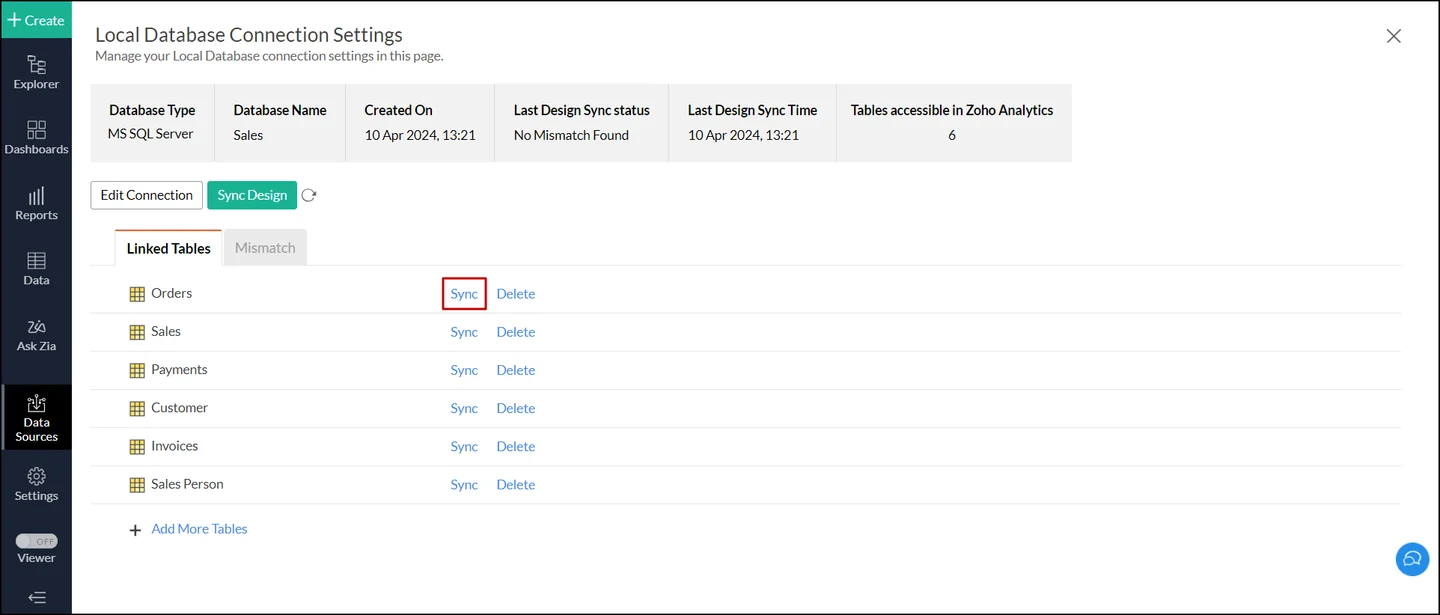
Zoho Analytics On-Premise can bring SQL Server data into a self-hosted reporting workspace using its documented connector. It is useful when the team wants managed imports and user-facing dashboards within its own reporting environment.
The selected connection or import mode governs freshness and source load. Edition limits affect features, schedules and collaboration. The published workspace needs an identity and access model that reflects who may view or export the imported data.
Use the documented SQL Server connection for Zoho Analytics On-Premise and record how imports and recurring updates work for the configured deployment.
Confirm availability of the changed values and the current reporting restriction. Keep the original import, refresh evidence and a copy of what the allowed user can export.
- Compatibility
- Zoho Analytics On-Premise with supported Microsoft SQL Server connection.
- License and trial
- Commercial Zoho edition and capacity terms.
Metabase and Tableau Server compared
| Feature | Metabase | Tableau Server |
|---|---|---|
| Authoring and publishing | Build questions in the query builder or SQL editor, then organize questions and dashboards in collections. | Build workbooks in Tableau Desktop or with supported web authoring, then publish them and their data sources to a project. |
| SQL Server connection and freshness | Connect directly to SQL Server. Set the relevant query caching policy and check when a source change becomes visible. | Publish a live connection or an extract. Check the server-side driver, credential mode and any extract refresh schedule. |
| Content and data access | Collection permissions control access to saved content. Data permissions govern what groups can view or query. Review overlapping group memberships. | The site role limits what a user can do. Project, workbook and data source permissions determine which content and capabilities they can use. |
| Regional row access | Row and column security is available on Pro and Enterprise. It applies to the query builder workflow. Use a scoped database connection or another supported isolation method when your workflow needs native SQL. | A virtual connection data policy is a Tableau Data Management feature. You can also enforce scope in SQL Server using an applicable connection identity or separately scoped data sources. |
| Downloads and reuse | Test downloads from authorized questions and dashboards, and check whether the viewer can create a question or query the connected database. | Test summary or full data download, workbook download and Connect rights separately. Check what the published content permits for the viewer’s site role. |
| License and operation | Price the self-hosted plan that includes the required data permissions. Maintain the application database that stores saved content and settings. | Price the Creator, Explorer and Viewer capacity you need and confirm the entitlement for data policies. Maintain the Tableau Server deployment and source drivers. |
Reporting workflows and alternatives
| What you need | Tools to shortlist | What to verify |
|---|---|---|
| Set up report authoring and viewer access on SQL Server | Build one shared report and verify what each regional identity can open, export and reuse. | |
| Use an existing analytics stack or SQL Server reporting estate | Check how authors publish data and how viewers inherit access to the selected dataset. | |
| Evaluate another self-managed platform | Verify the supported SQL Server mode, dashboard roles and download and refresh behavior. |
Compare data publishing, refresh, and user access paths
Use the same SQL Server dataset in Metabase and Tableau Server. Record what an analyst can publish, which viewers can export and how the chosen license handles row or column restrictions. A UI filter is useful for navigation. Enforce allowed scope in the approved data or reporting access policy.
Document the selected live connection, cache or extract mode. A query run from a published workbook or dashboard is the freshness test. Review refresh failure behavior and where the operator finds remaining stale data.
Analysts need quick SQL-backed questions and dashboards
Trial Metabase self-service and permission scope
Verify native SQL access, governed questions and role behavior.
The team publishes governed visual workbooks
Trial Tableau Server publishing and refresh
Check live or extract flow and the chosen row access policy.
Both require bounded freshness
Measure the result under the actual viewer
Record source commit, refresh events and first visible result.
Verify a changed metric and wrong-scope query from the actual report
The source fixture has East total 35 and West total 45. After Update, East becomes 40 and West stays unchanged. Use the same data in the two platforms, authorize separate East and West pilot roles, and record when each workbook or dashboard shows the expected value.
Check configured views and observability after an intentional lab refresh failure. Run both an on-screen query and approved export under each test role. Keep time, actual report account and published object identity with the result.
| Case | Expected | Record |
|---|---|---|
| Initial East result | 35 | Identified viewer, scope and source |
| After update | East 40, West 45 | Source commit and first current query or extract result |
| Unauthorized scope request | Only the approved viewer region | Result through direct report and export |
| Failed refresh | Visible failure and known data age | Refresh job output, cache policy and recovery |
How to compare these tools
Publish the same data to each tool. Verify access in the dashboard, raw export and a new query as each viewer. Record any edition or licensing requirements that affect the result. Sources checked .
Publish one regional report and test both viewer groups
Use the disposable BiReportingTrial database. Run Setup once, then Report for an authorized region. Run Update after both products show the original value. Query the same dataset from the real BI viewer and track when the update is visible.
Publish a known SQL Server reporting freshness change
T-SQL · 33 lines
- Publish the same test dataset and approved permissions. Confirm the current data under both region roles and record whether the report is querying live or uses an extract or cache.
- Run Update and confirm when the report changes to East 40 while West stays 45. Check the export and the actual reviewer credentials.
- Trigger a controlled refresh failure or stale condition and verify notification and recovery. Record published permissions, data age and actual tool operations.
Conclusion
Choose the authoring and publishing process you can maintain. Price the plan and roles after you know where regional access is enforced. Run the viewer and export checks under real lab roles before moving the dashboard to production.
Frequently asked questions
What is the main difference between Metabase and Tableau Server for SQL Server reporting?
Metabase organizes SQL-backed questions and dashboards in collections and offers a browser-based query builder. Tableau Server publishes workbooks and data sources into projects and supports Tableau’s authoring workflows, live connections and extracts.
Can Metabase enforce row-level security on SQL Server data?
Metabase offers row and column security for supported query-builder workflows on Pro and Enterprise. If the project needs native SQL, check Metabase’s other supported isolation methods or enforce the appropriate scope with SQL Server identities and views.
How does Tableau Server enforce row-level security?
Tableau supports several approaches. One is a data policy on a virtual connection, which requires the corresponding Data Management entitlement. You can also enforce data access through the database and an appropriate connection identity. Verify the viewer and extract workflows for the method you use.
Which credentials does Tableau Server use to query SQL Server?
That depends on the published connection and authentication setup. An embedded credential can be shared by report viewers. Some supported configurations pass through or impersonate the viewer’s identity. Test the actual SQL login and the data policy under the published connection.
How should I test regional reporting permissions before choosing a tool?
Use two viewer accounts with different region permissions. Compare their detail rows and totals, and try the report download and data-source access paths. Repeat after refresh and include the product edition and exact viewer role in the test record.
Can Metabase and Tableau show different freshness for the same SQL Server data?
Check each product's selected live, cache or extract configuration. Measure when the intended report returns the committed values under its actual query and permissions.
Is applying a filter in a dashboard enough to enforce row access?
Use the appropriate data or reporting permission mechanism and verify its coverage. Test the exported and directly queried data with the actual viewer role.