

A CSV is text, so SQL Server or the import tool has to decide which delimiters, encodings and data types are intended. An Excel file adds sheets, cells and provider requirements. A graphical import is useful for inspecting a file once. A repeatable load needs explicit choices about headers, types and what happens to a row that cannot be converted.
For larger or recurring imports, a staging table can preserve raw values for validation and make a retry easier. BULK INSERT and scripted loaders fit repeatable CSV jobs. Wizards and desktop tools can be useful when a person needs to choose columns, inspect mappings or import a workbook. The comparison should follow the real input, including blank cells, quoted fields and dates.
CSV and Excel import tools for SQL Server at a glance
Identify whether the tool reads a workbook or a delimited file in the deployed edition. Verify explicit mappings and rejected rows with the same small sample.
| Tool | Input to verify | Typical access path | Trial concern |
|---|---|---|---|
| SQL Server Import and Export Wizard | Supported Excel or flat-file provider | Interactive wizard with installed drivers | Excel cell typing and field mappings |
| SQL Server BULK INSERT | Supported CSV and other delimited input | Engine-side file or supported storage access | Quoted fields, permissions and row errors |
| dbatools Import-DbaCsv | CSV and supported parser options | Scripted PowerShell and target SQL access | Existing raw staging types and malformed input |
| DBeaver | CSV and supported workbook import by edition | Database transfer wizard | Explicit columns, formats and edition support |
| dbForge Studio for SQL Server | Supported CSV and workbook formats | GUI import and saved configuration | Per-field mappings and rejects |
| Navicat for SQL Server | Supported import formats for selected edition | Import Wizard | Workbook entitlement and data type preservation |
| JetBrains DataGrip | Delimited and supported imported data | Client-side mapped import | Delimiter, quote and typed target mapping |
| TablePlus | Supported delimited file import | GUI to SQL Server target | Column mapping and loaded result |
| EMS Data Import for SQL Server | Supported source file types | Saved import profile or tool workflow | Error handling and repeated imports |
| CData Sync | CSV source through documented connection | Scheduled or recurring sync to supported SQL destination | Source file mapping, type inference and repeat behavior |
SQL Server Import and Export Wizard
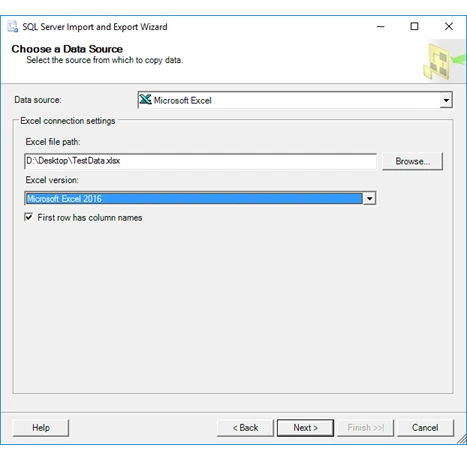
The SQL Server Import and Export Wizard can copy supported flat files or Excel data into SQL Server through configured data providers. It shows the source, target and mapping in one workflow. It is useful for an occasional import when a DBA can inspect the file before committing to the destination.
Provider installation, bitness and worksheet inference can affect Excel imports. The wizard’s inferred column type can be wrong when a worksheet mixes numbers and text. A staging table makes it easier to review conversion and rejected rows before using the data in application tables.
Use the Excel provider documented for the workbook and installed process. Check driver availability and compatible runtime bitness, and verify the workbook stores the customer identifier as text.
Map the source to the existing staging columns rather than generating types from a few rows. Preview the quoted note and confirm the deliberate bad date reaches the validation report.
- Compatibility
- Microsoft import wizard with the applicable SQL Server and Excel or flat-file providers.
- License and trial
- Microsoft tooling. Provider and product requirements vary by installation.
SQL Server BULK INSERT
BULK INSERT can load supported delimited files directly into SQL Server, with CSV mode available on eligible releases. It is useful for recurring or large text imports where the team can define the table, encoding, delimiters and error handling in a reviewed SQL script.
The SQL Server process must be able to read the file or supported external storage. The schema still determines accepted values and what happens to invalid rows. Excel workbooks need a separate provider or a conversion to a supported file format before this workflow is useful.
For supported SQL Server versions, check the documented CSV options, including the field quote and row format. Verify that SQL Server's own file or storage identity can reach a dedicated file.
Load the three records into a text stage before conversion. Record affected row count and error behavior, and compare the quoted note and identifier against the original input.

- Compatibility
- Supported SQL Server release, readable source and suitable staging table.
- License and trial
- Built into SQL Server.
dbatools Import-DbaCsv
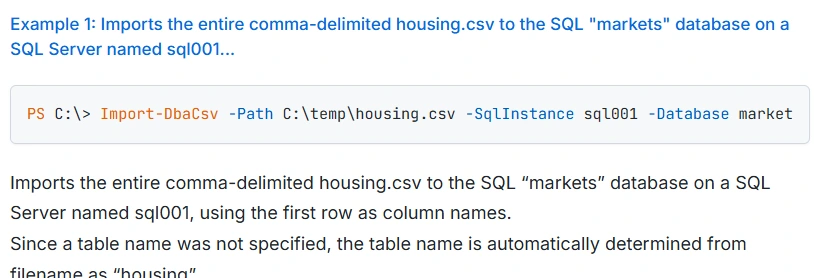
Import-DbaCsv loads CSV data through PowerShell and can create or use a target table in supported configurations. This is useful for teams that prefer a scriptable client-side import and want to rerun predictable types and mappings from an operations workflow.
The connection and the file parser determine how data arrives. Column name and type options matter when a target table already exists, and encoding and delimiter choices remain explicit. A load script should retain enough evidence to distinguish rows rejected by SQL Server from rows filtered beforehand.
Use Import-DbaCsv with the intended delimiter and documented existing destination behavior. Keep the PowerShell and module versions with the trial, including connection and encoding options.
Load into the fixed staging table and verify every field. Run the same manifest again in a clean stage and confirm that source data and file errors are attributable.
- Compatibility
- PowerShell dbatools and a supported SQL Server connection.
- License and trial
- Free, open-source module.
DBeaver
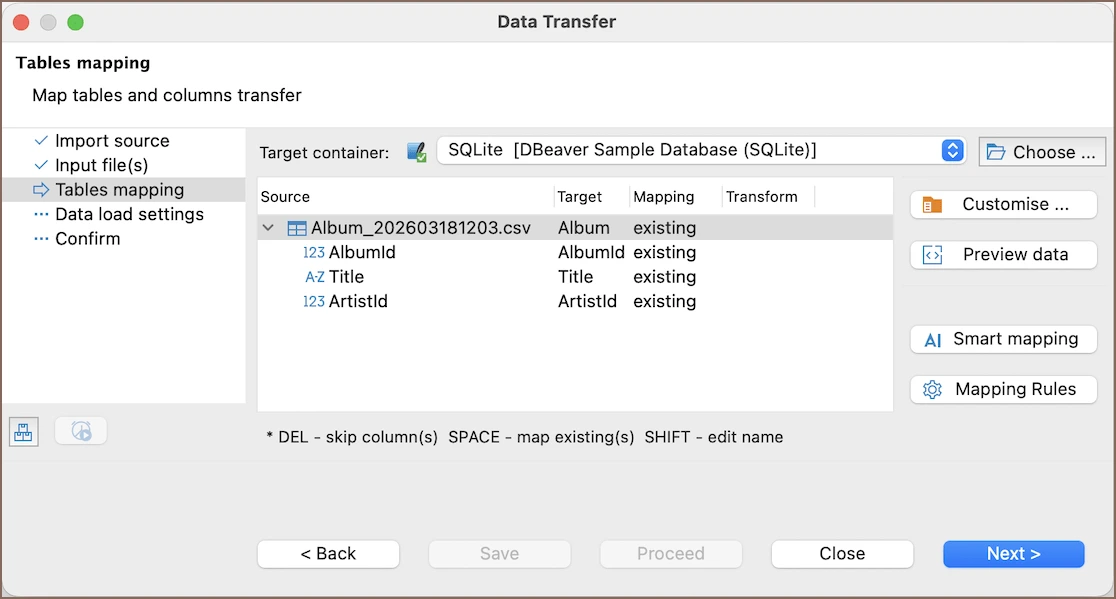
DBeaver can import structured file data into SQL Server through its data transfer workflow. It is useful for users who already inspect tables across databases in DBeaver and want a preview and explicit column mappings before creating or populating the target.
The specific file formats and mapping features depend on edition and version. A saved import configuration can help make the run repeatable, but type conversion and row rejection still need validation. The destination account needs the correct rights for the actions selected.
Verify CSV or XLSX support for the selected DBeaver edition and installed SQL Server driver. Map the fixture to the existing raw fields before allowing type suggestions to shape output.
Capture the transfer's row counts and actual table values. Identify whether blank strings, leading zeros and rejected values are visible to a second user reviewing the import.
- Compatibility
- Supported DBeaver edition and SQL Server JDBC connection.
- License and trial
- Community and commercial editions. Format support varies.
dbForge Studio for SQL Server
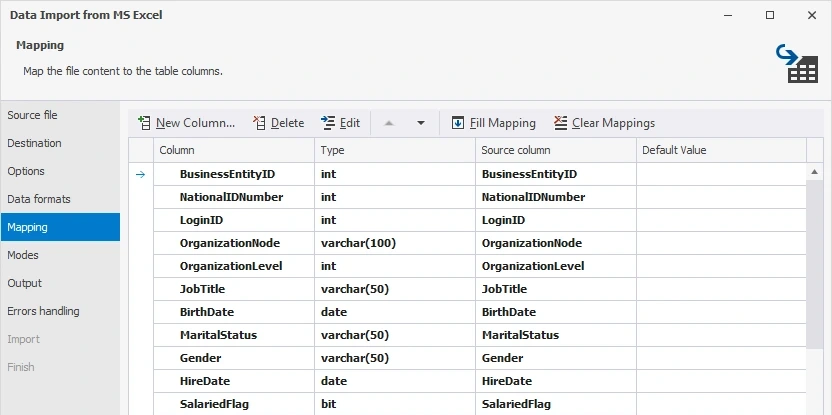
dbForge Studio for SQL Server provides an import wizard for supported formats including CSV and Excel. It is useful when a SQL Server team wants file preview, mapping and target options in a dedicated SQL Server client alongside its normal administration tools.
The wizard’s parsing and import mode determine how incoming values affect the target. A shared format with documented types still helps avoid guessing from a sample. A repeatable import should account for existing rows and which failures are reported versus skipped.
Review the supported import file types in the Devart edition. Save the mapping to the explicitly typed stage so a second import uses the same field lengths and encodings.
Inspect the data and error summary after the import. Check the original note and date string before applying an approved typed conversion in the test database.
- Compatibility
- Supported dbForge Studio edition and SQL Server connection.
- License and trial
- Commercial Devart editions and applicable import features.
Navicat for SQL Server
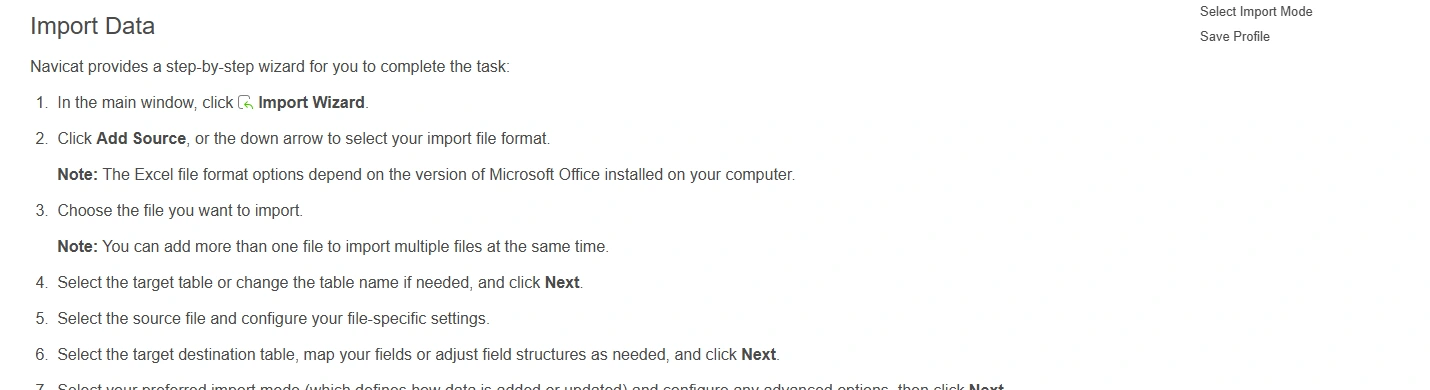
Navicat for SQL Server’s Import Wizard provides file and column mapping for supported formats. It is useful when an analyst needs to import a worksheet or delimited extract into an existing table and wants a visual review of the mapping and result.
Supported file types and scheduling vary by Navicat edition, platform and version. Date, null and numeric settings influence how imported rows are interpreted. When a file format changes, the import needs a review even if a saved configuration still runs.
Check the format options in the installed edition. Navicat's documentation distinguishes text-only import limits in Lite. Confirm the proposed workbook or CSV flow directly.
Select source and destination columns and retain the import profile where supported. Verify that the original date and customer code survive until validation.
- Compatibility
- Supported Navicat client and SQL Server connection.
- License and trial
- Commercial Navicat software.
JetBrains DataGrip
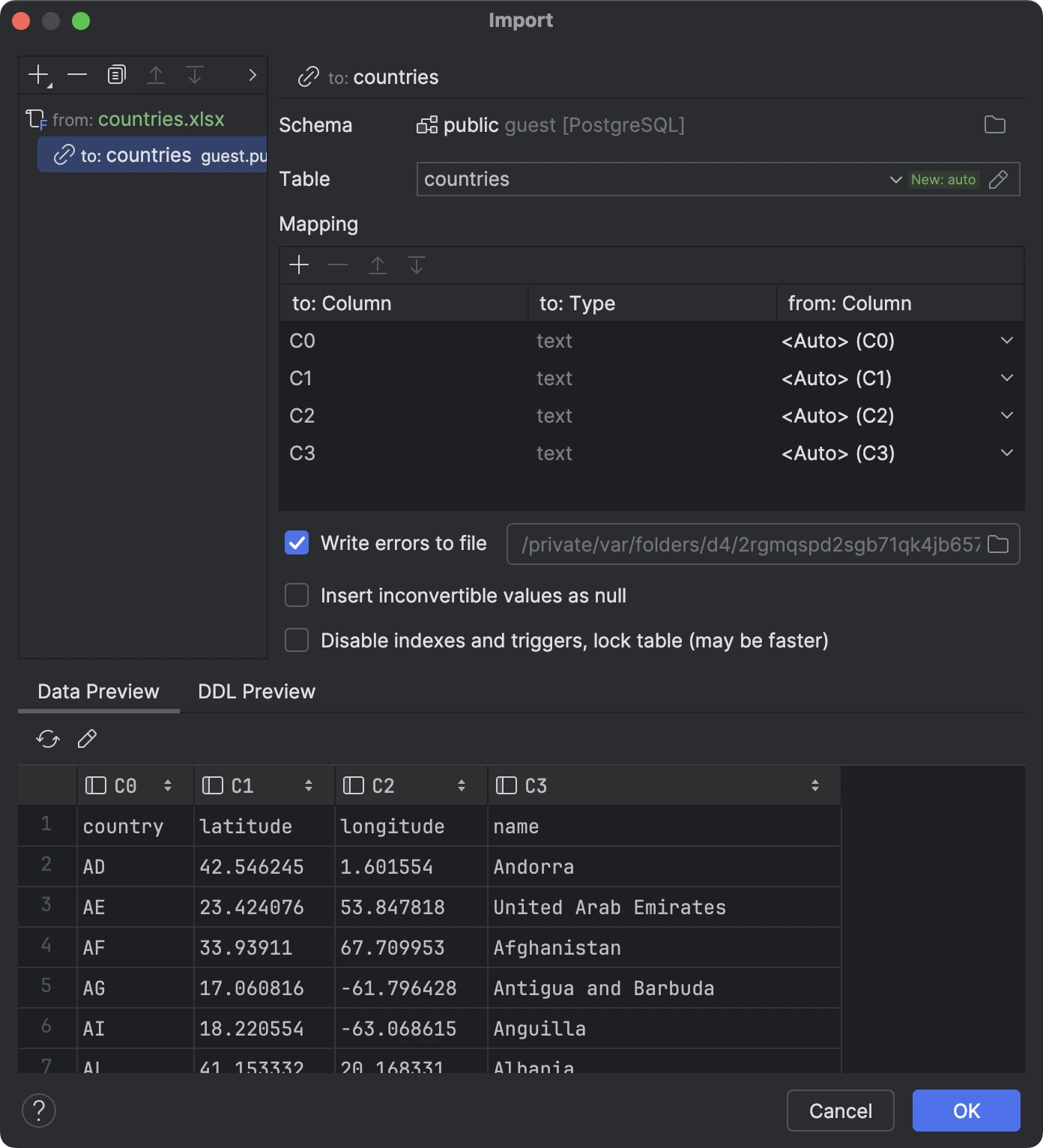
DataGrip provides import tools for delimited files and documented Excel workflows on supported versions. It is useful when a developer wants to load a file into SQL Server from the same IDE used to inspect queries and destination objects.
Its useful scope is an interactive or developer-led import. Preview and mapping help line up fields with the target, but a recurring feed needs scheduling and logs through another process. The target JDBC connection and account determine allowed writes.
Use DataGrip's documented delimited-file import with the selected quote and delimiter settings. Confirm preview values and target mapping rather than inferring the data type from its visual form.
Check the imported note that contains a comma and preserve numeric-looking identifiers. Record missing or malformed records separately and verify the stage through SQL.
- Compatibility
- DataGrip with a supported SQL Server connection and applicable import features.
- License and trial
- Free for eligible non-commercial use. Commercial use needs an applicable license.
TablePlus
TablePlus offers a file import workflow for supported databases, including importing CSV into existing tables on eligible builds. It is useful for smaller SQL Server tasks when a developer already uses the client to inspect and edit data.
The strongest fit is an occasional import where the operator can review the target and the recognized file columns. Format support can vary by platform. A recurring feed, workbook parsing or unusual transformations need their own workflow if they fall outside the available import options.
Verify the supported CSV import path in the deployed TablePlus and SQL Server configuration. Use a test connection and check expected mappings before inserting Git-managed fixtures.
Compare row count and original values in the stage. Where the GUI offers limited reject details, use the separate SQL validation and keep the import log.

- Compatibility
- Supported TablePlus build and Microsoft SQL Server connection.
- License and trial
- Free and commercial options with applicable limits.
EMS Data Import for SQL Server
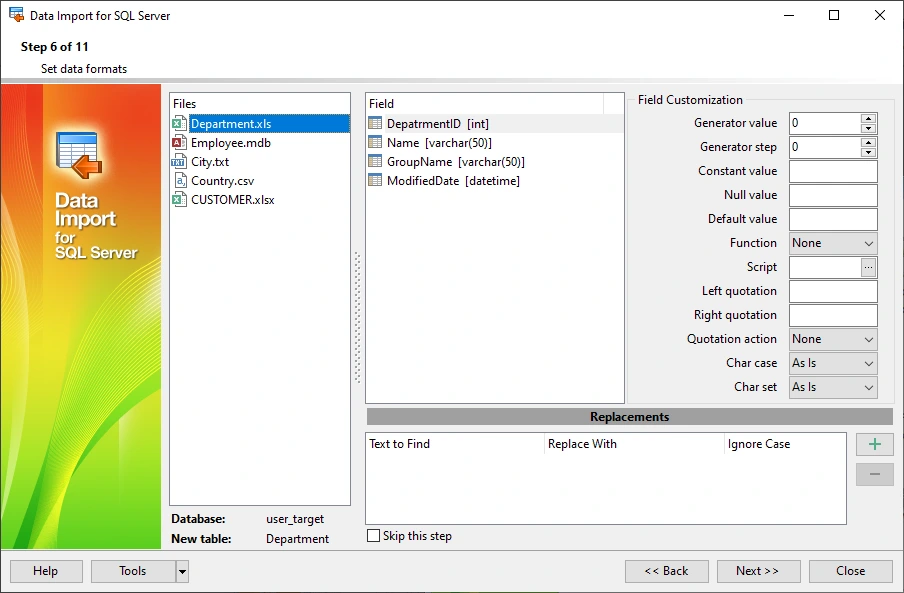
EMS Data Import for SQL Server offers a wizard for bringing supported file formats such as Excel or CSV into SQL Server. This is useful when the team wants dedicated Windows import tooling with saved mappings and control of how a file populates a database table.
The advantage is treating file mapping as a reusable configuration. The selected import mode, date format and blank handling define what happens to input rows. The database still needs suitable constraints or staging validation to protect production data.
Check the EMS supported source formats and SQL Server target requirements in the chosen edition. Record credentials, profile and retry settings for a repeatable lab job.
Run the fixture twice into clean test stages and compare results. Check which values the tool reports as errors and which arrive verbatim for downstream validation.
- Compatibility
- Supported EMS Data Import for SQL Server installation and supported input file and connection.
- License and trial
- Commercial EMS terms.
CData Sync
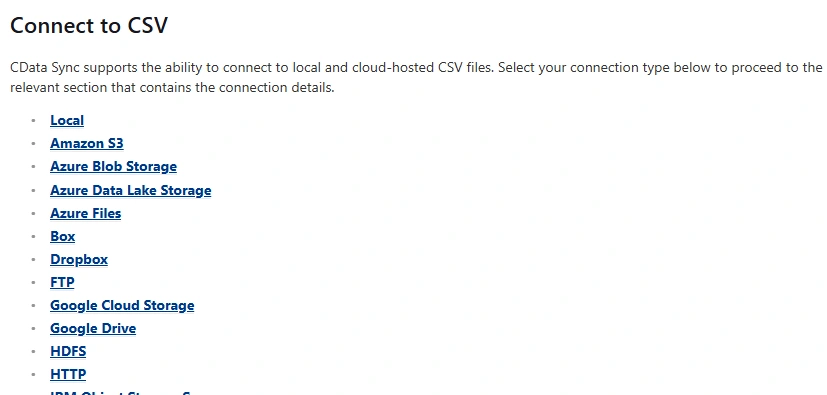
CData Sync can ingest supported CSV or Excel sources through configured connectors and move them into a supported SQL Server destination. It is useful when the team needs a scheduled file ingestion pipeline and wants connection and sync settings maintained in one product.
The strength is recurring movement. File arrival, workbook changes, key mapping and connector state affect what happens when a file is replaced or rerun. The job’s supported write mode determines whether rows are appended or can be matched to earlier data.
Set up the documented CSV source and supported SQL Server destination with an explicit recurring file policy. Verify how inferred schemas can be replaced or checked for the business identifier.
Run a controlled file load and inspect what happens on a repeat or changed file. Verify actual staging rows and make missing values and malformed dates visible as separate outcomes.
- Compatibility
- CData Sync with supported file source and SQL Server destination connectors.
- License and trial
- Commercial CData service or deployment terms.
Which SQL Server import tool fits your file?
| What you need | Tools to shortlist | What to verify |
|---|---|---|
| An Excel or CSV file with column mapping | Confirm the installed edition, driver and workbook support. Map into an existing staging table and check raw values. | |
| A CSV file you need to load or script | Confirm which machine reads the file and check quoting, encoding and header handling. | |
| File imports that run on a schedule | Record the input identity, destination, accepted rows, rejected rows and what happens when the same file runs twice. |
Choose explicit types for CSV and Excel imports
CSV quoting, encoding and delimiters matter before SQL converts values. Excel cells can store identifiers as numbers even when formatting shows leading zeros. Use a workbook with text cells or a verified CSV if leading zeros are part of the value.
Load raw fields into a stage and validate before promoting to typed tables. Choose an input date format, numeric range and blank policy. Record how many source rows arrived and how many satisfy the rules.
The workbook stores mixed or formatted values
Check the Excel provider and source cell types
Verify the actual string, date and blank behavior before loading.
The file is CSV with real quoting
Trial a documented CSV parser or SQL loader
Check the quoted comma, header and explicit input layout.
The file will be imported regularly
Save a mapping and verify rejects
Compare raw row counts and typed output on repeated runs.
Verify the three sample rows in SQL Server staging
Save the CSV sample as a disposable file. If testing Excel, use the same three records and store CustomerCode and PostedOn as text. Create the known ImportTrialStage table using Setup, then map the file headers into the four fields. Preserve raw values until you run Check.
The script's policy accepts a canonical ISO date and a convertible decimal. The first and third rows should be valid and the second should fail its date rule. The first note contains a comma within quotes. Compare original blank handling on the third note against your import policy.
| Case | Raw value | Expected result |
|---|---|---|
| Customer code | 00123 | Leading zeros preserved as text |
| Quoted note | Oxford, UK | One field with the comma intact |
| Out-of-policy date | 05/20/2026 | Staged and flagged by the canonical date check |
| Blank note | Empty field on 00789 | Matches the declared blank or null behavior |
CustomerCode,PostedOn,Amount,Note
00123,2026-05-19,125.40,"Oxford, UK"
00456,05/20/2026,30.50,"Review date format"
00789,2026-05-20,0.00,""How to compare these tools
Load a file with headers, blank values, a date and a malformed row. Verify the target types and rejected rows, then run the import again to check duplicate behavior. Sources checked .
Import three rows and check what SQL Server actually stored
Create an empty disposable FileImportTrial database and run Setup before running the importer. Map CustomerCode, PostedOn, Amount and Note to the four stage columns in the same order. Run Check after importing only the synthetic records.
Create a raw import stage and validate the file fields
T-SQL · 32 lines
- Create the raw stage and load the file using the same row and column mapping in each shortlisted tool. Confirm three records arrived before evaluating types.
- Check the exact quoted note, preserved customer codes, blank handling and date rejection. Verify the native result independently of the import preview.
- Compare repeated imports into clean test stages and preserve actual logs. Choose how the production workflow will report invalid rows before any typed load.
Conclusion
For a manual workbook, choose a tool that exposes the worksheet and mapping controls you need. For repeatable CSV loads, choose the script or job that can read the source from the intended host and report failed rows. Keep the verified staging mapping and validation query with the job.
Frequently asked questions
How do I import Excel into SQL Server without losing leading zeros?
Store the identifier cells as text in Excel and map them to a character column in a staging table. A displayed custom number format can show leading zeros even when the workbook stores a number. Query the staged values before moving them.
Can BULK INSERT load an Excel workbook into SQL Server?
Use BULK INSERT for supported text and bulk file formats such as CSV. For an XLSX workbook, use an importer or provider that reads Excel. Export to CSV when that fits the workflow and verify the text values after export.
How do I handle commas and quotes in a SQL Server CSV import?
Use a CSV parser configured for the file's delimiter, text qualifier and encoding. A quoted field can contain a delimiter. A doubled quote represents a literal quote inside a quoted CSV field. Verify both cases in staging.
Where does SQL Server read a BULK INSERT file from?
SQL Server reads the source through the database engine. The engine and the applicable file-access identity need access to the file or supported external data source. A desktop importer generally reads the file from its own runtime.
What is the safest way to find invalid dates before loading the final table?
Import the raw date as text into a staging table. Use TRY_CONVERT with the expected date style, keep the original value, and record rows that fail the conversion. Load the validated rows into the final table.
Can SQL Server recover leading zeros after Excel already stored an identifier as a number?
Use the original file representation or a trusted declared width to reconstruct the value. For testing, store identifiers as text and verify the imported bytes or characters before conversion.
Can a file import be successful even if a date is unusable?
Raw staging can load a string successfully. Run the configured date and numeric validation before promoting it to the typed SQL table.